How a Power BI report is built affects how its visuals export to PowerPoint and Word. This article covers the report settings to check before using the Power BI link, the current limitations of the link, and how to fix common export and update issues. Some of these changes require edit access to the report, so if you didn't build the report, ask its owner to apply them.
Create a compatible report in Power BI
Publish the report in a workspace
The UpSlide import window shows reports from your workspaces and reports shared with you. Power BI Apps aren’t available in the import window, so ensure the report is published or in an accessible workspace before exporting visuals.
Remove invalid filters
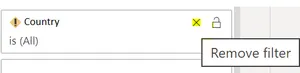
An invalid filter is a filter that Power BI can no longer use or access. Power BI highlights them with a warning. A common example is a Country filter whose source column has been removed from the dataset.
Invalid filters can prevent visuals from exporting once the report is available in UpSlide. To remove invalid filters:
- Open the report in edit mode in Power BI online, then open the Filters pane.
- Check the filters at every level: visual, page, report, and hidden filters.
- Find the filters marked with a yellow warning icon.
- Click the X next to each invalid filter to remove it.
Check visual and page backgrounds
Exported visuals include only their own background. The page background isn’t exported, so a visual without its own background appears transparent in PowerPoint or Word.
To check whether a page has a background:
- Open the report in editing mode in Power BI online.
- Click an empty area of the page to deselect all visuals.
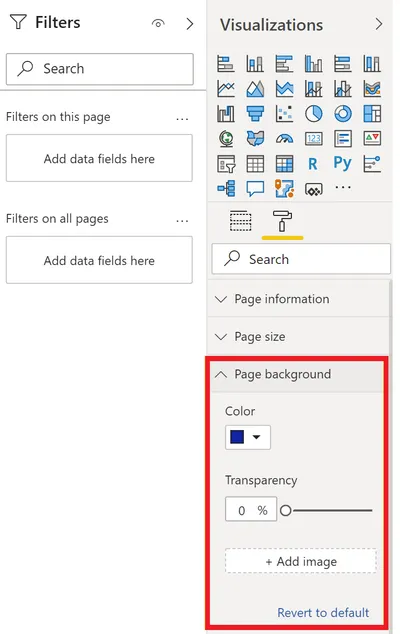
- Open the page format options in the Visualizations pane.
- Check whether a background color or image is applied to the page.
To keep a background in PowerPoint or Word, remove it from the page and apply it to each visual instead.
Current limitations
Only basic slicers can be updated from the UpSlide pane:
- Single selection
- Multiple selection
- Date and time interval.
The Power BI link doesn’t support all types of Power BI content or display settings. Check the following limitations before building a report for export:
- Dashboards, apps, and paginated reports aren’t supported.
- Scrollable visuals are exported as displayed, so content outside the visible area is cut off.
- Display scaling above 200% can cause export issues.
Use the link in PowerPoint and Word
Apply filters and data
The Power BI link saves the filters applied at the time of import. Changing filters in the online report afterward doesn’t affect the visuals in PowerPoint or Word.
Relative date filters are recalculated at each update. For example, with a Last 30 days filter:
- An update on March 30 shows data from March 1 to March 30.
- An update on April 30 shows data from April 1 to April 30.
A visual can be exported as soon as it has loaded in the import window, without waiting for the rest of the report to load.
Manage report versions
Links continue to work after a new version of the report is published, as long as the report retains the same ID. The ID stays the same when the new version replaces the existing report in the same workspace.
Links stop working in the following cases:
- The report is published as a new one rather than replacing the existing one. This changes the ID so UpSlide can no longer link the new report to the old visuals.
- A linked visual is deleted from the report, even if it’s recreated afterward.
Troubleshoot
Fix a visual missing from the Update Links pane
If an imported visual doesn’t appear in the Update Links pane:
- Click Refresh list at the bottom of the pane.
- Check that the visual was inserted with the UpSlide Power BI link. Screenshots or images of Power BI visuals pasted into the document aren’t detected.
Fix a failed update
When a visual fails to update, the most common cause is that UpSlide can’t access the report or the visual. Check the following points:
- The computer is connected to the internet. Visuals update from the online version of the report on app.powerbi.com, so local files and local copies of reports can’t be used.
- The report still exists. The report name appears in the visuals’ information.
- The visual still exists in the report. A visual that was deleted and recreated can’t be updated.
- You have access to the report.