The New Library provides a faster and more flexible way to find and reuse slides, decks, shapes, and images in UpSlide. This article explains how to access the New Library, search for assets, preview and insert items, and navigate your assigned folders.
This feature is currently in Beta and is not available by default in the UpSlide add-in. To try the New Library, ask your IT to follow the web add-in deployment guidelines.
What is the New Library
The New Library provides a new way to access your library assets: slides, decks, shapes, and images.
- Better performance: benefit from faster synchronization and search times.
- Smarter search: search is resilient to typos, recognizes word variations and partial matches, and ranks results by relevance
- More control: use advanced filters to search in titles only or in recently updated content. You can also distinguish between shapes and images, order your results, and use operators to include or exclude specific keywords.
- Simpler interface: focus on your content with frequently used and recently updated items surfaced automatically. You can also mark folders as favorites.
- Multiplatform: use the New Library in PowerPoint for Windows, PowerPoint for the web, and PowerPoint for Mac.
Access the New Library
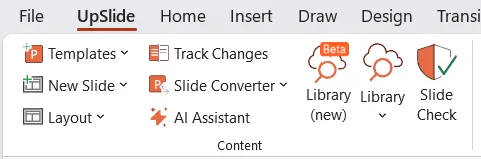
Your IT team must deploy the web add-in before you can access the New Library. Once deployed, the New Library appears in the UpSlide ribbon.
Search an item
Click the Search field and enter your search terms. The matching results appear below, with the most relevant result displayed first.
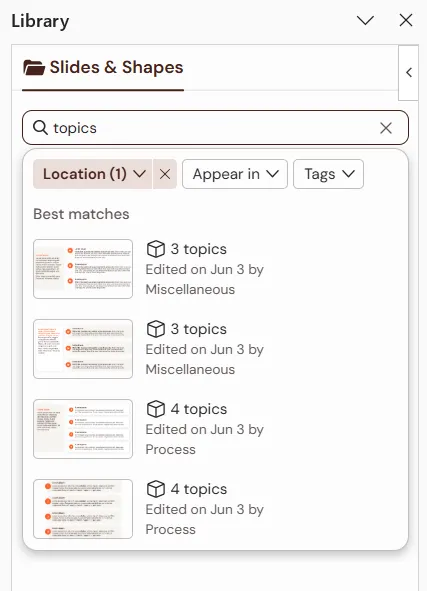
The search is permissive and retrieves more than exact keyword matches. It also recognizes:
- Variations: “brand compliant” returns slide “brand compliance”.
- Typos, misspellings, or declinations: “organisation” returns slide “Library organization”.
- Partial matches: “performance of AI” returns “ slide “AI performance”, even without if the result is missing “of”.
Results are ranked by relevance, so the permissive search still helps you find the content you need.
Filter the results
Use the filters below the search field to refine your results.
- Location: select the Library or subfolder in which you want to search.
- Appear in: restrict the search to the item’s name, slide title, content, storage path, or tags.
- Tags: filter the results based on the tags applied to an item.
Navigate the New Library
The Home screen displays each Library you can access based on your team settings. Double-click a Library or folder to navigate through its contents. Click an item to preview it, then insert it into the current slide.