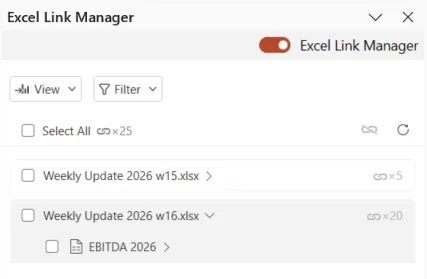
When working with Excel-linked elements in PowerPoint or Word, you may need to identify which Excel file and tab a specific export came from. UpSlide provides several ways to access this information directly from your document.
Viewing the source for a single link
Use this method in PowerPoint or Word to quickly check the source of one specific link:
- Open your PowerPoint or Word file.
- Right-click the linked element (chart, table or text).
- Select Link information
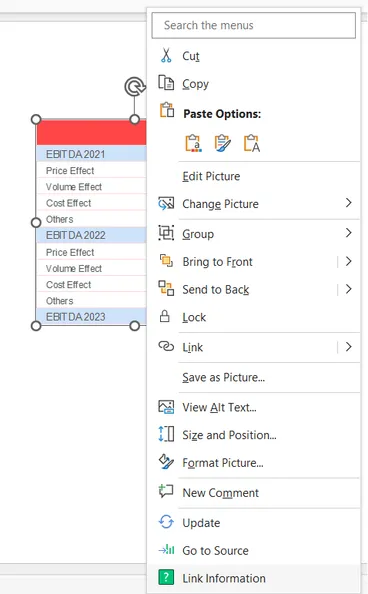
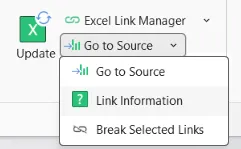
You can also find this option in the UpSlide ribbon by clicking Go to Source > Link information.
Viewing the sources for multiple links using the Excel Link Manager
Use this method when you need an overview of multiple linked elements in your PowerPoint presentation.
- Open your PowerPoint file.
- In the UpSlide ribbon, click Excel Link Manager. A panel opens on the right side.
- Open the View dropdown to select Sources.
The panel lists every Excel source linked to your presentation, along with the specific sheet each element was exported from. Expand the source file view to display its details.