If you notice greyed-out icons in your UpSlide ribbon, especially the Table of Contents buttons, this article covers the different root causes and how to resolve the issue for each.

Root cause
There are several reasons why UpSlide icons may appear greyed out:
- Non-UpSlide presentation: Presentations created without UpSlide lack the automation elements required for certain functionalities to work. In this instance, the icons in the References section might be greyed out, but the others will still be usable.
- Files opened from Outlook: Presentations opened directly from Outlook without being saved are stored on your computer as temporary files in protected mode, which blocks most UpSlide functionalities, as you might expect if it had been opened in read-only mode.
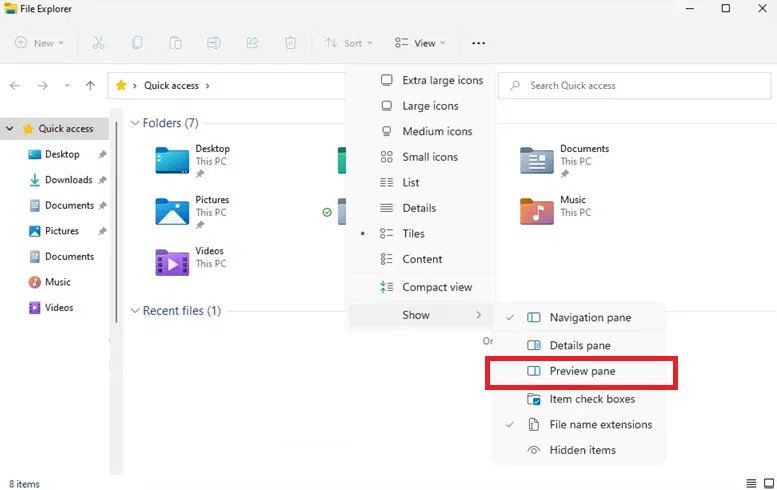
- File Explorer Preview Pane: The Preview Pane in File Explorer can interfere with UpSlide’s features, making buttons unclickable.
Solutions
If you opened a non-UpSlide presentation
Not having some functionalities work in a non-UpSlide presentation is expected behaviour and doesn’t point to a larger problem.
If you’d like to benefit from the Table of Contents functionalities, you can either open a new UpSlide presentation from the Templates dropdown menu or use the Slide Converter to convert your existing presentation to an UpSlide template.
If you opened a file from Outlook
You can resolve the issue by using Save As… and saving your presentation to your personal folders or local drive. Once you open the presentation from the saved location, you should have access to all UpSlide functionalities.
If the Preview Pane is open in File Explorer
Closing the Preview Pane should resolve the issue. Depending on your Windows version, you can either uncheck it from the View dropdown menu or click the Preview button in the top-right corner of the File Explorer.