When working in Power BI, the regional settings of your report control how numbers are formatted. If the punctuation in your exported visuals does not match your target audience, it means the language variant needs to be adjusted. This article explains how to change it and ensure your visuals display the correct format after export.
Root cause
Power BI applies a language variant to each report, which determines how numbers, dates, and punctuation are displayed. This setting is independent of your local Windows language settings, which is why the formatting in your Power BI visuals may differ from the rest of your applications.
Solution
To change the language variant of your Power BI exports:
- Open the Insert a Power BI visual window in the UpSlide ribbon.
- Locate the language selector at the bottom of the window.
- Select the language variant that matches your target audience.
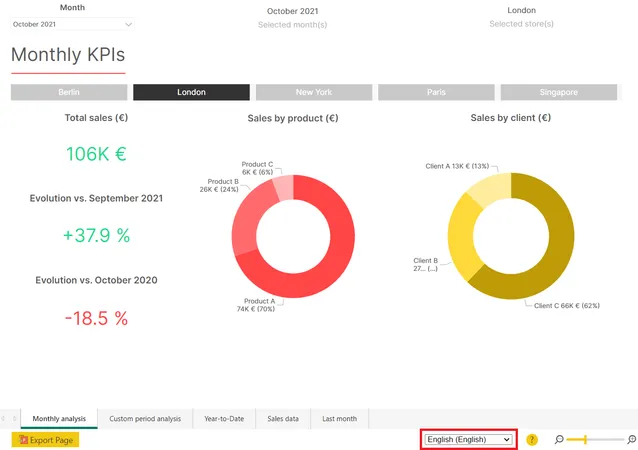
The report will reload and show the change right away. Any new Power BI link will display the correct punctuation.
Changing the language variant in the window will not affect existing links. The visual must be re-exported after the language change is applied in Power BI to ensure the correct format is displayed.