The Power BI link embeds Power BI visuals and report pages in PowerPoint and Word. Linking the visuals preserves the storytelling flexibility of PowerPoint and Word, while keeping the data connected to the source report.
Prerequisites
The Power BI link is only available to users with UpSlide’s Power BI link option. If the option is available, you should see the import and update button in your ribbon.

The visuals are exported as screenshot from the UpSlide Power BI panel which uses Microsoft Edge. Reports edited in other browsers may look different in Microsoft Edge, resulting in differences once exported to PowerPoint or Word. Edit and preview reports in Microsoft Edge before exporting them.
Create a Power BI link
The Power BI link imports either individual visuals or entire report pages from a published Power BI report. Both options stay connected to the source report and can be updated from PowerPoint or Word.
Import a visual
To import a visual:
- In PowerPoint, select the slide and placeholder where you want to import the visual. In Word, place the cursor where the visual should go.
- Click Insert Visual in the UpSlide ribbon.
- Apply filters to the visuals.
- Right-click a visual and select Export to PowerPoint/Word.
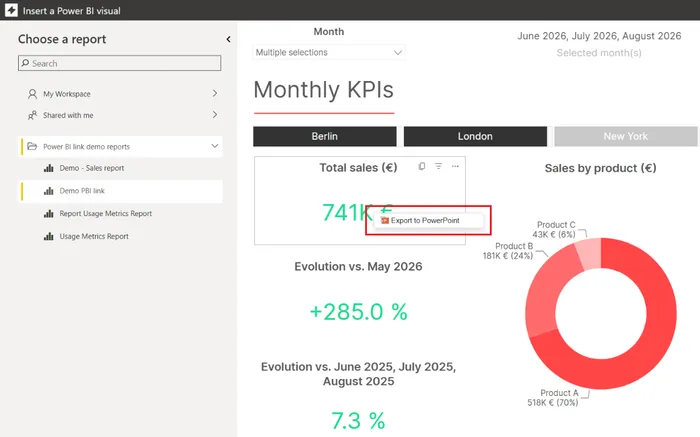
You can export multiple visuals simultaneously by following the previous step. Follow the export by looking at the progress bar at the bottom of the Insert window.
Link a whole page
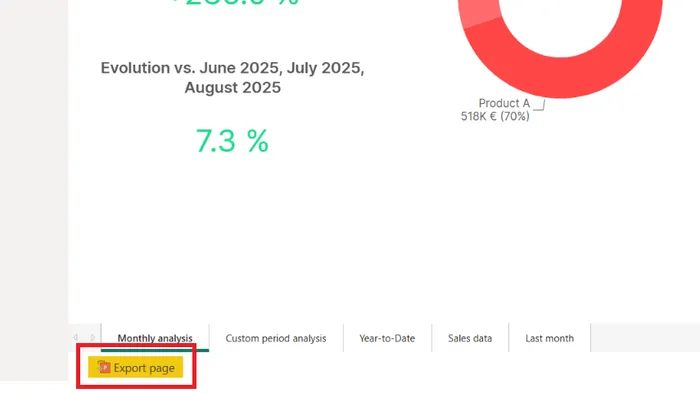
You can export a whole page instead of individual visuals by clicking Export page at the bottom of the Insert window.
Update the links
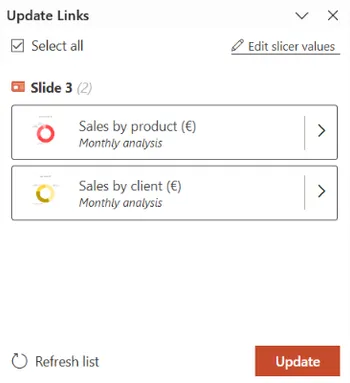
The Update Links pane lists all Power BI visuals and pages linked in the current document. It shows where each link comes from and lets you update the data from the source report.
Update visuals and pages
Updating a link replaces the visual or page with the latest data from the Power BI report. To update your links:
- Click Update Links in the UpSlide ribbon.
- Select the visuals to update.
- Click Update at the bottom of the pane.
View link information
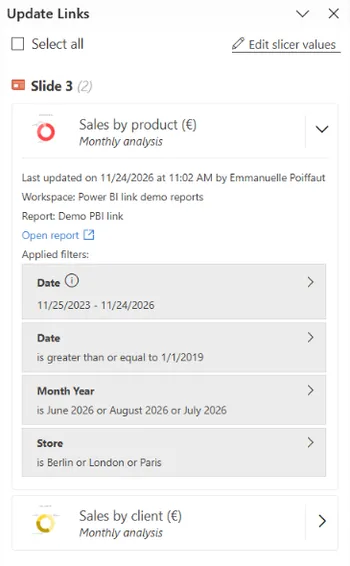
Click any link in the Update Links pane to display its source and filters before updating. Click Open report to see the source report from the Insert Visual window.
Edit slicer values
You can edit the slicer values applied to an exported visual without reexporting them. For a more in-depth look at the process, go to How to edit Power BI slicer values from PowerPoint and Word.