When working across multiple languages in PowerPoint, Spell Check can sometimes switch to the wrong language unexpectedly, depending on your Windows and Office language settings. This article explains the most common causes of this issue and how to resolve them.
Spell Check picking up the wrong language
Root cause
PowerPoint determines the spell check language for a text box in two ways: either from the language explicitly set on that text box, or, if none is set, from the Windows keyboard or input language. When the keyboard language differs from the intended spell check language, PowerPoint applies the keyboard language to any text box that has no explicit language assigned.
This affects two common scenarios:
- Typing in a text box whose language has not been explicitly set.
- Inserting a new slide from a master where text box languages are not explicitly defined.
Solution
There are two solutions to Spell Check picking up the wrong language. You can change your Windows keyboard language to match the language you want to type and spell check in. To do so, go to Windows Settings > Time & Language > Language & region. There, you can add a language to select as the preferred language.
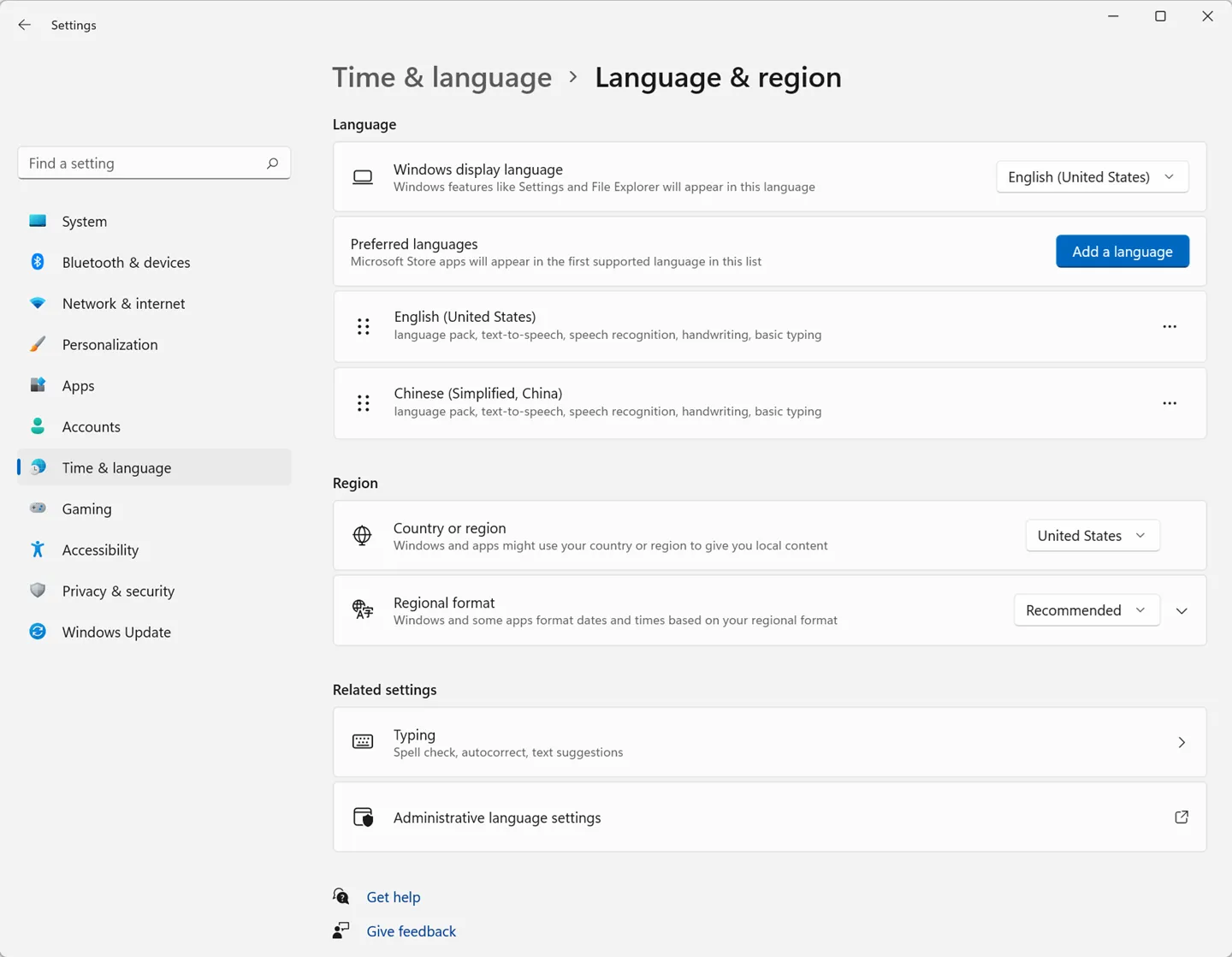
Another way to force the checking language is to explicitly set the Spell Check language on each text box, either manually or by using the Language tool. This forces Office to use the text box language for spell check, regardless of your keyboard input language.
Words splitting in the middle instead of wrapping
Root cause

If words in your file split in the middle of a line instead of wrapping correctly, this is caused by a separate PowerPoint setting that can be applied when a file is shared with a user who has a Logographic/Syllabic language installed (e.g., Japanese).

Solution
To fix the affected text box, go to PowerPoint’s Home tab and select the Paragraph options. In the Asian typography tab, uncheck All Latin words to wrap in the middle of a word.
Recommendations
Always set the Spell Check language explicitly on text boxes in your slide masters and layouts. This prevents new slides from inheriting your keyboard language.
When working with both Logographic/Syllabic languages (e.g., Korean, Japanese) and Latin-alphabet languages (e.g., English, Italian) in the same file, note that Office may run both spell checks simultaneously on the same text box.
After changing the proofing language, click inside the affected shape to trigger a re-check. PowerPoint might not automatically recheck the language.