Excel limits the number of custom number formats a file can contain. When that limit is reached, UpSlide can no longer apply new formats since Excel doesn't automatically remove unused ones. This article explains how to clean up your file and restore the ability to apply Number Formats.
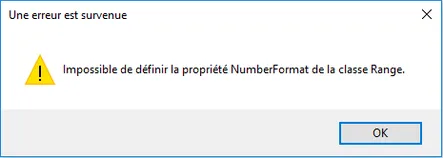
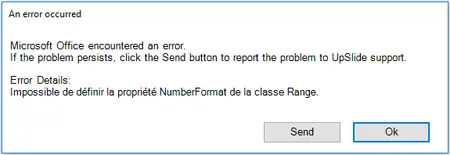
Root cause
Excel has a maximum limit on the number of custom number formats a single file can contain. Each time you apply a number format via UpSlide or through Excel’s native number format menu, a new format is added to the file. When sheets are duplicated into a workbook, the associated number formats are also imported. Over time, this causes the file to reach its limit, preventing any new number format from being applied.
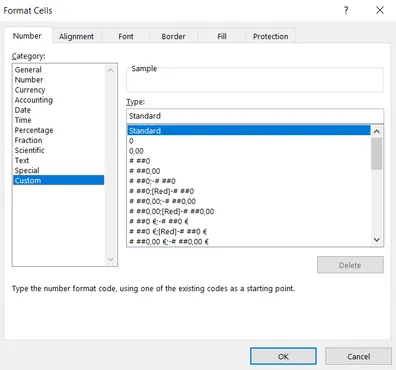
To check how many custom formats your file currently contains, open the Format Cells window in Excel.
Resolution
Use the Clean feature to remove all unused cell styles and number formats from your file. The option will not be in the same place whether you have access to the Modeling Tools or not.


To clean your file, click Clean in the UpSlide ribbon and check Remove unused styles.
Recommendation
To avoid reaching the format limit, clean your file regularly, especially when importing new sheets or external data. This is also good practice when working with Excel links, as it prevents performance issues from accumulating over time.