As an administrator, you can customize the number formats available to your team directly within Excel. This article provides specific guidance on editing Excel Smart Format themes, with a focus on Custom Number Formats, a native Excel feature that controls how numbers, text, and currency symbols are displayed in cells.
This documentation provides a baseline for using Excel’s Custom Number Formats, so you have enough information to update your UpSlide Excel theme. You can learn more by accessing the official documentation here.
Access a cell’s custom number format
To update the format of a single cell in Excel:
- Right-click the cell and select Format cell….
- Go to Number > Custom.
- Type your custom format in the field under Type.
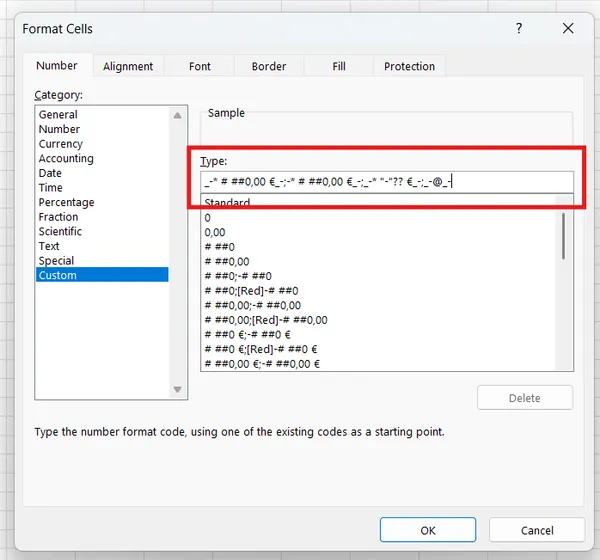
Custom number formats
Excel’s custom number formats determine a cell’s format based on its content, distinguishing positive and negative numbers, zero, and text. Therefore, a number format has four sections separated by semicolons, in this order:
- Positive value
- Negative value
- Zero
- Text.
Here’s an example of a custom Excel format code:

Define positive values
The first section of a custom number format defines how positive values are displayed. To display a thousands separator, add a comma or a space between the # digit placeholders.
| Custom format | Input | Output |
|---|---|---|
| #,##0 | 1000 | 1,000 |
| # ##0 | 1000 | 1 000 |
A 0 at the end of the format ensures that the final digit is displayed. The same principle applies to numbers with decimals.
| Custom format | Input | Output |
|---|---|---|
| #,##0 | 1250.51 | 1,251 |
| #,##0.0 | 1250.51 | 1,250.5 |
| #,##0.00 | 1250.51 | 1,250.51 |
If the number format includes a currency symbol, use \ instead of quotation marks. Using quotation marks displays the symbol according to the regional settings on the user’s machine.
| Custom format | Input | Output |
|---|---|---|
| #,##0.00 \€ | 1250.51 | 1,250.51€ |
| #,##0.00 ”€” | 1250.51 | 1,250.5£ (UK regional settings) |
| #,##0.00 ”\€” | 1250.51 | 1,250.5$ (US regional settings) |
Refer to the table below to further personalize your number formats:
| Character | Description | Example |
|---|---|---|
| 0 | Digit placeholder that displays insignificant zeros. | #.00 always displays two decimal places. If you enter 5.5 in a cell, it displays as 5.50. |
| # | Digit placeholder that represents optional digits and does not display extra zeros. | #.## displays up to two decimal places. If you enter 5.5, it displays as 5.5. If you enter 5.555, it displays as 5.56. |
| ? | Digit placeholder that leaves a space for insignificant zeros on either side of the decimal point without displaying them. It is often used to align numbers in a column by their decimal point. | #.??? displays a maximum of three decimal places and aligns numbers in a column by their decimal point. |
| @ | Text placeholder. | 0.00; -0.00; 0; [Red]@ applies a red font color to text values. |
| \ | Forces a currency symbol to remain in the number format, even if you change the regional settings on your machine. | #,##0.00 \€ displays euro as the currency, regardless of regional settings. |
Define negative values
The most common ways to display negative values are with a minus sign or parentheses. When using parentheses, add _) to the positive number format to leave enough space for the closing parenthesis and keep values aligned. Adding an underscore before a character reserves a space equivalent to the width of that character.
| Custom format | Input | Output |
|---|---|---|
| /€# ##0.0_);/€(# ##0.0) | -1250.51 | €(1 250.5) |
| /€# ##0.0_);/€(# ##0.0) | 1250.51 | €1 250.5 |
| # ##0;-# ##0 | -1250.51 | -1 250 |
Define zero
You can define how zero values should appear in a custom number format. A common approach is to display zero as a dash. If your negative number format uses parentheses, add _) to the zero section to reserve space for the closing parenthesis and keep the values aligned.
| Custom format | Input | Output |
|---|---|---|
| # ##0_);(# ##0) | 0 | 0 |
| # ##0_);(# ##0); “-”_) | 0 | - |
Define text formatting
You do not need to define a text section in a custom number format. Using @ displays text as entered. Leaving the text section blank has the same effect.
| Custom format | Input | Output |
|---|---|---|
| €# ##0,0_);€(# ##0,0);”- “ | text | text |
| €# ##0,0_);€(# ##0,0);”- “;@ | text | text |