When exporting an Excel chart to PowerPoint or Word, shapes and text boxes overlaid on the chart are not included in the export. This happens because Excel distinguishes between shapes placed in a chart and shapes placed on a chart. Only the former are exported, but there is a workaround.
Differentiating shapes in or on charts
In Excel, a shape can either belong to the chart itself or the worksheet. When a shape is placed in the chart, it is embedded within the chart object. It moves, resizes and exports along with it.
When a shape is placed on the chart, it sits on top of it, and the chart remains an independent object. Because UpSlide exports the chart as a single unit, only shapes that are part of the chart object are included. Shapes that belong to the worksheet are ignored during the export process.
Exporting shapes in charts
To place a shape in a chart:
- Select the shape you want to place in the chart.
- Cut or copy the shape.
- Select the chart and paste the shape.
If you move the chart around, the shape will move along with it. If this chart is exported using UpSlide’s Excel link, the shape will be included.
Exporting shapes on charts
If you’re working with a complex diagram with multiple shapes and prefer to keep the shapes on the chart rather than placing them inside the chart object, you can export the surrounding cells as a range instead. Note that in this situation, the element exported is a range. If the chart is moved within the selected range before an update, the resulting export may appear cropped.
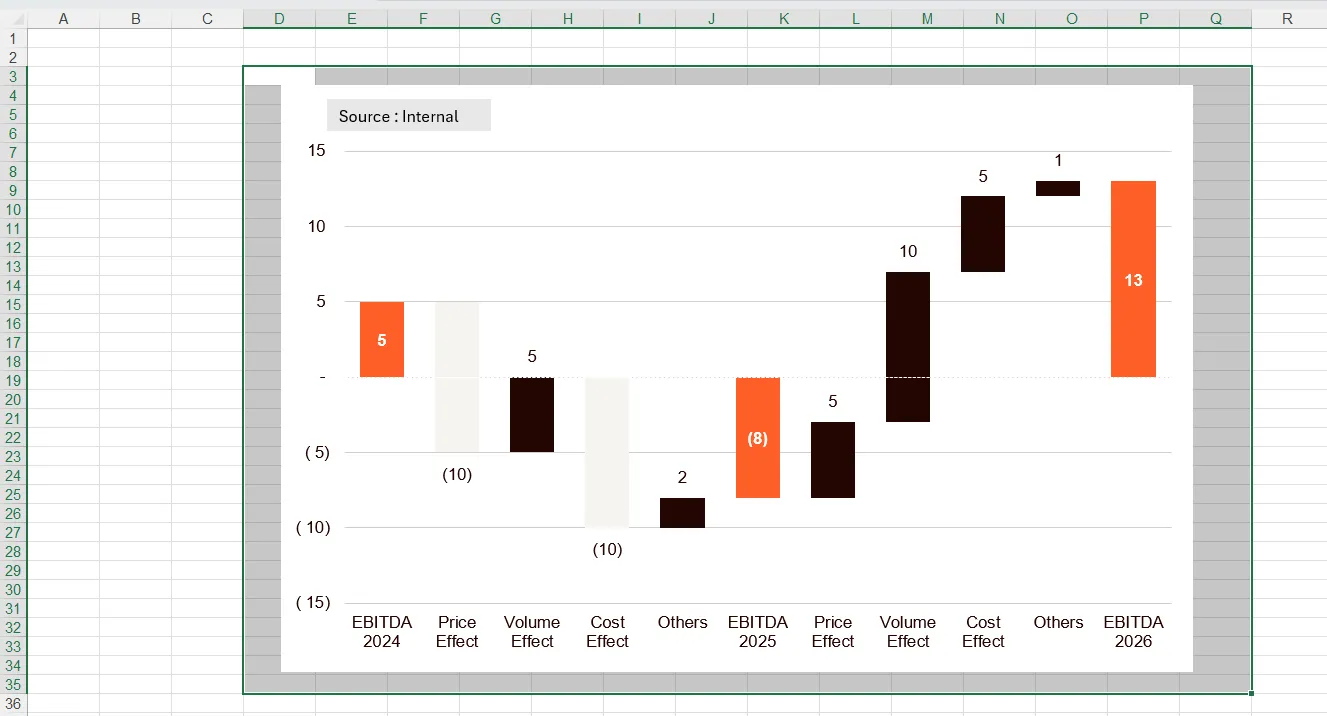
You can use this technique to export any object that would normally not be supported by the Excel link.