Instead of checking every link individually, use the Excel Link Manager to focus on the links that require your attention. You can organize links by source workbooks, slides in PowerPoint, or pages in Word. Update only the relevant items, and identify issues before they affect your deliverable.


Filter Excel links
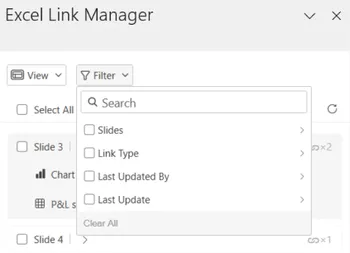
Filters help you narrow the list when a presentation contains many linked items. Use them to review a specific part of the document, focus on a particular link type, or find links that have not been updated recently.
- Select either view.
- Open the filters dropdown at the top of the Excel Link Manager.
- Select the filters you want to apply.
You can use filters to find links from specific slides,pages, links of a specific type, or links that have not been updated recently.
Update Excel links
Use the view that best matches your task. The Slides/Pages view is useful when you are responsible for a specific section of a document. The Sources view is more suitable when you need to refresh data from a specific Excel workbook or change the source for versioning.
Update links by slide or page
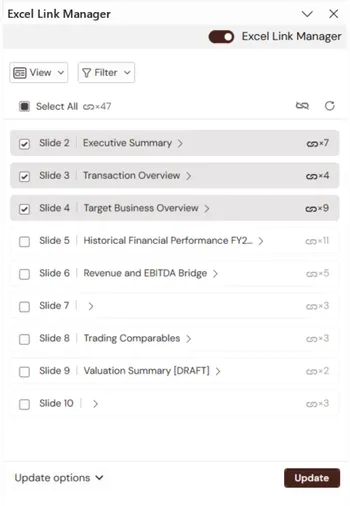
Use the Slides/Pages view to update a specific section of your document without refreshing the entire document.
- Open the Excel Link Manager from the UpSlide ribbon.
- In the Slides or Pages view, select the sections you want to update.
- Click Update at the bottom right of the pane.
Expand any of the slides or pages to view the links on the slide/page. Select an individual link to highlight the corresponding item in the document.
Update links by source
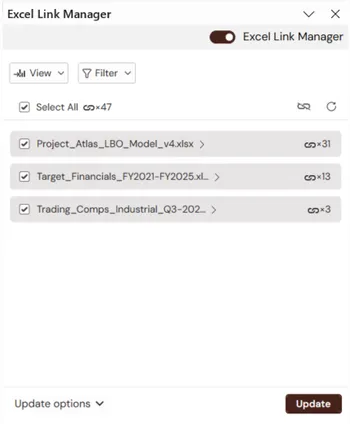
Use the Sources view when a workbook has changed or when you want to update all links connected to a specific source.
- Open the Excel Link Manager from the UpSlide ribbon and select the Sources view.
- Select the workbook or worksheet you want to update.
- Click Update at the bottom right of the pane.
The Sources view lists the workbooks linked to your document in alphabetical order. Expand a workbook to view the worksheets that contain exported data. Hover over a workbook name to view more information about its location.
Resolve Excel Link issues
Missing, outdated, or conflicting sources can prevent UpSlide from automatically updating a link. The Excel Link Manager highlights these issues so you can address them before finalizing your presentation.
You can resolve issues individually when you need to review the correct source for a specific link, or in bulk when the same issue affects multiple links.
For an exhaustive list of the different warning types and their solutions, see how to resolve warnings when updating Excel links.