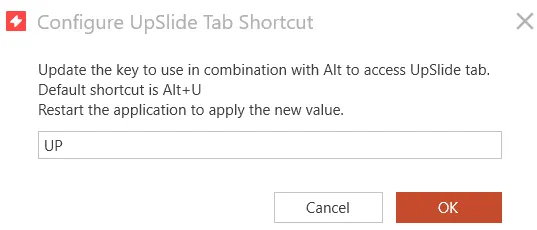
Most UpSlide features can be accessed through keyboard shortcuts, all starting with Ctrl+Shift or Ctrl+Alt. This article explains how to reassign shortcuts to fit your workflow, deactivate ones that conflict with other tools, and configure the keyboard shortcut to access the UpSlide ribbon tab.
How it works
All UpSlide shortcuts follow one of two patterns:
- Ctrl+Shift+[key] is used for most features.
- Ctrl+Alt+[key] is used for secondary or advanced features.
You can view the default shortcut for any feature by hovering over the corresponding button in the UpSlide ribbon.
UpSlide is also fully compatible with Office KeyTips, the native Office keyboard navigation system. Press Alt to display KeyTip labels on all ribbon tabs, then press the letter shown on the UpSlide tab to access it without using the mouse.
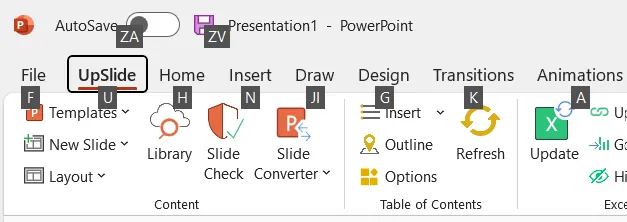
Reassign shortcuts
If an UpSlide shortcut conflicts with another add-in or a native shortcut you rely on, you can reassign it to a key combination of your choice.
- In PowerPoint, Excel or Word, go to UpSlide Settings > Shortcuts.
- Select the shortcut you want to reassign from the list.
- Press the new key combination.
- Click Assign to confirm.
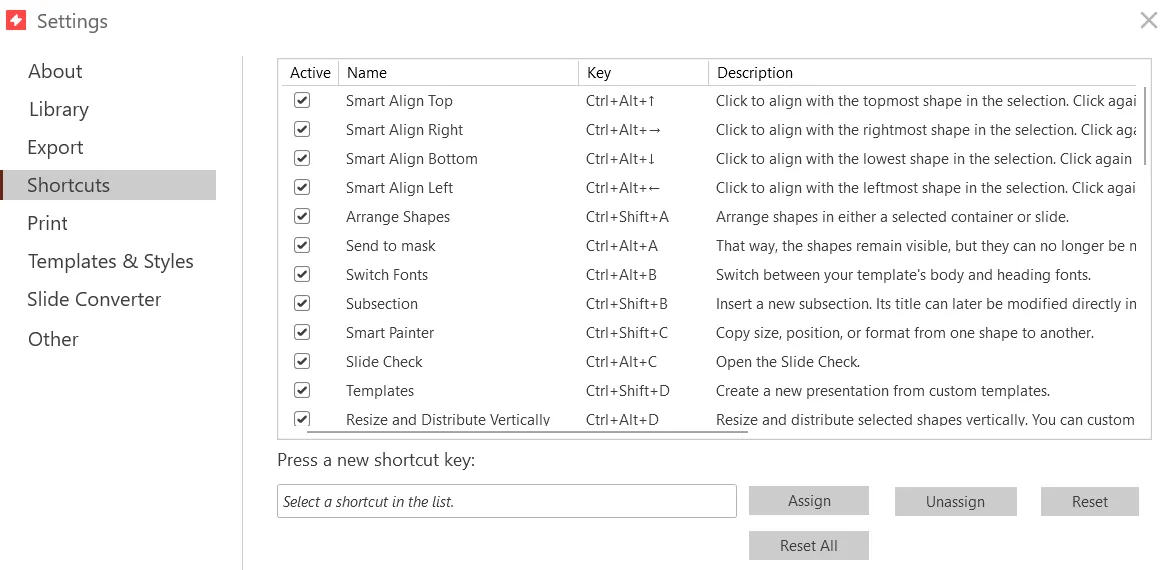
If you’d like to go back to UpSlide’s original shortcut, you can use Reset one a selected shortcut or Reset All to go back to the system default shortcut state.
Deactivate shortcuts
In all applications
You can deactivate a shortcut altogether. This is particularly useful for UpSlide shortcuts such as Ctrl+Shift+S or Ctrl+Shift+N, which override Excel’s functionalities. Deactivating them restores Excel’s default behaviour for those keys.
To do so, go to UpSlide Settings > Shortcuts and uncheck the shortcut you don’t want to use.
In Excel
UpSlide lets you disable native Excel shortcuts that you can frequently trigger by mistake. Go to the Keyboard Shortcuts drop-down menu and click on a key you want to disable. Disabled keys appear with a checkmark.
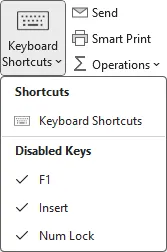
Natively, these keys perform the following actions:
- F1. Opens the Excel Help pane. When pressed with Ctrl, it hides the ribbon.
- Insert. Toggles type-over text mode.
- Num Lock. Disables the num pad on your keyboard.
Configure the UpSlide tab shortcut
By default, you can access the UpSlide ribbon tab using Office’s native KeyTips system. If you want to configure a dedicated shortcut to jump directly to the UpSlide tab:
- Go to the application you wish to change the UpSlide tab shortcut in.
- Use Ctrl+Shift+X to open UpSlide’s log panel.
- Click Tools > UpSlide Support > Configure UpSlide Tab Shortcut.
You can now enter the key combination you’d like to use with a maximum of 3 characters.