As an administrator, you can publish your PowerPoint, Excel and Word template modifications as a .UpSlide file to share with your team. This article lists the most frequent errors you may encounter during this process, along with their root causes and steps to resolve them.
Insufficient permissions
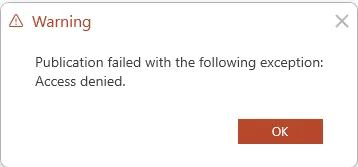
Root cause
This error appears when you do not have the required permissions on the target customization path. Without read and write access, UpSlide cannot access the path or create the file, triggering the error.
Solution
Reach out to your IT team to obtain read and write permissions for the path. If you’re unsure which path you should request access to, go to the Settings in the UpSlide ribbon and look for Published content location in the Templates & Styles tab.
Missing ‘upslide’ column
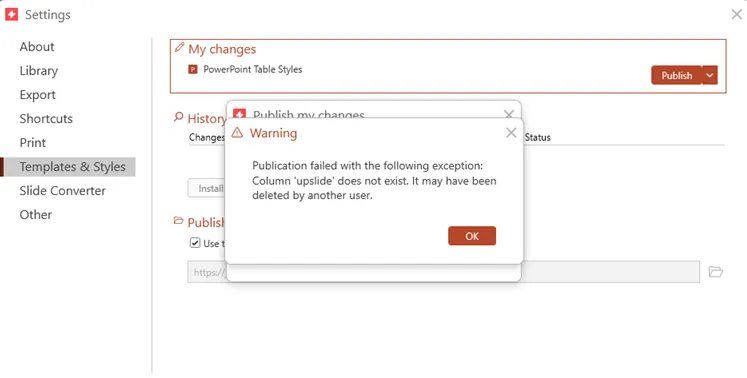
Root cause
This error can only occur when the shared path is in SharePoint. UpSlide needs a custom column in this environment to store specific metadata for each published file. The error occurs when UpSlide fails to automatically create the column in your Document Library, typically because the publishing account lacks the necessary rights.
Solution
To solve the problem, the column needs to be created in SharePoint by a user with the necessary rights:
- Open your web browser and navigate to the shared path.
- Click Add column.
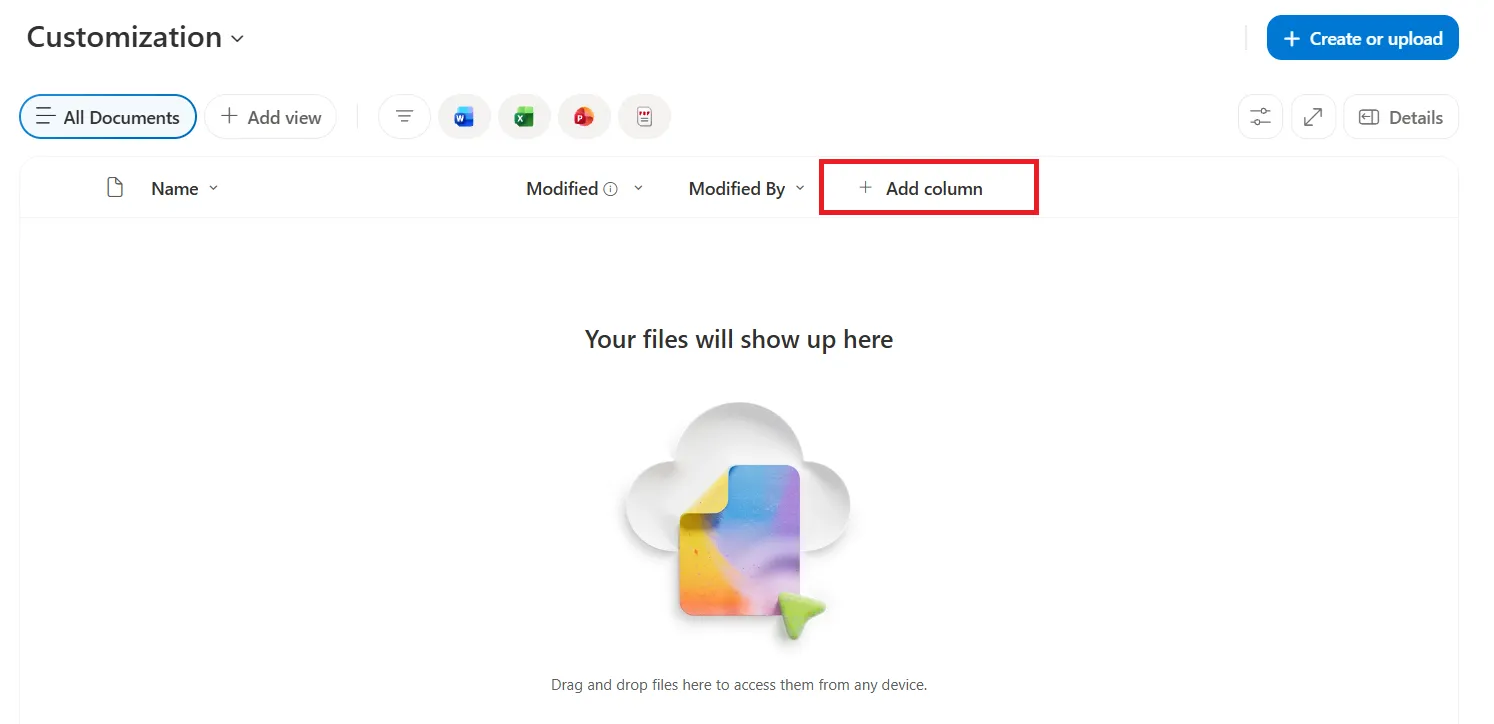
- Select Multiple lines of text as the column type and click Next.
- Name the column upslide and click Save.
Once the column has been created, you can publish your template modifications again.