This article explains how to restore the UpSlide ribbon when it appears blank. This issue most commonly occurs in Excel.

Root cause
The issue occurs when Excel’s personalized ribbon configuration becomes corrupted or inconsistent after a computer-related incident. Excel stores user-specific ribbon customizations separately from the core UpSlide installation. If that configuration is damaged, partially reset, or no longer matches the add-in registration, Excel may still load the UpSlide add-in but fail to display it correctly.
Solution
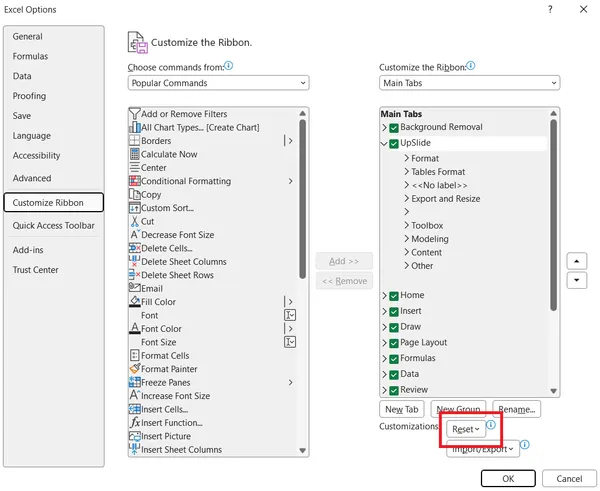
To solve the issue, you have to reset your ribbon.
- Go to File > Options > Customize ribbon.
- Click Reset, then close the Excel Options window.
The UpSlide ribbon should now display correclty.