UpSlide AI credits are shared across your organization. The license management portal helps you monitor this shared pool, receive early warnings when the balance is low, and set monthly limits to keep usage available and predictable across teams.
This article is only applicable for accounts with UpSlide AI geatures and an active AI credit allocation.
Review AI credit usage from the Overview page
To review your AI credit usage, sign in to the license management portal. Credit usage is account-specific, so if you manage more than one account, select the relevant one from the dropdown menu at the top of the page.
Go to the Overview tab.
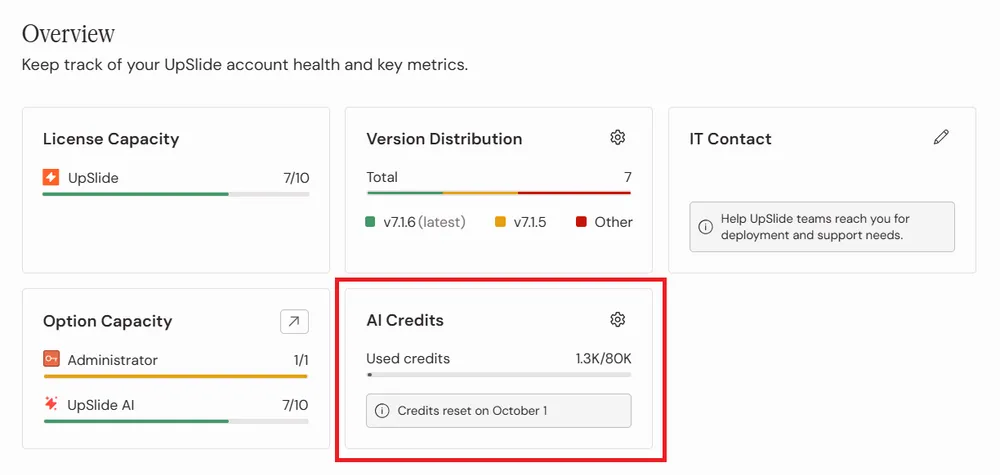
The AI Credits card lists the following information:
- Used credits. Shows how much of the organization’s shared pool has been consumed. The progress bar provides a visual indication of overall consumption.
- Credit reset date. Shows when the credit balance renews for the next period.
We encourage you to return to this card regularly, especially before a broad AI rollout or during periods of intensive use, to compare the remaining balance with the time left before the reset date.
A high level of consumption is not necessarily a problem if the reset date is close. A rapidly decreasing balance early in the cycle is a good reason to review alerts and capping rules.
Set up low credit balance alerts
Alerts notify selected recipients when the remaining balance falls below an enabled threshold. To set up alerts:
- Click the gear icon on the AI Credits card in the Overview tab.
- In the Configure Alerts tab, open the Recipients dropdown to select one recipient among the license managers registered for the account. An alert is sent by default when all AI credits have been consumed.
- Click Add threshold to add any relevant threshold for your account, either in terms of remaining percentage or number of credits and click Confirm.
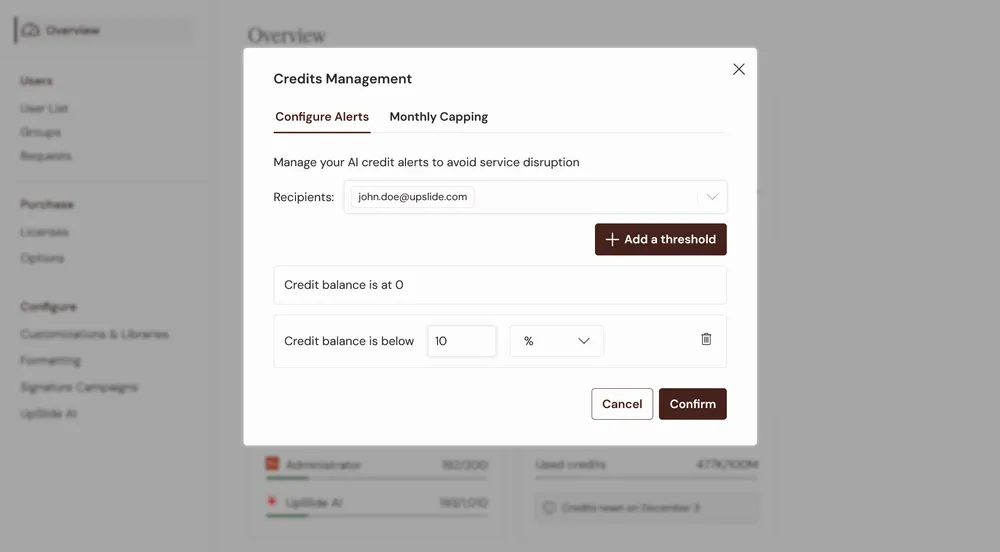
The same threshold is not repeatedly triggered while the balance remains below it. If the balance is replenished or reset above the threshold, that threshold becomes eligible to trigger again after a future downward crossing. If one usage update crosses several enabled thresholds, the notification may consolidate them to avoid unnecessary noise.
An alert warns administrators, but it does not add credits, stop consumption, or reserve part of the pool. Use capping rules when you also need preventive control.
Define monthly capping rules
Capping rules set the maximum number of AI credits that each user may consume during a calendar month. Caps can be configured at account level and refined for individual user groups.
Set an account-level cap
The account-level cap acts as the default monthly per-user limit.
- Click the gear icon on the AI Credits card in the Overview tab.
- In the Monthly Capping tab, toggle Default capping on.
- Enter the maximum number of credits that each user may consume per calendar month and click Confirm.
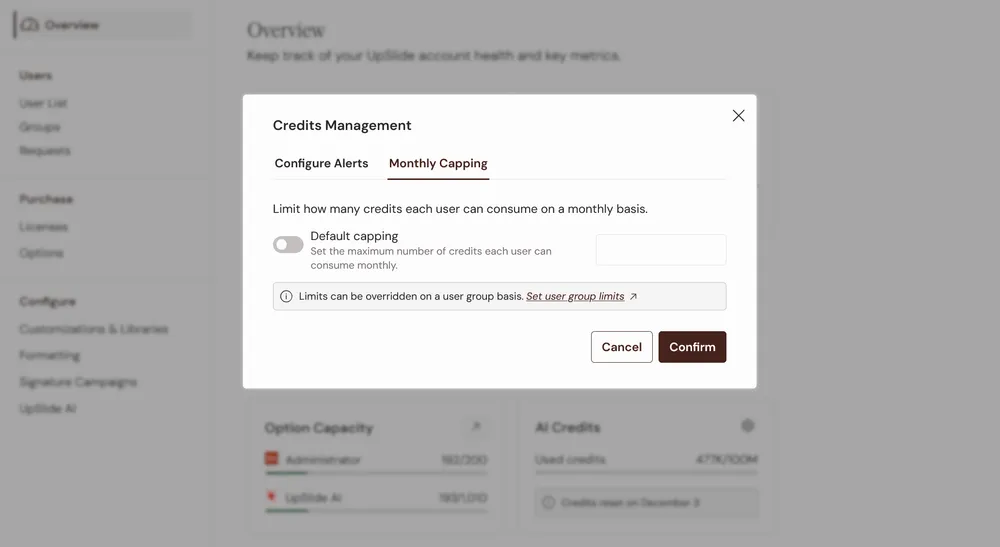
To remove the account-level cap, toggle Default capping off, and save the change.
How account-level caps work
Every user can consume AI credits until they reach the configured monthly limit. The rule limits each user individually. It is not a single monthly limit for the organization as a whole. Consumption is counted for the current calendar month and starts again in the next calendar month.
When a user reaches the effective cap, further credit-consuming AI requests from that user are blocked for the remainder of the calendar month. Other users can continue to use AI as long as they remain below their own effective caps and the shared account pool still contains credits.