The Library pane may appear blank, display an error message, or fail to load content due to insufficient permissions or configuration issues. This article guides you through troubleshooting steps to diagnose the root cause and restore access to your Library content.
Root cause
Permission issues
The most likely root cause for an empty Library pane is an access issue. To confirm the behaviour, go to the UpSlide Settings > Library. Make sure Use team settings is checked to ensure the Library path you see is correct. Then, hover your mouse on the icon at the end of the Library path.
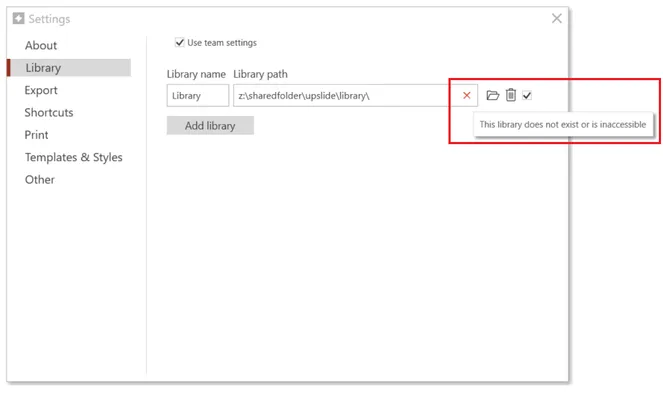
Below is a list of all the icons you can see and their respective meanings.
 | You have access to this path. |
 | The path does not exist or is inaccessible. |
 | The path can’t be accessed, but a copy of its content is accessible on your machine. |
 | You do not have permissions to access this path. |
 | Administrators only. You have access to the Library but cannot edit its content. |
 | Administrators only. You have read and write access to this Library. |
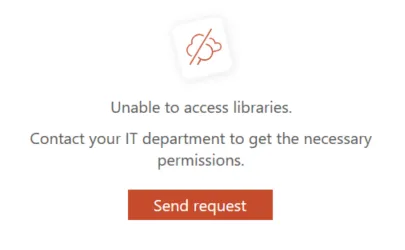
If you can’t access the Library and see a red cross in the Settings, the following error message will be visible in the Library pane.
No Library set up
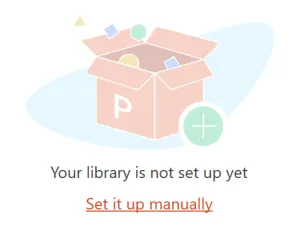
Unlike permission issues, where the Library exists but access is restricted, this error indicates that the Library configuration is missing from your UpSlide settings. This can be because the shared location hasn’t been created by your administrators or because it hasn’t been added to your team’s settings.
If that is the case, the following error message will be visible in the Library pane.
Solutions
If you don’t have the right permissions
If you suspect you do not have access to your Library content, follow the steps below to troubleshoot the issue.
Open UpSlide Settings, then go to Library to view the list of Library paths. Test the different paths in your browser for SharePoint or in the File Explorer for file systems. If you have different paths, make sure you test all of them.
- If you can’t access the folders, reach out to your IT to request read access, or read and write access if you have an administrator license.
If you have access to the path, try copying and pasting an element from the folder on your desktop.
- If you can’t copy and paste an element from your shared path, you do not have the right access for UpSlide to read the content. Reach out to your IT to request read access, or read and write access if you have an administrator license.
Check that you are connected to the internet or network.
- If you aren’t, UpSlide will not be able to access the content. Try again after connecting to the internet.
If your Library is stored on SharePoint, open UpSlide Settings, then go to Library. At the top, you should see a mention Logged in SharePoint as [your email address].
- If you can’t see this mention, UpSlide hasn’t been able to create the authentication token required to access your content. Exit all your Office applications and reopen the Library pane to force the authentication to appear. There might be a Microsoft authentication pop-up during this step. Do not close it, or UpSlide will not be able to create the token.
If your Library has not been set up yet
If you get the message indicating that your Library hasn’t been set up yet, reach out to your administrator or project manager to know if this is expected.
If you know the path to your Library but can’t see it in your Settings, you can add it yourself until the team settings are updated.
- Open UpSlide Settings, then go to Library.
- Uncheck Use team settings to make the button clickable, then click Add library.
- Enter the path for your Library and enter a Library name.