Here are the most commonly asked questions when you're maintaining the Dyanmic Libraries.
Source file contains invalid data
This error indicates there is something incorrect in the Data file. This is usually either:
- Rows which are only partially filled.
- One or more columns have been filled with an incorrect data type.
Partially filled rows

If the total number of rows exceeds the number of Tombstones in your Data file, this indicates that some rows are only partially filled. This usually happens when you apply formatting or drag formulas down the file without completing the remaining data columns.
Incorrect data type within a column

If only a few errors appear, one or more cells in your Data file may contain information that UpSlide does not expect. For example, you may have entered text such as Pending in a column where the expected data is a number or copied dates that Excel does not recognise. Check the dates using Excel’s native number formatting.
Tombstones appear without logos
If the image path in the Data file does not match an image filename in the Images folder, the corresponding Tombstone displays an Image Missing error. In the Data file, check that the image path matches the image filename, including its file extension.
Edit your images’ sizes to display correctly in the Tombstones
Images placed on a Tombstone or case study shape are configured to display at a specific size. The amount of white space around an image can affect how it appears in the shape. Too much white space can make the image look too small, while too little white space can make it look too large.


You can modify the white space around your images using most photo editing apps. The gifs below are using Painter 3D.
If the image is too small
- Open your logo in your photo editor app of choice.
- Drag and drop the cropping button around the logo, or manually amend the pixel numbers.
- Once you have edited your logo to your guesstimate of the correct size, make a note of the pixels/size of the logo you created to apply it to other images.
If your image is too large
- Open your logo in your editor app of choice.
- Look for the option to edit background. In Paint 3D, the option is to edit the canvas.
- Drag and drop to the correct size or edit the number of pixels manually. If necessary, lock aspect ratio.
Convert several images’ filetypes
The UpSlide Dynamic Library supports images saved as PNG, JPEG/JPG and SVG. You may want to make convert all images to one type to automate the image filename column in your Data file. You can use XNView Shell to do this in bulk. Conversion process:
- Download the add-in here.
- Select all the picture you want to convert.
- Right-click and select XnShell
- Click Convert into and select the format of your choice.
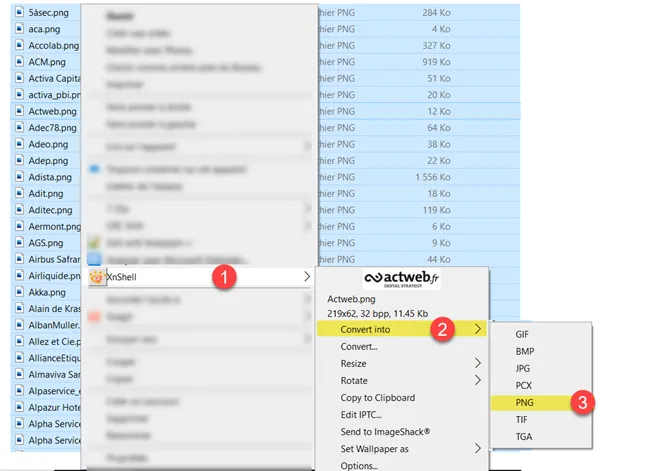
If you want to convert more than 50 items a message will pop up. Just click Yes to proceed. During this process, your old pictures will not be replaced but duplicated into the chosen format. You may wish to delete them later. To do so, sort your photos by type.