This article guides you through the steps of deploying UpSlide's web add-in, which includes features such as the Consistency Check and PDF to Excel.
Summary
- What is UpSlide’s web add-in?
- Add-in installation
- Manage deployment scope
- Add-in updates
- Troubleshooting
What is UpSlide’s web add-in?
Microsoft Office supports two types of add-ins. UpSlide’s main offering is built on VSTO, which is compatible only with Windows. The web add-in, covered in this article, is compatible with Windows, macOS, and the Online versions of Office.
This article covers the installation of our web add-in. As of now, it offers the following features:
- PowerPoint: Consistency Check.
- Excel: PDF to Excel
Add-in installation
This type of add-in has no installer or exe. Instead, you deploy the UpSlide for Microsoft Office add-in via the Microsoft Admin Centre. To deploy an Office application to your organisation, you’ll need Global Administrator rights.
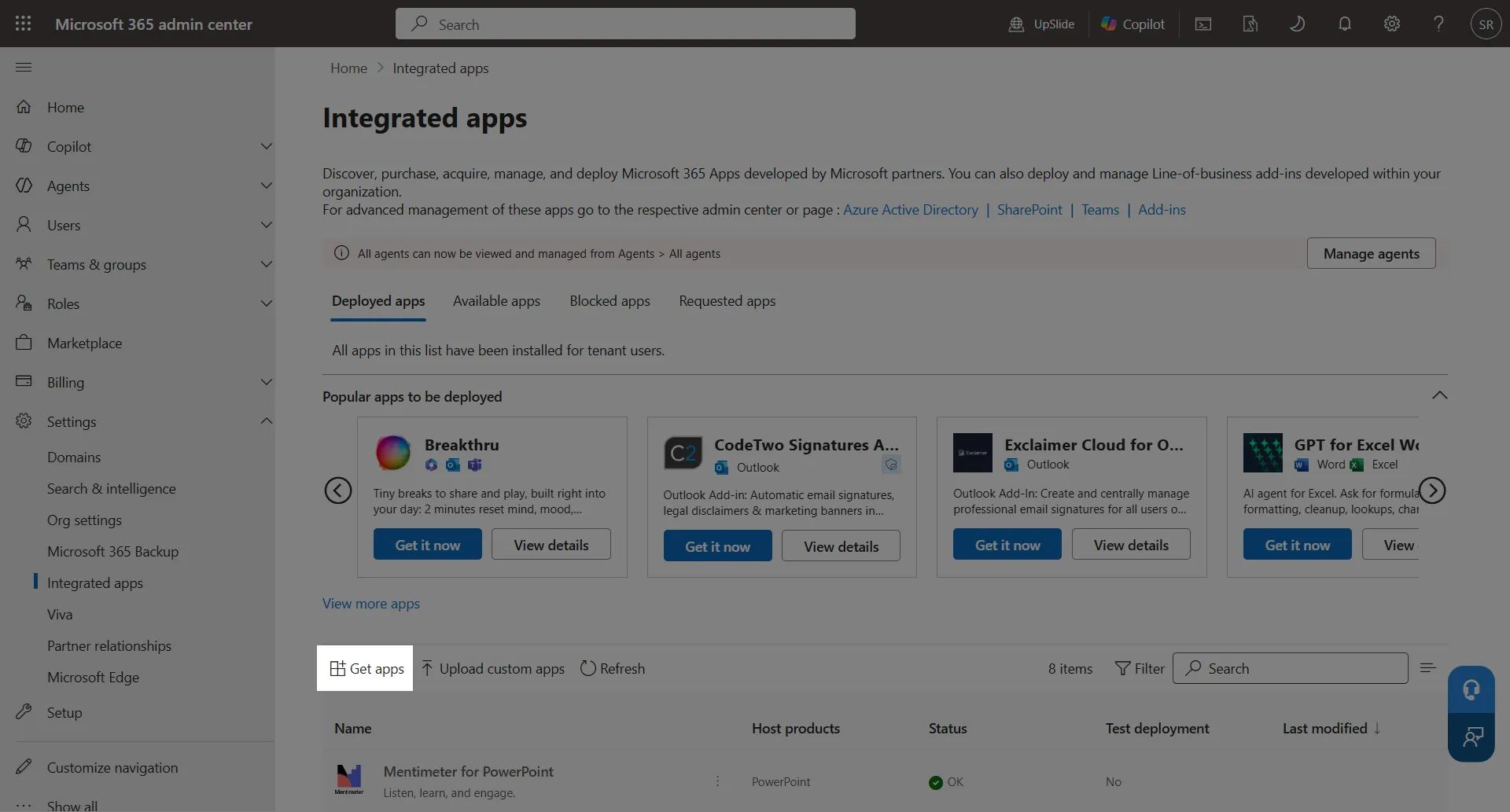
Click here to access your organisation’s integrated apps and click Get Apps.
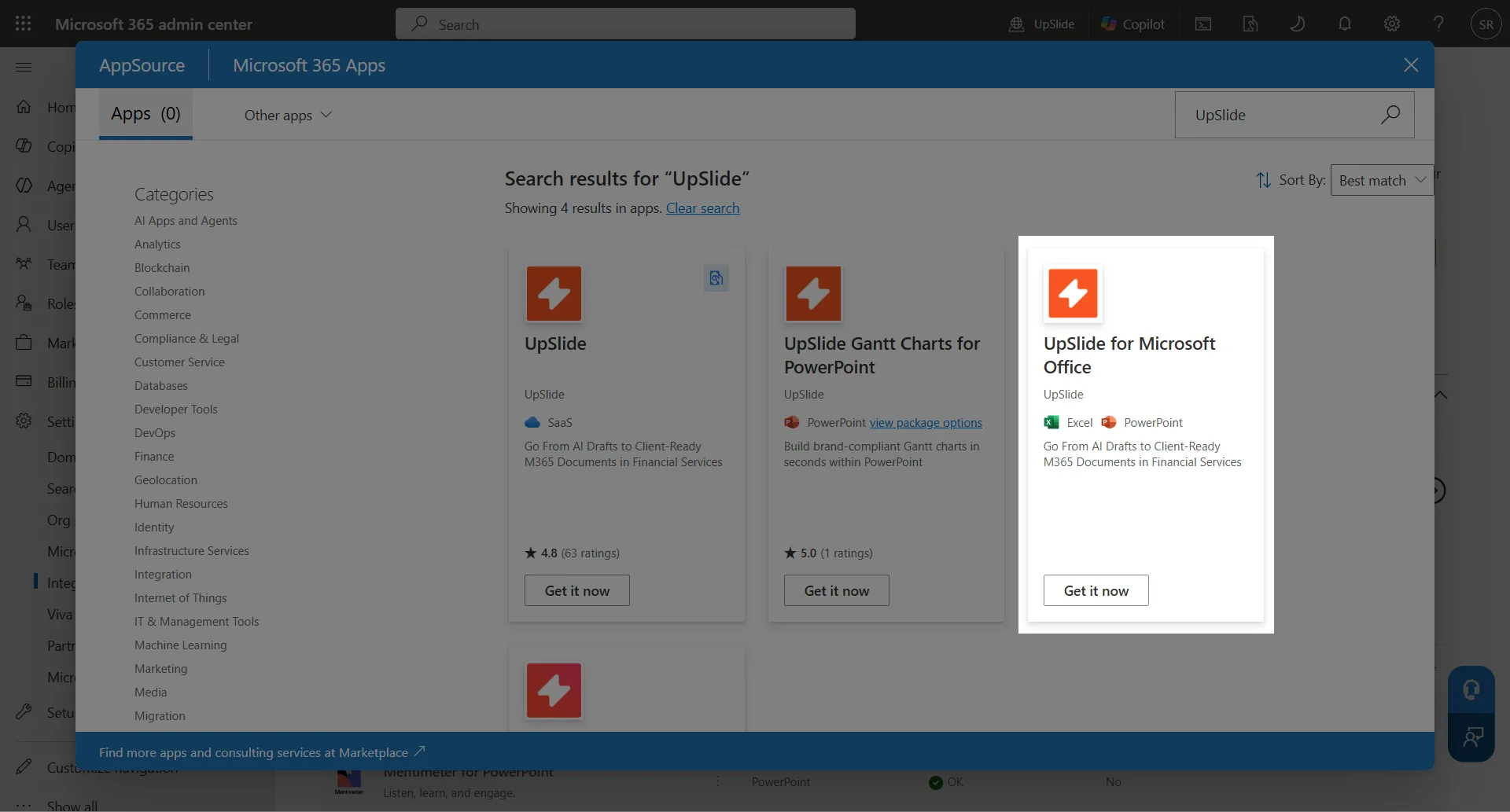
In the search bar at the top-right, type “UpSlide” and click Get it Now under UpSlide for Microsoft Office then again on the Confirm to continue window.
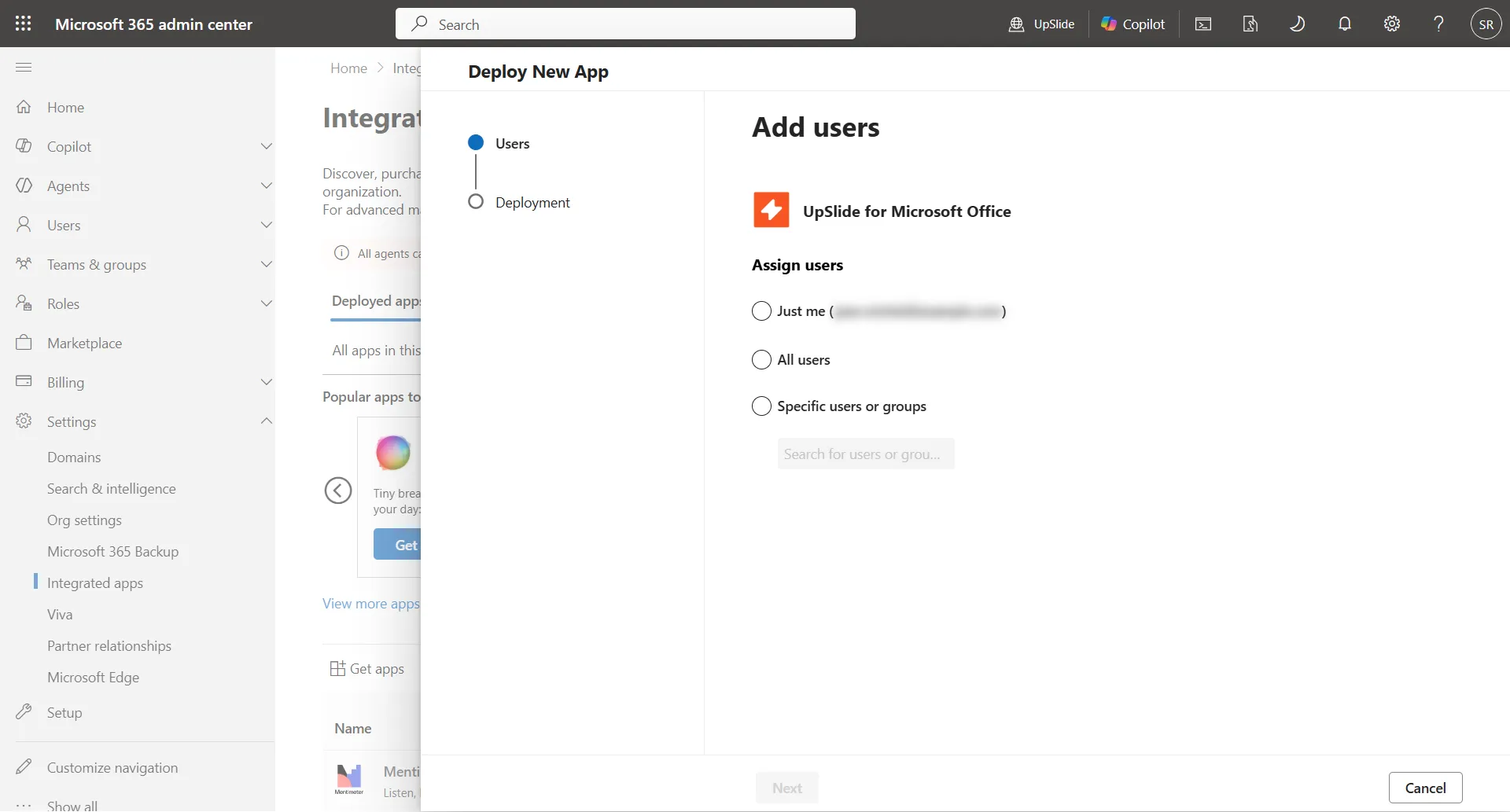
Choose the deployment scope for the add-in.
- Just me: The add-in will be accessible only to your account. This is useful for initial testing.
- All users: The add-in will be accessible to everyone in your organisation.
- Specific users or groups: The add-in will be accessible only for the specific users and user groups you select. This is useful if you only want to deploy UpSlide to a subset of your organisation.
Accept the required permissions for your organisation. A confirmation pop-up will appear to confirm the action. Then, click on Next in your main window.
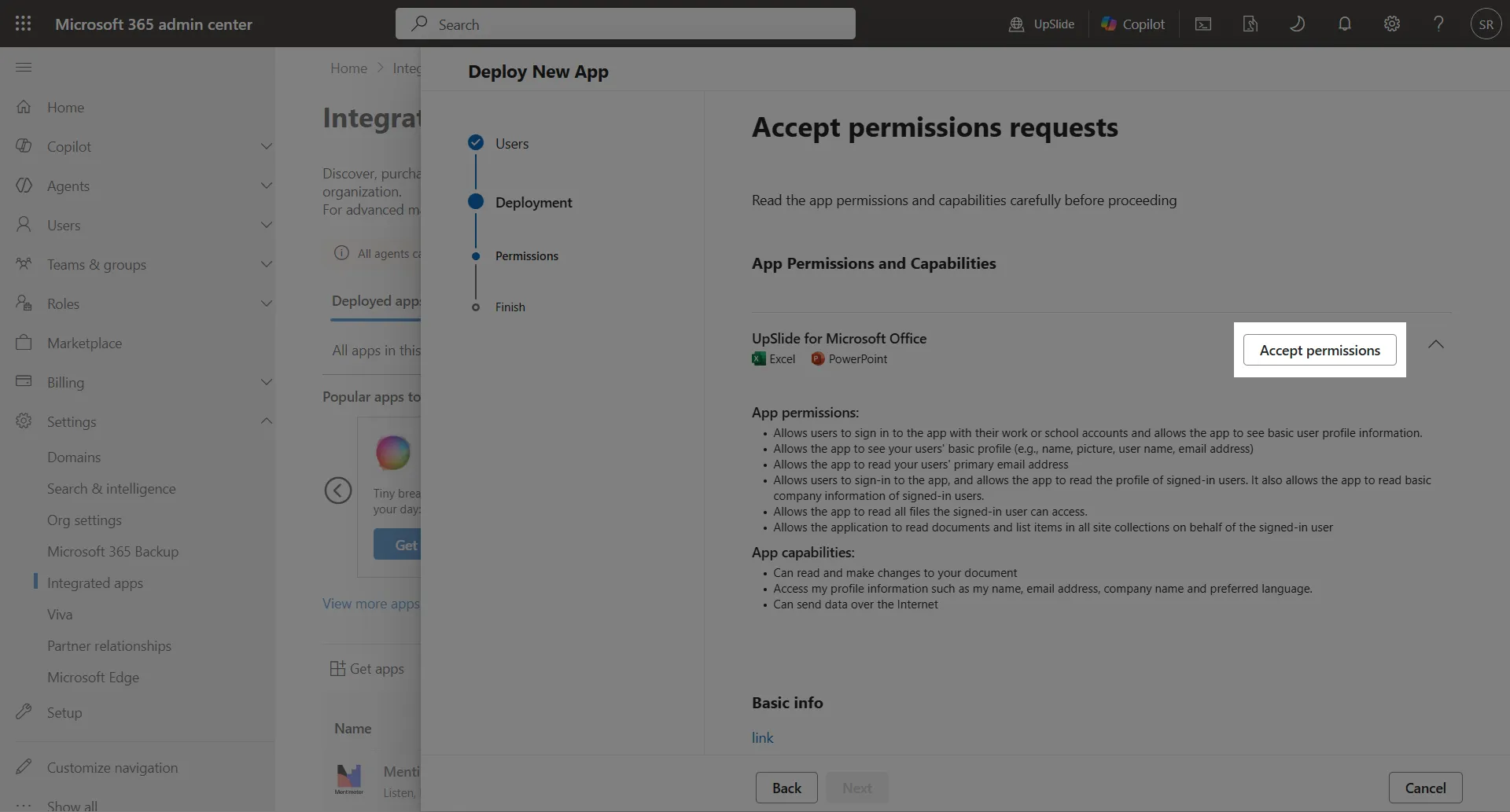
The permissions and date shown under Permission requested may change in the future as we continue to build our capabilities.
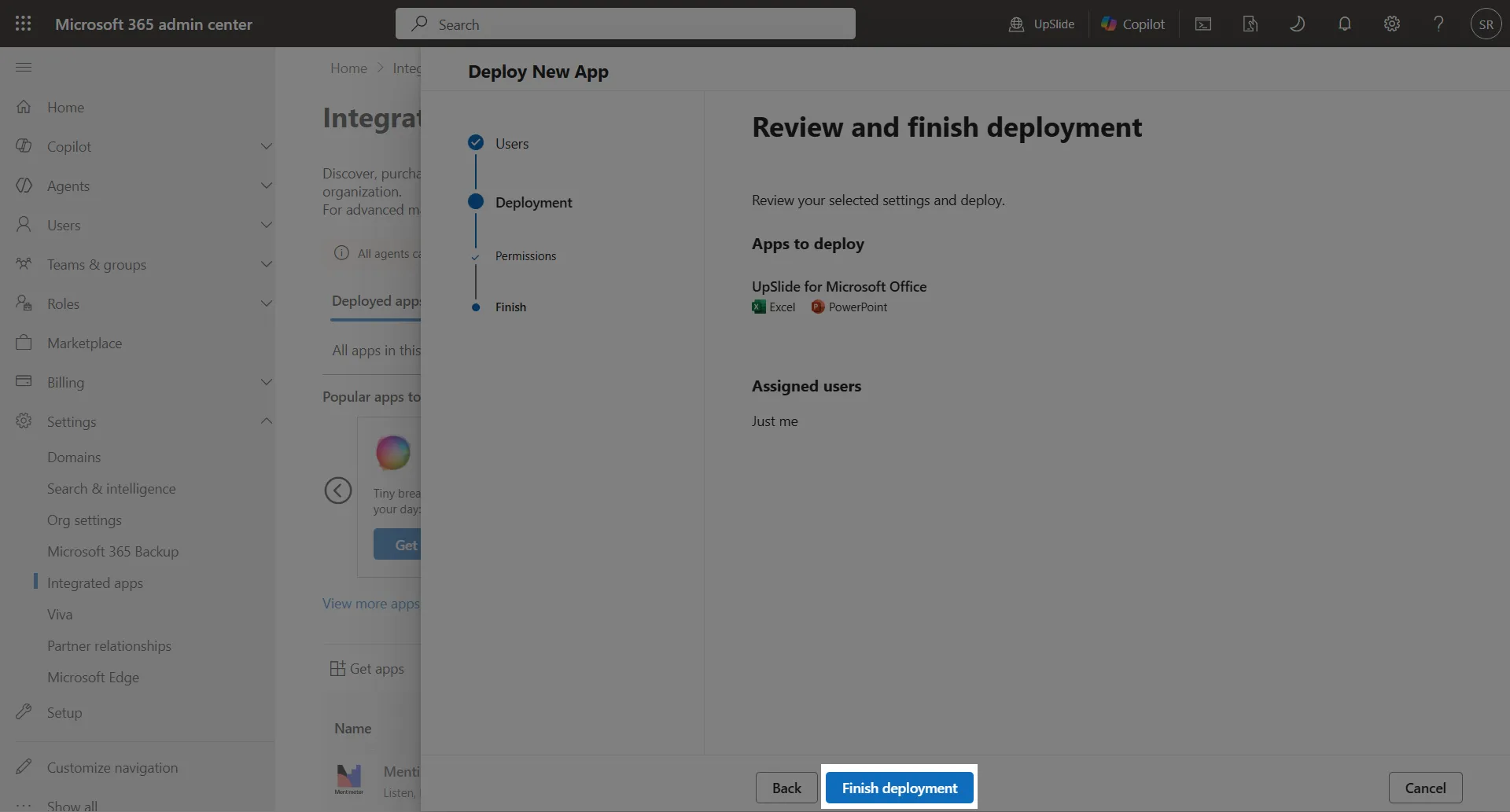
Review your deployment scope, then click Finish deployment to finalise the installation.
Manage deployment scope
You can change the deployment scope at any time.
Click here to access your organisation’s integrated apps, then select the app you want to edit the deployment scope for.
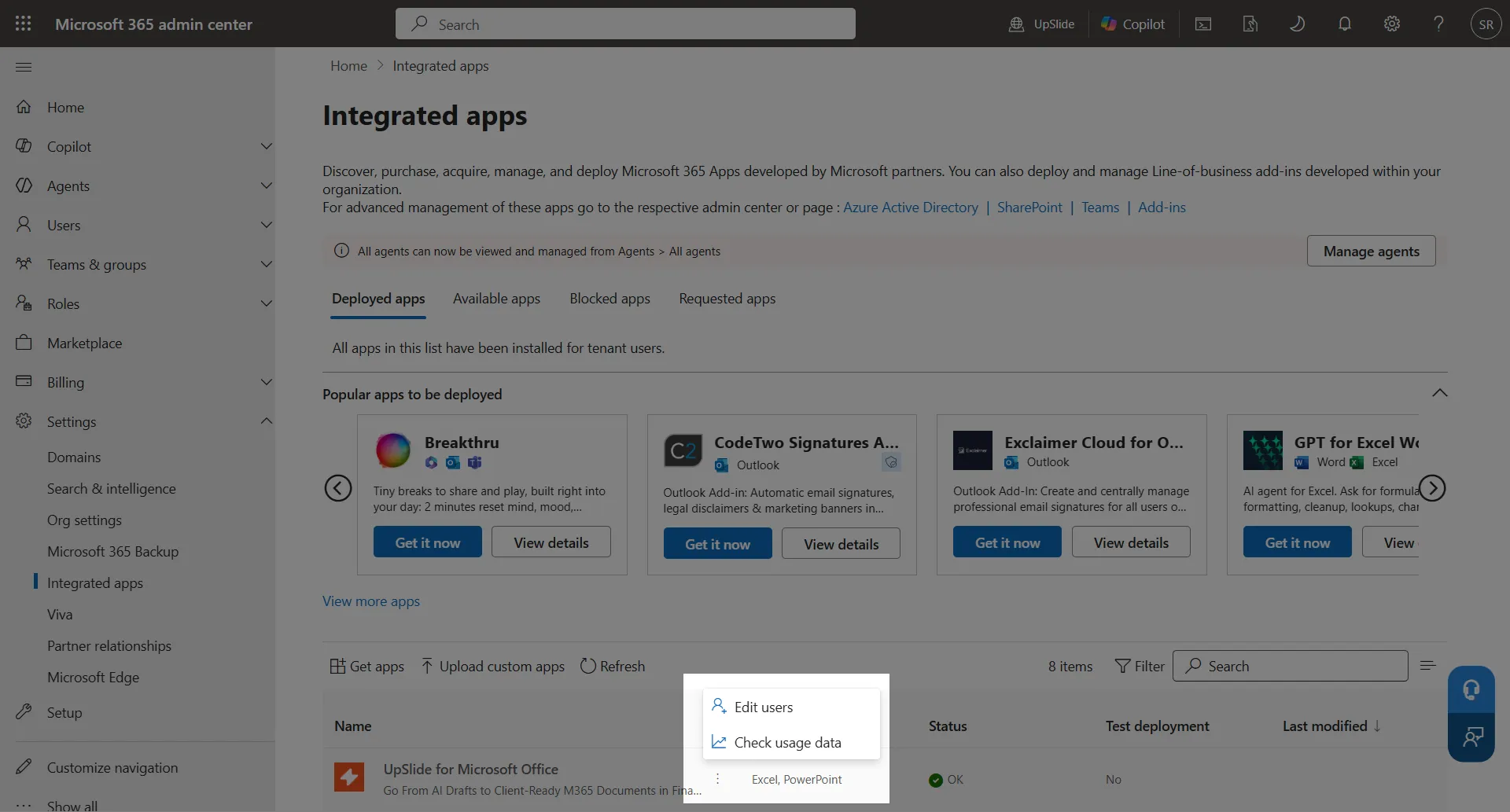
Navigate to the Users sub-page and modify the assigned users. Click the Update button to confirm your new deployment scope.
Add-in updates
Add-in updates are handled automatically by Microsoft Marketplace, so no manual steps are required.
If UpSlide ever updates the permissions, you will be asked to re-approve them before your users can use the features again.
Troubleshooting
Users affected by the deployment should be able to see the UpSlide ribbon on all platforms, including Office for Windows, Office for Mac, and Office for the Web. On Office for Windows, the features should appear beside the regular UpSlide add-in features in a single ribbon. It might, however, take another Office restart for them to appear.
As for all Office Add-ins, deployment might take some time in certain scenarios. If the ribbon still does not appear, try restarting your Office suite and clearing the Office cache.
If you see two distinct UpSlide ribbons at once, please contact our support team at support@upslide.com, and we’ll resolve this for you.