In this article, you will find several ways to reactivate UpSlide if it is missing from your Office applications. The first one can be done regardless of permissions, while the last two require administrator rights on the machine.
Root cause
If PowerPoint, Excel or Word crashes or is terminated unexpectedly, you may find the UpSlide toolbar has disappeared. You may also see this pop-up:
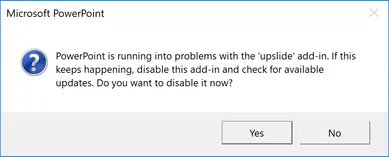
Clicking Yes will disable UpSlide.
Reactivate UpSlide manually
- Open the application the UpSlide ribbon is missing from.
- Go to File > Options
- Go to the Add-ins tab.
- Select COM Add-ins from the Manage dropdown menu, then click Go…
- Check the box next to UpSlide and press OK. The UpSlide menu should now appear in the ribbon.
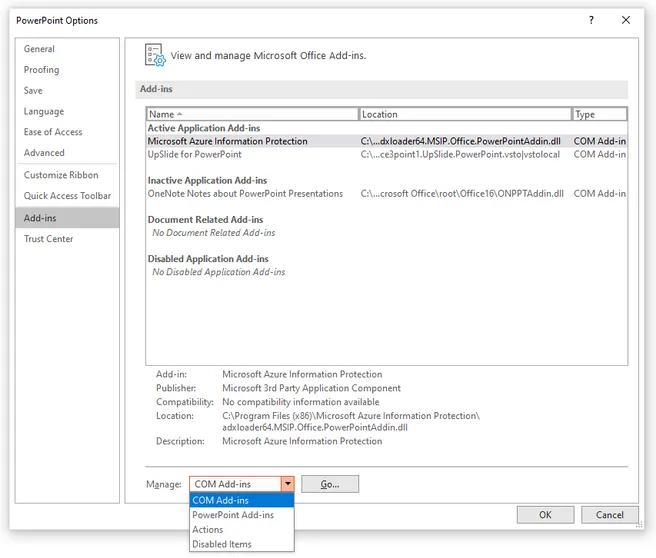
If the ribbon doesn’t appear in the COM Add-ins window, try selecting Disabled items in the Manage dropdown menu, select UpSlide, and press Enable
Reactivate UpSlide using Support.exe
Support.exe is a tool that allows you to automatically reactivate UpSlide across Excel, PowerPoint, and Word. You can download it here.
Once downloaded, launch the Support.exe tool and click Reactivate UpSlide.
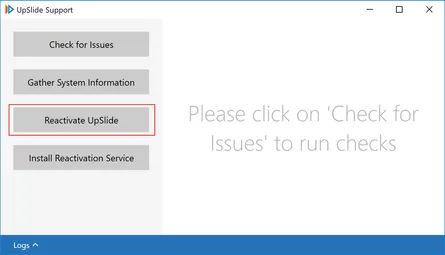
This tool needs administrator rights. If you don’t have it on your machine, please ask your local IT team to run it with administrator privileges to resolve this issue.
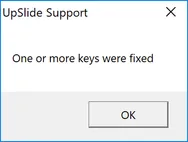
After using the Reactivate UpSlide button, you should see the following pop-up message:
Reactivate UpSlide in the Registry
- Close all Excel, PowerPoint and Word applications.
- Open the Registry Editor.
- In the Registry, navigate to the following folder:
- Excel: HKEY_CURRENT_USER\SOFTWARE\MICROSOFT\Office\Excel\Addins\Finance3point1.UpSlide.Excel
- PowerPoint: HKEY_CURRENT_USER\SOFTWARE\MICROSOFT\Office\PowerPoint\Addins\Finance3point1.UpSlide.PowerPoint
- Word: HKEY_CURRENT_USER\SOFTWARE\MICROSOFT\Office\Word\Addins\Finance3point1.UpSlide.Word
- Double-click on LoadBehavior, set the value to 3, then click OK.
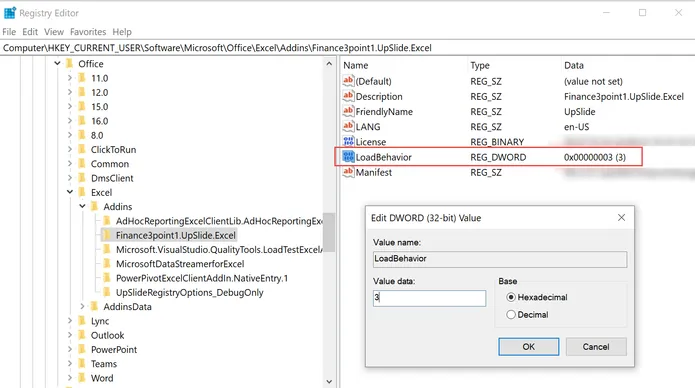
If the ribbon is still not showing after your restart your applications, you can try editing the same keys located in the paths below:
- HKEY_CURRENT_USER\SOFTWARE\WOW6432Node\Microsoft\Office
- HKEY_LOCAL_MACHINE\SOFTWARE\MICROSOFT\Office