If your UpSlide content is hosted on SharePoint, you may see a repeated Office account sign-in prompt every time you open an Office application. This happens when UpSlide cannot connect to the SharePoint path and retries authentication on every startup. This article explains the root cause and walks you through how to resolve it.
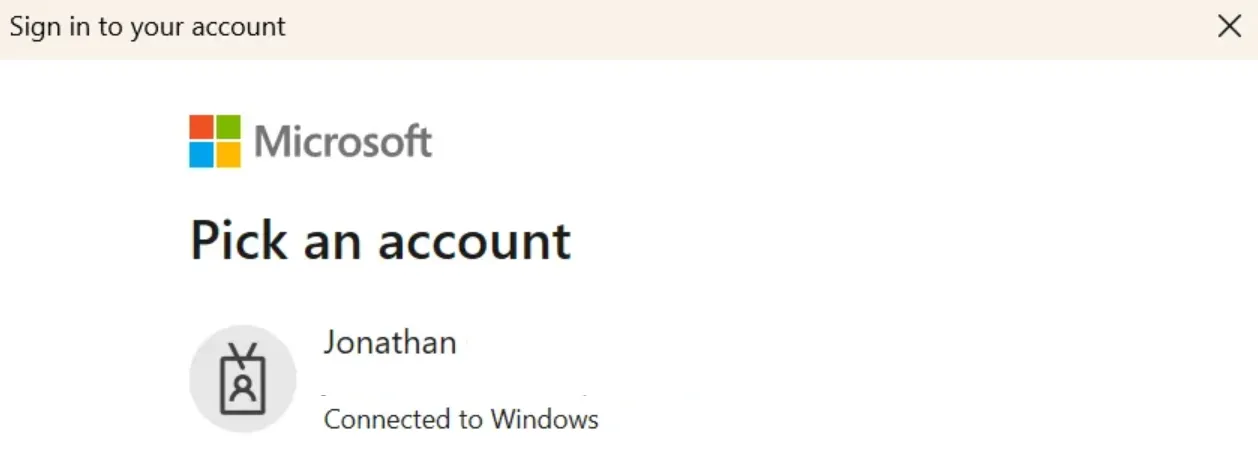
Root cause
UpSlide cannot successfully connect to the SharePoint path where your content is stored, including Library content and template modifications. This happens for one of two reasons:
- You do not have access to this path.
- The SharePoint path configured in UpSlide is incorrect or has been renamed.
When the connection fails, UpSlide retries authentication whenever an Office application starts, triggering a repeated sign-in prompt.
Solution
Start by checking your shared paths to ensure you have access to each of them:
- Go to UpSlide Settings > Library.
- For each Library set up, copy the path and paste it into a web browser.
- Then, go to UpSlide Settings > Templates & Styles.
- Copy the path under Published content location and paste it into a web browser.
If you can’t access any of these paths, request them from your IT team.
If you can’t copy the paths, uncheck Use team settings. Be sure to check it again once you’re done.
If you can access all the paths in your Settings, one of them might not have been created properly. The modification should be made by your IT. You can share the link to this documentation for steps to create SharePoint paths with the correct nomenclature.
If the problem persists, please contact the Support team for further assistance.