When working on a document with your team, you may notice that a linked image stretches or changes dimensions after an update. This happens because UpSlide exports are Windows enhanced metafile images, which are sensitive to display parameters that can differ between team members' machines. This article describes why this occurs and how to align your team's settings to prevent it.
Root cause
The issue can manifest in the following ways:
- A linked image stretches after being updated by another team member.
- An export changes size between two updates on the same machine.
- An exported image displays an incorrect ratio after an update.
This happens because UpSlide exports Excel content as enhanced metafiles, which is a Windows image format. Because of this technology, certain display parameters directly affect how images are generated and updated, and these parameters can vary from one machine to another.
Three key factors can cause differences in appearance between team members:
- Default printer: UpSlide uses Office’s native copy/paste mode and the machine’s printer driver to generate exports. If team members have different default printers selected, the resulting images may look different.
- Windows scaling and zoom level: The actual size of Excel content varies by the machine’s display settings, which affects how the exported image appears in PowerPoint or Word.
- UpSlide export settings: Options configured in UpSlide > Settings > Export determine how exports are generated and updated.
Solution
To prevent differences in link rendering between team members, align the Windows display parameters, default printer, and UpSlide Export settings across all machines.
Windows display parameter
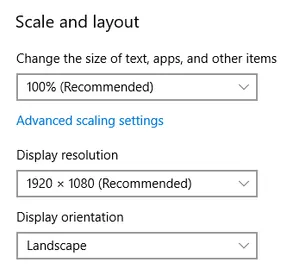
In Windows’ Settings > System > Display, set the scaling of the primary display to the same percentage. You’ll need to restart your applications for the change to take effect.
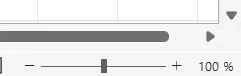
Then, in your Office applications, set the zoom level to the same number.
Default printer
In any Office application go to File > Print, and set the same default printer for all team members. We recommend Microsoft Print to PDF as it is available by default.
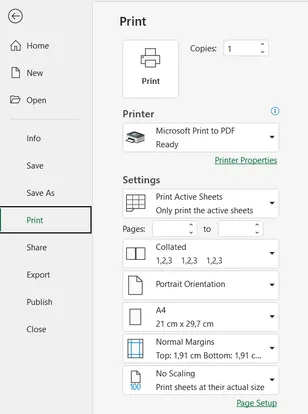
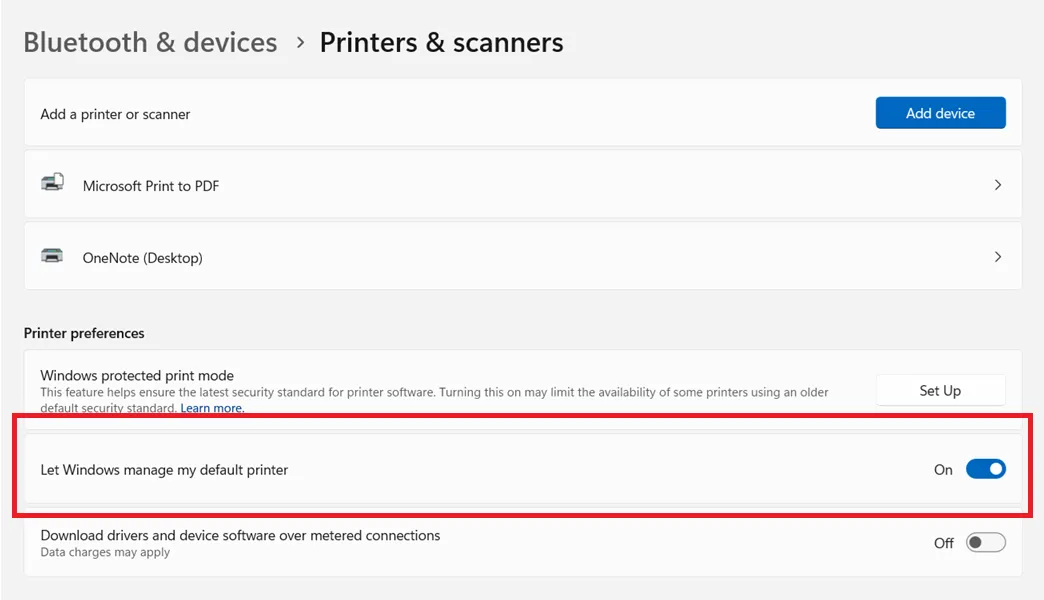
If the default printer keeps changing to another device, uncheck Let Windows manage my default printer.
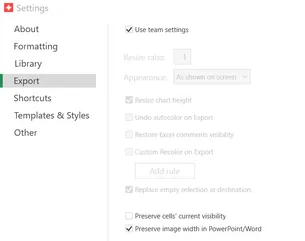
UpSlide’s Export settings
Go to UpSlide > Settings > Exports and make sure Use team settings is checked. This should ensure that all options are identical across the team.
Recommendations
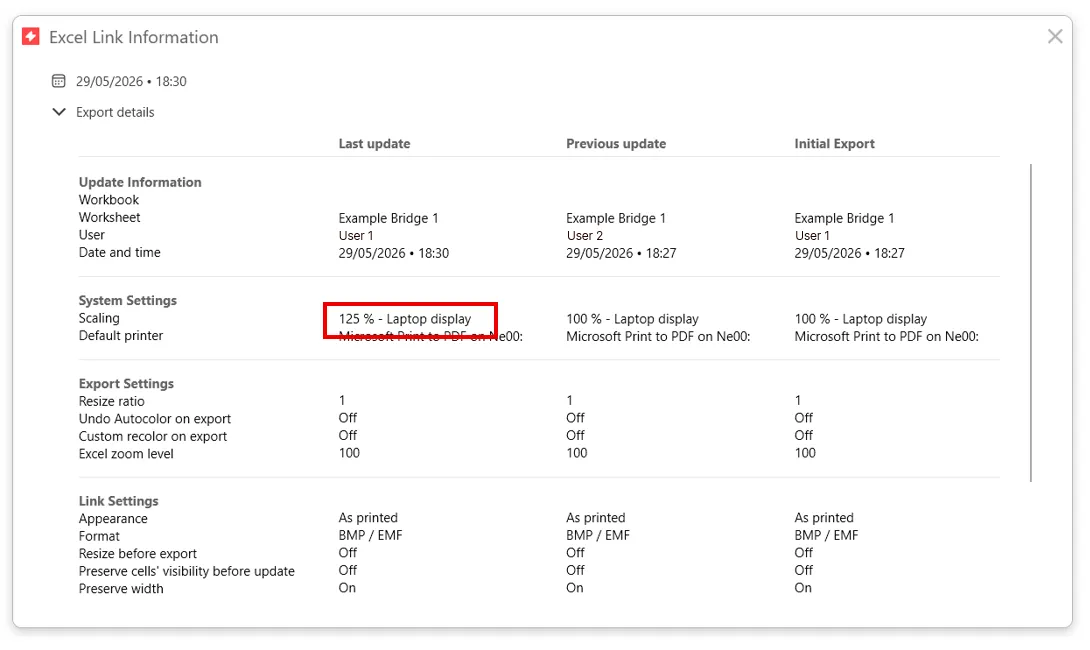
If you notice a change in appearance after an update, right-click the linked visual in PowerPoint or Word and select Link Information and click Export details. This panel displays the settings used for both the previous and the latest update. Comparing them will help you identify which parameter changed and on which machine.