Your presentation footers may fail to update when you change the cover slide title, display outdated text from a previous presentation, or appear inconsistent across slides. This issue most commonly occurs when slides are copied from other presentations or when content is mixed from different UpSlide templates. Follow the troubleshooting steps below to restore automatic footer updates and ensure consistent formatting throughout your presentation.
Root cause
Footer update issues will have different behaviours depending on the root cause:
- Hardcoded footers in the Slide Master: Slides that have been copy-pasted into the presentation may contain static text added directly to the Slide Master layouts instead of using UpSlide’s dynamic footer system. These hard-coded footers prevent UpSlide from automatically updating the content.
- Missing footer shapes on layouts: Not all layouts include the footer shape element, so footers may disappear on slides using those layouts.
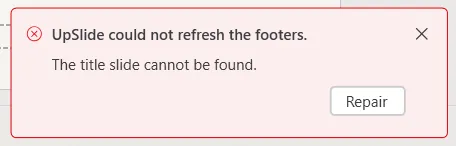
- Broken link to the cover slide title: The footer element loses its connection to the presentation title shape on the cover slide. Without this link, UpSlide cannot pull the correct title information into the footers. In this particular case, the following toaster will appear in the bottom-right corner of the screen.
Solution
To restore automatic footer updates, verify and correct the footer configuration in three locations: PowerPoint’s native footer settings, the Slide Master layouts, and UpSlide’s footer linking options.
Enable native PowerPoint footers
PowerPoint’s built-in footer setting must be activated for footer shapes to display, even when properly configured in UpSlide.
- Go to the Insert tab and click Header & Footer.
- In the pop-up window, check Footer and click Apply to All.

Verify footer shapes in the Slide Master
Ensure all Slide Master layouts contain the footer shape element so footers display consistently across all slide types.
- Go to the View tab and click Slide Master.
- Check each layout in the left panel for the footer shape.
- If the footer is missing from a specific layout, you can copy-paste it from another layout.
- Close the Master View when finished.

Link the footer to your cover slide
Reconnect the footer element to your presentation title so UpSlide can automatically populate the correct content.
- If there isn’t already, insert a title slide to your presentation. Otherwise, select your title slide.
- In the UpSlide tab, click Options in the References section or click Repair when the toaster menu appears.
- In the panel, select the Footers tab.
- If the footer link already exists (as shown in the example below), click the X to remove the current link.
- Click Link to shape and select the shape in your title slide that contains the information you want to see in your footer.
- Close the panel and refresh your presentation.
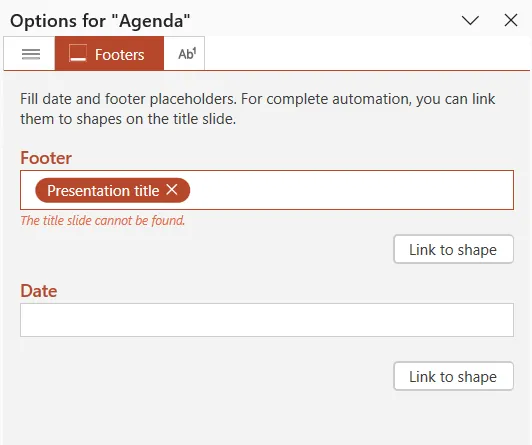
If your footer contains information about several fields, you’ll have to repeat the Link to shape step as many times as there are automatic elements you want to include. You can also write in the fields to add punctuation or static text in the Footer text box. For example:
- <%Title%> - <%Date%>
- Confidential | <%Title%> | <%Subtitle%>
Best practices
To prevent footer issues in future presentations, use PowerPoint’s Paste > Keep Destination Theme option when copying slides from other presentations. This forces PowerPoint to use your current template’s formatting instead of importing conflicting elements.