Slow or crashing Excel link updates are most commonly caused by an accumulation of corrupted entries in Excel's hidden name range, a problem that builds up over time without any visible warning. This article explains how to use UpSlide's Clean feature to resolve the issue, and provides a manual alternative if Clean is not available in your version.
Other than slow application and crashing, you may also encounter the following error messages:
- The application called an interface that was marshalled for a different thread. (Exception from HRESULT: 0x8001010E (RPC_E_WRONG_THREAD))
- The RPC server is unavailable. (Exception from HRESULT: 0x800706BA)
- Not enough memory resources are available to complete this operation. (Exception from HRESULT: 0x8007000E (E_OUTOFMEMORY))
Summary
Root cause
When creating a link between Excel and PowerPoint or Word, UpSlide stores link information in both files:
- Excel: UpSlide creates a hidden name range to identify the exported element.
- PowerPoint: link data for exported text is stored in the hyperlink screen tip, and the link data for exported ranges/charts is stored in the shape tags.
- Word: link data is stored in the shape’s Alternative Text and includes the export source path and the name of the user who performed the export. For cell content exported as text, the link data is stored in a field.
To update a link, UpSlide needs to access this information from both the Excel source and the destination. If either side is lost or corrupted, the update will fail.
In most cases, slow or crashing updates are caused by an excessive accumulation of entries in Excel’s hidden name range. This typically happens when importing sheets from other workbooks, since each sheet has its own associated name range, which is copied over in full during the import. Other add-ins, such as FactSet and Capital IQ also store information in the hidden name range, which can compound the problem over time.
Resolution
UpSlide Clean
The UpSlide Clean functionality is available in the Export and Resize section or in the Modeling section for users with an administrator or Modeling Tools option.


To clean your file:
- Open the Excel file that is causing the slow or crashing updates.
- Click Clean in the UpSlide ribbon.
- Under the Name section, check every available option to ensure all corrupted name references are removed.
- Run the clean. A confirmation prompt will display how many names were removed.
- Re-open your linked PowerPoint or Word file and update your links.
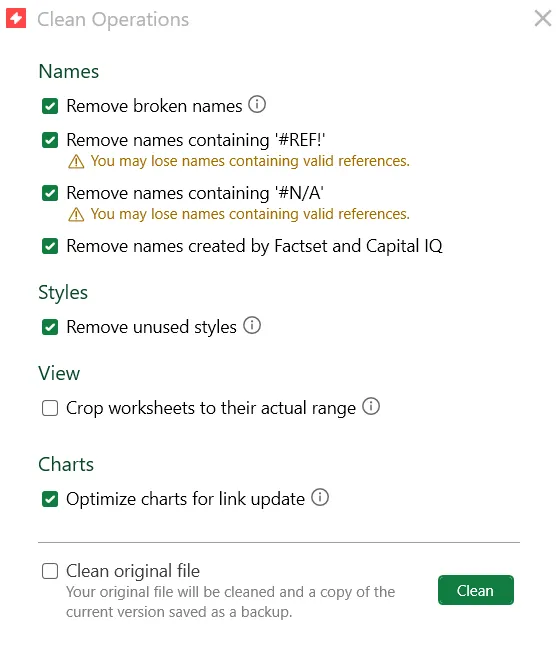
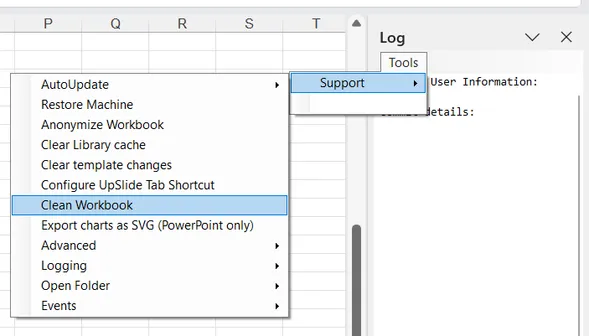
If you are on an older version of UpSlide and do not have access to the Clean in your ribbon, you can find the feature in the Log panel. To access the Clean functionality :
- Open the Log panel by using Ctrl+Shift+X in the impacted Excel file.
- Click on Tools > Support > Clean Workbook.
- The Clean window will open. Follow the same instructions as above to clean your file.
Manual clean
If you do not have access to UpSlide’s Clean feature, you can manually remove corrupted name ranges directly from Excel. This method achieves the same result but requires deleting the entries one by one through Excel’s built-in Name Manager. Follow the steps below to identify and remove the entries causing the issue.
Please create a copy of your file before proceeding with the manual clean so you don’t risk damaging your original file.
- Once you’ve created a copy of your file, go to your File Explorer > View > Show to display File name extensions.
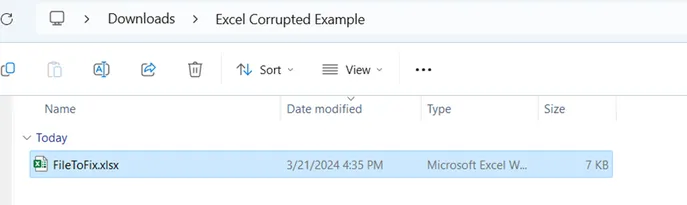
- Right-click your file to rename it and change .xlsx or .xlsm to .zip. If your file is a .xlsb, open it and use Save As to save it as an .xlsx first, or you won’t be able to transform it into a .zip file.
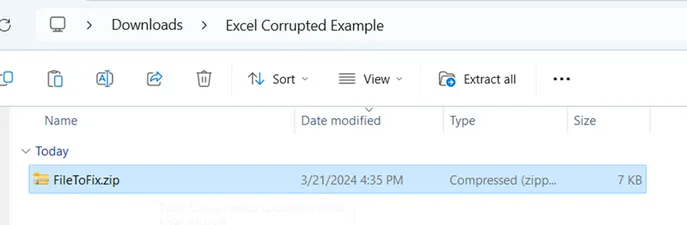
- Right-click on the file, then click Extract all… and Extract.
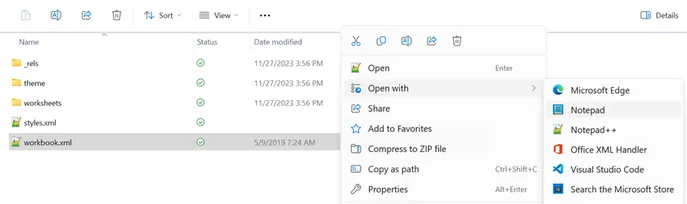
- Open your new unzipped folder and open xl to find workbook.xml. Right-click on it to open it with any notepad application. Notepad++ is recommended but the native Notepad will do.
- Use Ctrl + H to find #N/A and replace it with #REF. Click Replace all.
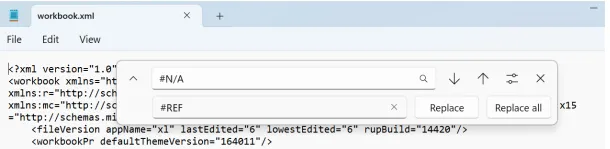
- Do the exact same operation to replace FDSAUDITLINK with #REF.
- Do the exact same operation with name=“IQ_ with name=“#REF. Be sure to include name=” for this search and replace operation.
- Save your changes and close the workbook.xml.
- Go back to the root of your unzipped folder. Select all elements and right-click to select Send to > Compressed (zipped) folder.
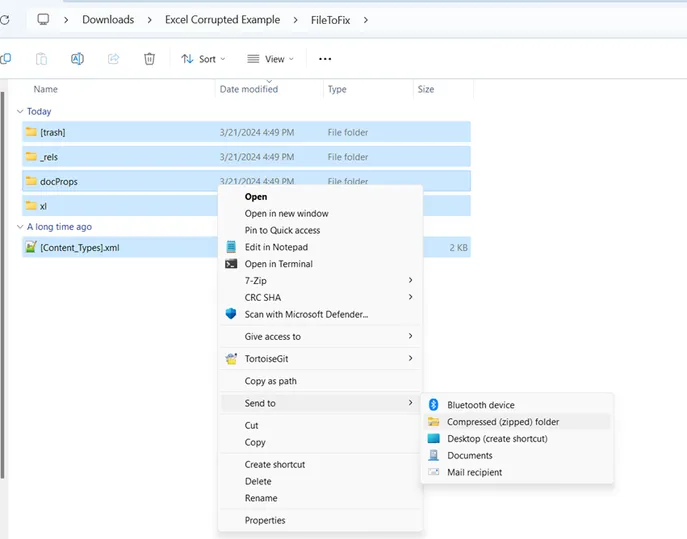
- Rename the zip file you’ve just created with your original file name and .xlsx as the file extension. Then open it.
- Click Yes on the message asking you to repair the Excel file.

- Save and move the repaired file to the folder containing your original file.
- Open the linked Word or PowerPoint file to update the links with the newly cleaned Excel file as a source. For this step, we recommend having only the cleaned file open.
- You can delete the folder and the .zip file that is no longer used.
Recommandations
General upkeeping
To prevent this issue from recurring, clean any new file before creating links in it, particularly files received from external sources. Keeping your files clean improves overall file responsiveness and, in turn, the performance of your UpSlide link updates.
Managing other files
When launching an update, UpSlide checks all open Excel files to find the latest version of each linked source. The more files you have open, the longer the update takes. If one of the open files is corrupted, the update will crash entirely. Only keep the source files you actually need open when running an update. You can read this article dedicated to versioning and managing Excel links for more information.
Other recommendations
If you are used to cleaning Excel files yourself using macros or other methods, do not delete names that start with EXPORT31_. These are the names UpSlide assigns to links. Deleting them would break the corresponding link.
If you still have issues with this error message after cleaning your file or were unable to clean it, you can contact our Support team using Help > Contact Support in the UpSlide ribbon. If you can provide the files, our team will do its best to clean them.