UpSlide includes an automatic update process that keeps your version up to date with the latest features and fixes. For the update to install correctly, all Office applications must be fully closed. This article walks you through best practices to ensure updates install successfully, and how to troubleshoot if your version doesn't update as expected.
How it works
Each time you open PowerPoint, Excel, or Word, UpSlide checks our server to see if a new version is available. If one exists, it is downloaded silently in the background. The installation is completed once all Office applications are fully closed and reopened. Until then, the new version is downloaded but not yet active.
This prevents UpSlide from running different versions in separate applications, which could cause issues with the Excel link.
A new version of UpSlide is available every 2-3 weeks.
Updating your UpSlide version
Automatic update
To ensure UpSlide updates automatically, we recommend restarting your computer regularly. Restarting at the beginning of your workday ensures Office processes from the previous session are fully cleared, allowing pending UpSlide updates to install cleanly.
Manual update
If you’re waiting for a specific version and would like to force the update, follow the steps below:
- Save any ongoing work in your Office applications.
- Go to UpSlide Settings > About.
- Click the arrow next to the version number.
- Click Close all applications and continue. The update process will launch, closing all your Office applications.
Check the processes
If your UpSlide version did not update automatically, it might be because some Office processes are still running in the background. This can happen even if you close the applications manually and they don’t appear to be running.
To check that all Office applications are properly closed:
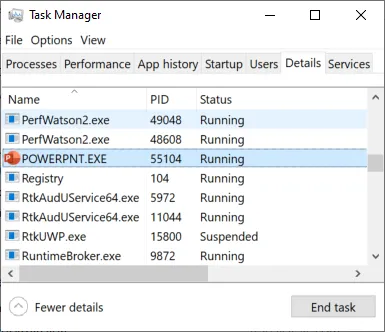
- Use Ctrl+Shift+Escape to open the Task Manager.
- Go to the Details tab and check if any EXCEL.EXE, POWERPNT.EXE or WINWORD.EXE process is still running.
- End the process by clicking End Task.