Export as PowerPoint or Word table exports a linked Excel table as a native table in the destination application, keeping the data connected to Excel, and allowing you to resize and format it freely in your document.
This feature is not available by default. To activate it, please reach out to your UpSlide representative or UpSlide support.
Why use Export as PowerPoint or Word table
The standard Excel Link exports your table as an image. Export as PowerPoint or Word table goes further by creating a real, editable table, making it the right choice when you need:
- High fidelity to an Excel table. It is the same as if you exported using native Paste keeping source formatting.
- Layout flexibility. You can resize the table directly in your document without affecting the link.
- Automatic data updates. Any changes made in Excel can be updated in PowerPoint or Word, just like the standard Excel Link.
Export a table as a native table
Once the option is activated at the account level:
- Select the table that you want to export in Excel.
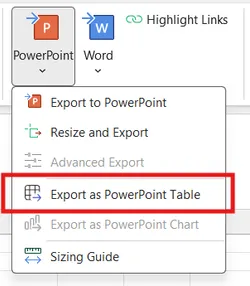
- Navigate to the Export to PowerPoint or Export to Word dropdown in the UpSlide ribbon.
- Select Export as PowerPoint or Word table.
Do not place shapes or text boxes on top of the table in Excel before exporting, or they will be inserted as extra shapes in the destination application or be left out entirely. This behaviour happens because tables in PowerPoint and Word do not support shapes in the cells. If you need to export a table with overlaid shapes, use the standard Export to PowerPoint instead.
Update the linked table
Although the table is fully editable in PowerPoint and Word, Excel remains the source of truth. Any data changes made in the linked table are overwritten after an update.
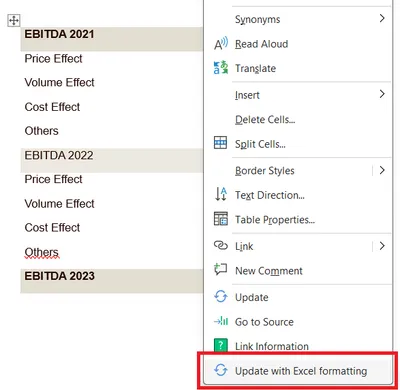
To facilitate formatting in PowerPoint and Word, updating the table keeps the modifications made to its layout. To restore the Excel formatting, select the table and click Update with Excel formatting in the contextual menu. The table’s overall size is the only exception: if you resize the table in PowerPoint, UpSlide preserves the new dimensions, even after you select Update with Excel formatting.
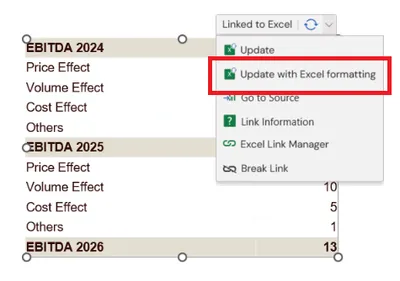
You can also right-click the table to find the Update with Excel formatting option in Word.