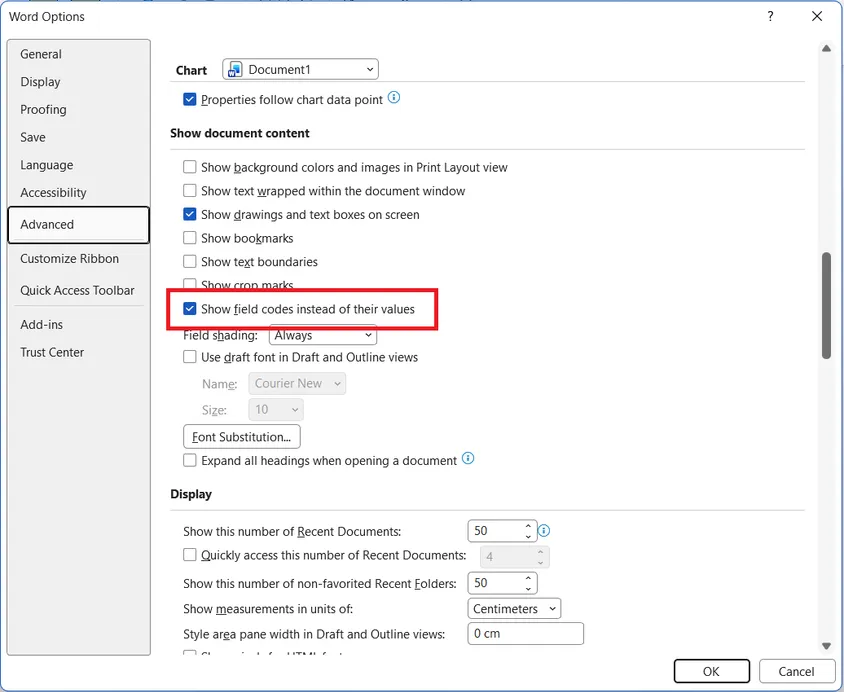
After updating or opening a Word document, you may notice that some linked values are replaced by a code starting with DOCVARIABLE. This is caused by a Word setting that controls how field codes are displayed across the document. This article explains how to turn it off and restore the normal view.

Root cause
Word includes a setting called Show field codes instead of their values. When this option is active, all dynamic fields in the document, including UpSlide links, display their underlying code rather than the values they contain.
Showing these field codes may be useful when creating templates and automated reports, debugging references or customising field formatting. UpSlide links uses the DOCVARIABLE field code to store and display linked data from Excel.
Solution
You can resolve the issue by using the shortcut Alt+F9 to toggle between viewing field codes and their values. You can also deactivate it by following the steps below:
- In Word, go to File > Options > Advanced.
- Scroll down to the Show document content section.
- Uncheck Show field codes instead of their values and click OK.