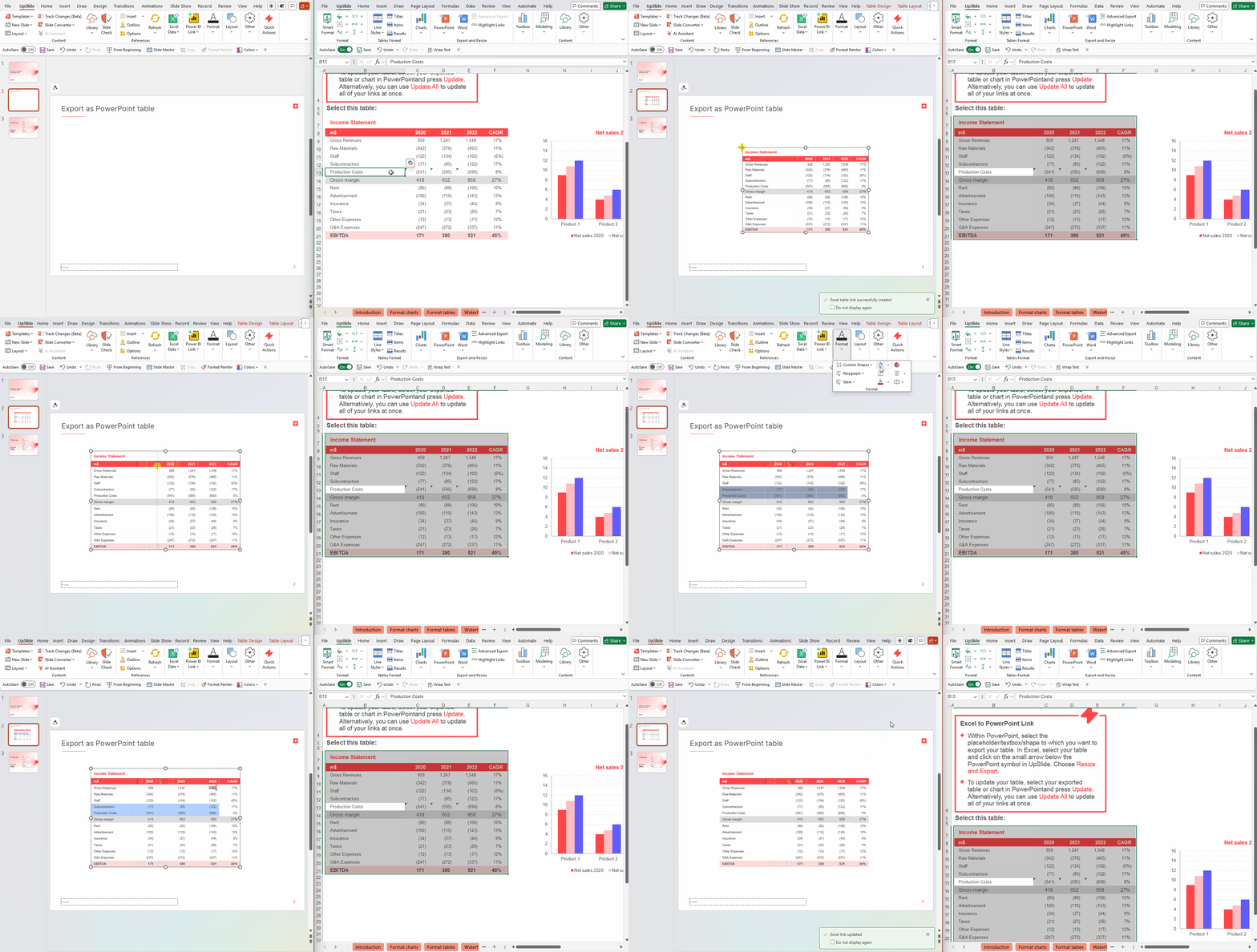
Export as PowerPoint Table exports a linked Excel table as a native PowerPoint table, preserving its formatting, keeping the data connected to Excel, and allowing you to resize it freely in your presentation.
This feature is not available by default. To activate it, please reach out to your UpSlide representative or UpSlide support.
Why use Export as PowerPoint Table
The standard Excel Link exports your table as an image. Export as PowerPoint Table goes further by creating a real, editable PowerPoint table, making it the right choice when you need:
- High fidelity to an Excel table. It is the same as if you exported using native Paste keeping source formatting.
- Layout flexibility. You can resize the table directly in PowerPoint without affecting the link.
- Automatic data updates. Any changes made in Excel can be updated in PowerPoint, just like the standard Excel Link.
Export a table as a PowerPoint table
Once the “Export as PowerPoint Table” is activated at the account level:
- Select the table that you want to export in Excel.
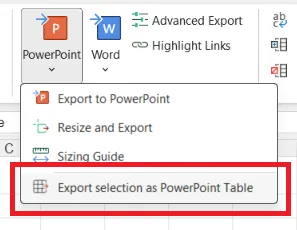
- Navigate to the Export to PowerPoint dropdown in the UpSlide ribbon.
- Select Export selection as PowerPoint table.
Do not place shapes or text boxes on top of the table in Excel before exporting, or they will be inserted as extra shapes in PowerPoint. This behaviour happens because PowerPoint tables do not support shapes in the cells. If you need to export a table with overlaid shapes, use the standard Export to PowerPoint instead.
Update the PowerPoint table
Although the table is fully editable in PowerPoint, Excel remains the source of truth. Any data or formatting changes made in PowerPoint will be overwritten after an update.
The one exception is the overall table size. If you resize the table in PowerPoint, that adjustment is preserved after an update. However, changes made to individual cell height or width in PowerPoint are not retained.