Contrary to UpSlide Branded, the Neutral version of UpSlide has no specific templates. If you're getting started on UpSlide Neutral, here are the key differences between Branded and Neutral, as well as information on how to customize your templates.
Feature available in Neutral vs. Branded
| Benefit | Feature | Neutral | Branded |
|---|---|---|---|
| Service | Access to the license management portal | ||
| Service | New versions of UpSlide | ||
| Service | Technical support | ||
| Productivity | Excel link to PowerPoint and Word | ||
| Productivity | Aligning and formatting objects | ||
| Productivity | Arranging shapes on or across slides | ||
| Productivity | Automated PowerPoint Table of Contents | (default branding) | (your own branding) |
| Productivity | Complex Excel charts (Waterfall, Marimekko) | (default branding) | (your own branding) |
| Collaboration | Shared Library of reusable assets | (default content) | (share and access your content) |
| Brand consistency | Applying formatting to Excel tables and charts | (default branding) | (your own branding) |
| Brand consistency | Brand and formatting compliance using Slide Check | (limited checks) | (add content compliance) |
| Brand consistency | PowerPoint slide content formatting | (default branding) | (your own branding) |
| Brand consistency | Customised themed PowerPoint templates | (default branding) | (your own branding) |
| Productivity | Excel advanced modelling | Optional | Optional |
| Productivity | Power BI link to PowerPoint and Word | Optional | Optional |
Adapting Neutral PowerPoint styling to your desired branding
UpSlide Neutral comes with a set of neutral slides in PowerPoint. If you’d like to modify them to fit your brand’s palette better, follow the steps below.
As an administrator, go the the Templates dropdown menu in the UpSlide ribbon and click Manage templates… and Edit to open your template. If you’re not an administrator, you can still follow along the rest of the procedure but you will have to perform this change for every presentation.
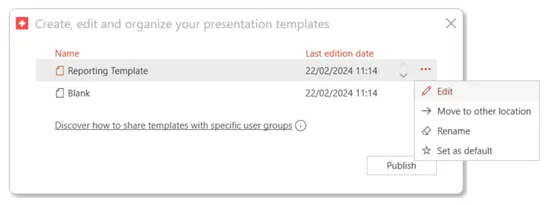
You can then go to the View tab and click Slide Master.

Once the Slide Master is open, select the Colors dropdown menu and click on Customize Colors…
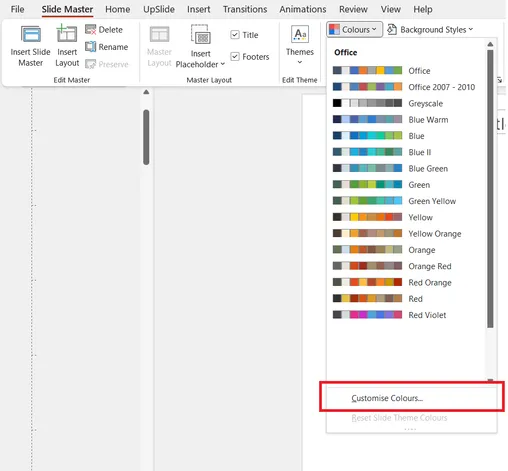
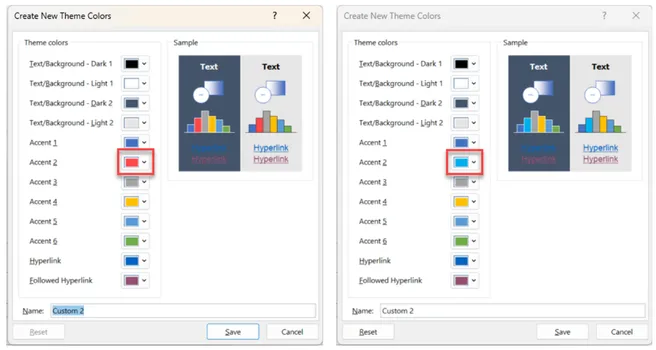
You can change all the colours to match your desired branding. The sample on the right side of the window will give you a visual idea of what you can expect your content to look like.
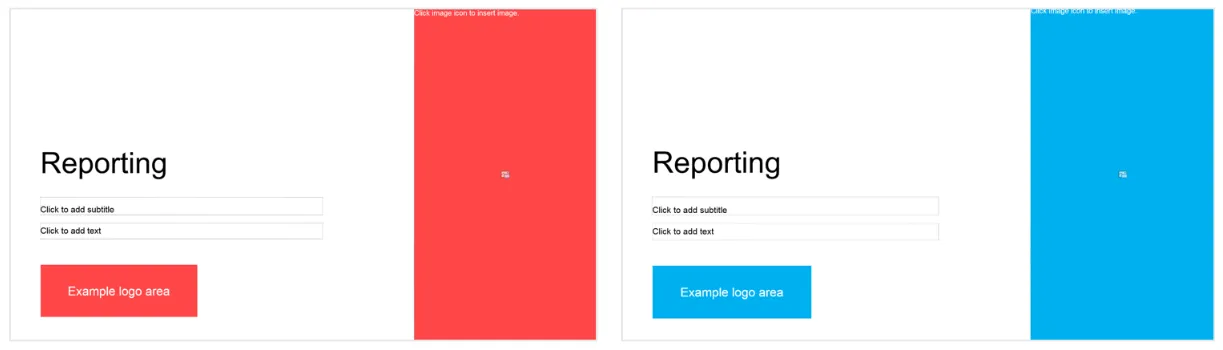
Once you’ve saved your changes, you can close the Master and see the differences it made to your Neutral template. If you’re an administrator and would like to share these changes with the rest of your team, don’t forget to publish your changes.
Training
Once you’ve customised your template and your team is ready to use our tool, you can use the various links in this article to get familiar with UpSlide.
You can watch our tutorial videos that cover best practices and include useful tips about our main features and our latest webinars to get the most out of UpSlide.