Smart Painter enables you to copy in one click the position and the dimensions of a given element in PowerPoint and apply it to any other element in your presentation. If your UpSlide version is below 6.7.16 (released in September 2021), you will not have the latest Smart Painter UX and will instead have a pop-up window. The bottom of this page contains instructions on using this version of Smart Painter.
Try the feature for yourself by following this guided tutorial.
Use Smart Painter to copy any shape or textbox properties onto another
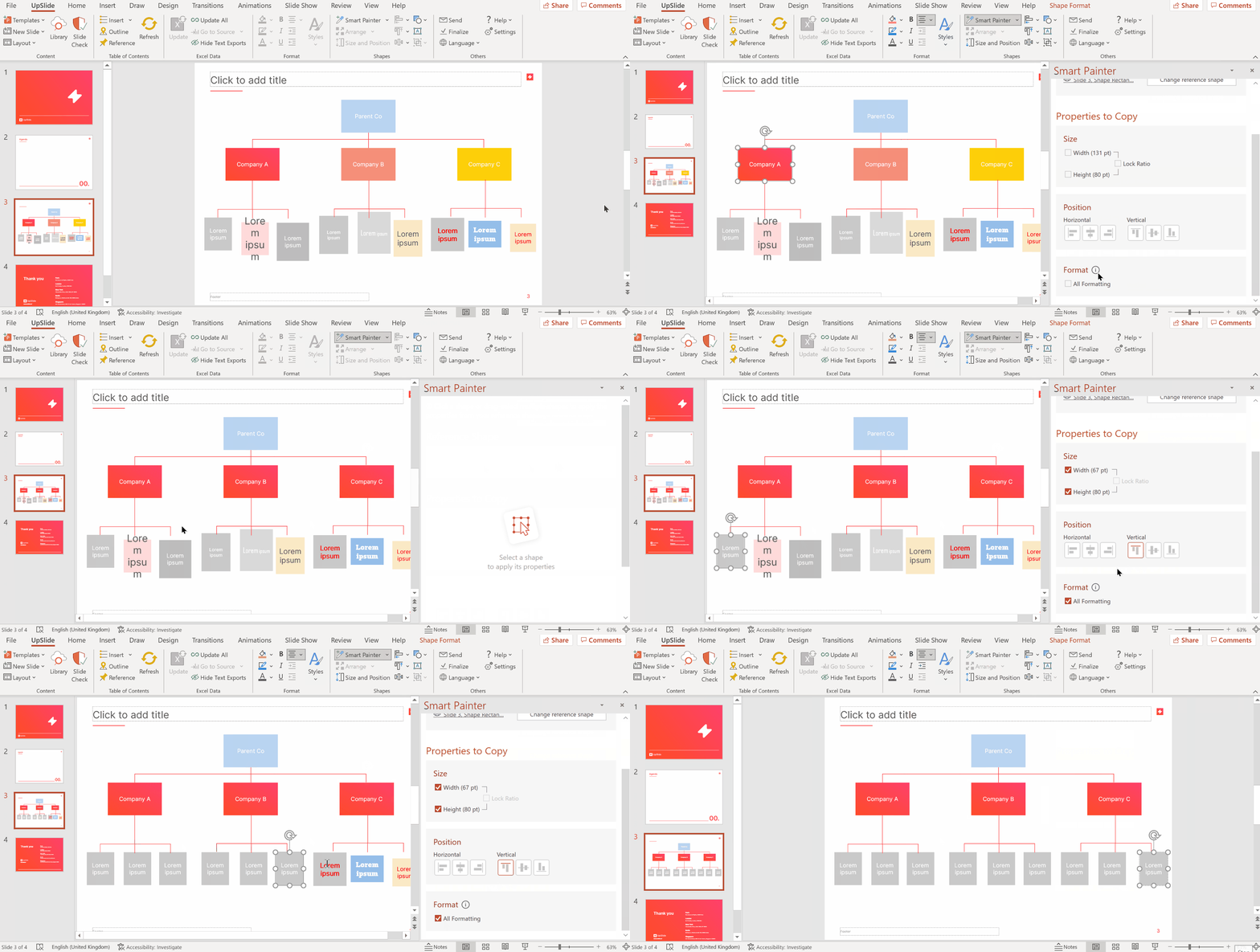
- Select your reference shape with the qualities you want to replicate.
- Click the Smart Painter button. A pop-up window appears. Smart Painter in now running and will only stop when the pop-up window is closed.
- In the pop-up, select the reference shape’s properties you would like to copy:
- Size: Width, Height or both. You can also lock the ratio width/height of the shapes to make sure they will not be distorted by ticking Preserve Aspect Ratio.
- Position: Horizontal or Vertical alignment or both: either Left, Center or Right and/or either Top, Middle or Bottom
- Tick the Format checkbox to copy the formatting such as shape fill, text color, border applied.
- To apply the selected properties to a shape, just click on it. Smart painter can be performed on objects on other slides or between different presentations as well.
- Once you are done close the Smart Painter pane.
In our example we change the reference shape which means we can remember the changes we previously made (such as copying the size of an object) and then change what the ‘source’ is to apply to other objects. In our example this is setting the format and sizing of the red Company boxes and then changing the reference shape to change the grey entity boxes next.
Copy and paste width or height

Apply a shape dimension (width or height) to any other shape selected in your slide quickly.
- Select your reference shape first then select all the other shapes you want to apply the height and/or width to.
- Click the arrow next to the Smart Painter button to open the drop-down menu and choose whether you want to replicate the width or the height of the reference shape.
- All selected shapes have now been applied the width or height of the reference shape.
Instructions for the pop-up window (using UpSlide v6.7.16 or earlier)
Use pop out window Smart Painter to copy any shape or text box properties onto another
- Select your reference shape with the qualities you want to replicate.
- Click the Smart Painter button. A pop-up window appears. Smart Painter in now running and will only stop when the pop-up window is closed.
- In the pop-up, select the reference shape’s properties you would like to copy:
- Horizontal alignment: either Left, Center or Right
- Vertical alignment: either Top, Middle or Bottom
- Dimensions: Width, Height or both. You can also lock the ratio width/height of the shapes to make sure they will not be distorted by ticking Preserve Aspect Ratio.
- Tick the Format checkbox to copy the formatting the same way it would do with the native feature Format Painter.
- To apply the selected properties to a shape, just click on it. Smart painter can be performed between different presentations as well.
- Once you are done, close the Smart Painter window.
Do not forget to close the pop-up window once you are done. As long as the Smart Painter window is open, the properties of your reference element will be applied to every item you click on.
Use pop out window Smart Painter to copy and paste width or height
This feature allows you to apply a shape dimension (width or height) to any other shape selected in your slide.
- Select all the shapes for which you want to apply a particular dimension. The shape you selected in first is the reference shape.
- Click the arrow next to the Smart Painter button to open the drop-down menu and choose whether you want to replicate the width or the height of the reference shape.
- All selected shapes have now been applied the width or height of the reference shape.
When selecting several shapes the Smart Painter button might look deactivated, but you can still open the drop-down menu.