With our link, you can export Excel data to PPT and Word and easily update it in one click. You can also rename, move and update your files without re-linking.
Try the feature for yourself by following this guided tutorial.
Summary
How to create links
Link tables and charts
- In PowerPoint, select the slide or page onto which you want to export your data
- Open your Excel workbook and select the table or chart you want to export
- Within Excel, go to the UpSlide toolbar PowerPoint button and select Export to PowerPoint from the drop-down.
- Once the link has been created, remember to save both the PowerPoint and Excel files to ensure the link remains intact.

Your items are linked across as dynamic images. This helps ensure that the file size remains light while preserving the quality of your source data. You can reposition the image into the correct location on your slide or page.
You can also create a table and chart link by copying it from Excel and pasting it in PowerPoint. You will see a prompt at the top right-hand side to use the UpSlide link, which will create the dynamic image.
Resize and Export tables and charts

When using the Link, you can also predetermine the position and dimensions of your export, allowing you to ensure that the linked image fits perfectly on the slide.
To use the resize and export feature:
- Select the text box or placeholder where you would like the data to go. The shape of the placeholder will determine the dimensions of the linked item.
- Press the spacebar to remove any unwanted text from the placeholder
- In Excel, select the table or chart that you would like to export
- Click the down arrow on the PowerPoint button in Excel and select Resize and Export from the drop-down
The table or chart will link directly to the PowerPoint placeholder. Remember to save both the PowerPoint and Excel files after linking.
When using this option, the table or chart will be adjusted in Excel to match the size of the newly linked object in PowerPoint.
Do you want to control the size adjustments rather than UpSlide doing it for you? Try our Sizing Guide instead.
Link text
If you would like to maintain consistency between the commentary written in PowerPoint and the figures shown in your tables/charts, you can link those figures into your text placeholders to keep them up to date.
- Within PowerPoint, select the text where you’d like to insert your link
- Select a single cell in Excel
- Select the Export option. A popup will ask you to choose between exporting its content as text or an image. Select text.
In the case of text, data is exported to the selected location as a hyperlink (similar to what is generally used for cross-references) linked to the source cell in Excel.
You may want to export a text link using an empty cell that you plan on filling later. In this case, UpSlide will display #Empty Source Cell# instead of a blank export. If you’d prefer not to display the error message, you can type =CHAR(10) in the cell. UpSlide will detect the formula and not show the error.
Hide Text Links
When data is linked as text using UpSlide, it is formatted as a hyperlink in PowerPoint. This is to quickly show you what text/figures linked to Excel are and what are not. However, these hyperlinks may need to be removed before presenting or printing the presentation.
To remove the hyperlink, click the Hide Text Links button within PowerPoint. If you need to edit the presentation further, click the Unhide Text Links button to restore the hyperlinks.
Text exports are automatically unhidden when creating a new text link or opening the Excel Link Manager pane.
How to update linked items
Update one item in your document
If you select the imported Excel data in PowerPoint and click the Update button, UpSlide examines all open Excel workbooks and looks for potential sources. This means that both the Excel source and the document you’re trying to update should be open.
Depending on what is found, three situations may arise:
- Success! A single potential source is found in your open Excel files. In this case, your data is updated.
- No potential sources are found, in which case you can use the Go to Source button to find out which file was last used as the source, who last updated it, and the date/time of the last update.
- Several potential sources are found, in which case, Go to Source/Link Information will also be helpful to select the correct one. This lists all possible sources and previews the potential sources for you to choose from. This can occur when several versions of the same file are opened simultaneously.


You can also select the imported data from Excel and use the top right-hand side prompt to update it. In this dropdown, you can also quickly use the Go to Source and Link Information features.
Update multiple or all items in your document
The Excel Link Manager (ELM) allows you to update multiple Excel Links at once through a single pane where you can group links by slide or Excel sources or filter only those links with update issues.
When you click the Update button, UpSlide will try to update each selected item with the corresponding data in the Excel workbooks.

To learn more about the different options available in the Excel Link Manager, you can have a look at our dedicated page.
If instead of Excel Link Manager you can see the Update All button, please reach out to your admin to ensure you have been upgraded to the latest version of UpSlide. You can read more on how to update links using Update All in the section below.
Update All and Excel Link Manager in Word
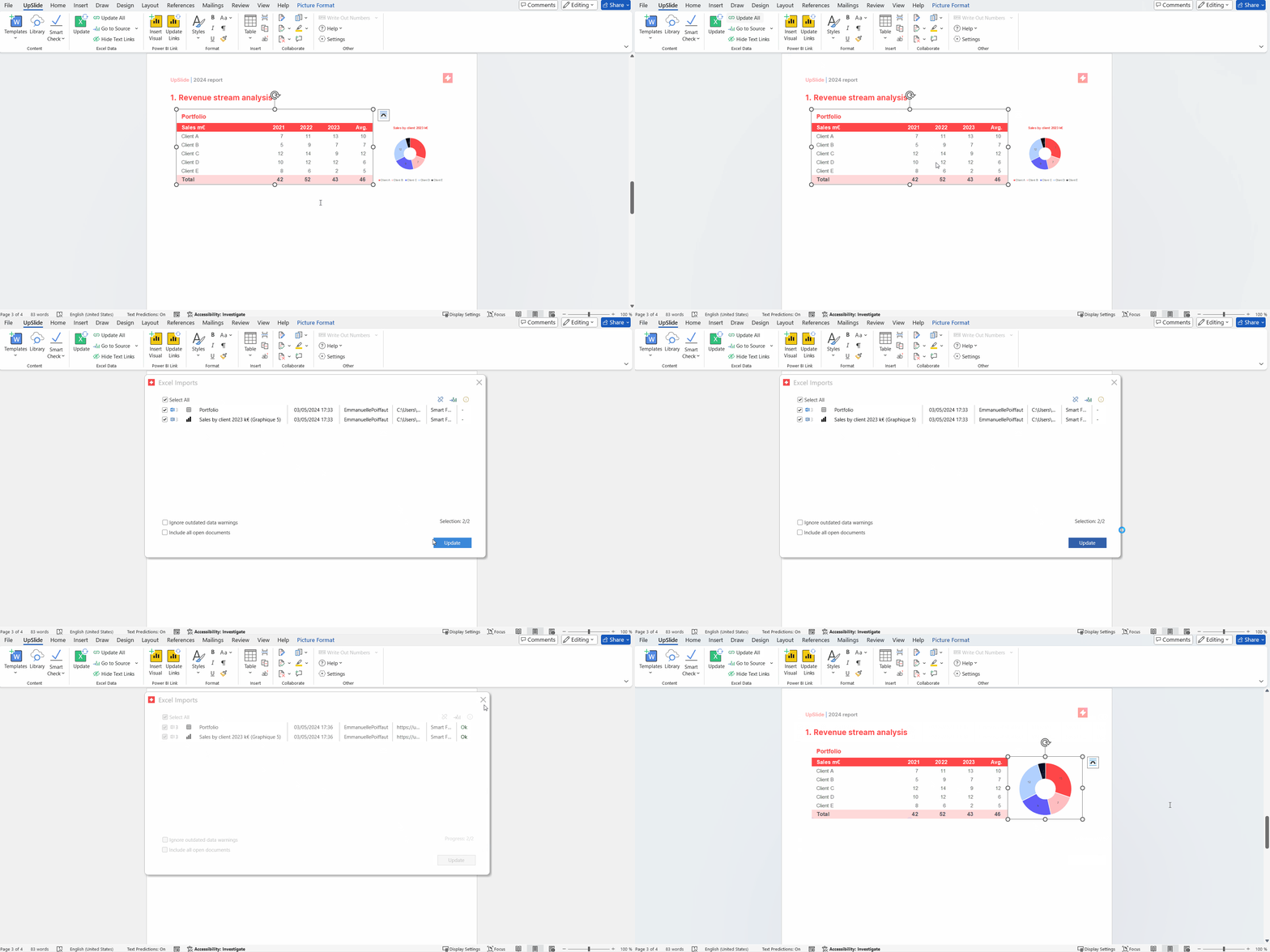
In Word, click Update All to see the list of all Excel links, text and images exported from Excel to Word.
- Click Update All to open the update pane.
- Select all the links you wish to update.
- Click the Update button.
You can now turn on the Excel Link Manager in Word by checking this option in the Update All pane:
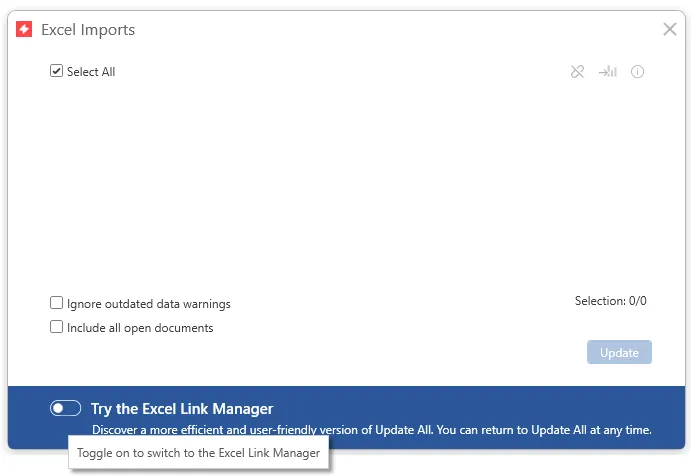
If you don’t see this button, please reach out to your admin to ensure you have been upgraded to the latest version of UpSlide.