Using tags on items within the library can help categorize content to allow your users to quickly filter to what they need to insert.
Examples of tags
Sales and Marketing
Easily categorise material that adds an additional dimension beyond folder structure and file names. If the library folder structure is split by geography or industry you can add other categories. E.g. adding specific sectors you target or your key differentiators to help pull a pitch together at short notice.
Front Office
In a library split by sub-teams for 1,000+ users service lines have often their own marketing support and best practice is not easily centralized. Each Marketing administrator knows the best items in their area and could add a specific tag. Imagine if an end user in Dept 1 wants some inspiration and looks at the tag - now they can see what someone in Dept 7 is told to use as the ten best pieces of content without having to look through all 500 general Dept 7 slides. E.g. Best Practice or Key Layouts or Key Company Credentials.
Compliance and Information Security
Monitor the content of the library and ensure their organisation can access correct material within PPT/Word/Excel. Adjust Compliance workflows to periodically review and update items. E.g. Expires December 2021 or Mandatory Disclaimer or Internal Use Only or Owner: Ellen Smith.
Adding tags

- Open the library pane: in PowerPoint, Excel or Word, go to the UpSlide tab and
click Library - Find the library item you want to add a tag, right-click and select Manage Tags
- Type your required tag and press enter
- Press OK to upload all your tags on that item into the library ready for your users to immediately access
You add tags to content already in the library. For new content you first upload the item into the library and then add your tags.
Adding tags in bulk
To add the same tag(s) to lots of items in your library:
- Select all the items in the pane using Ctrl + Left Click (just like File Explorer!)
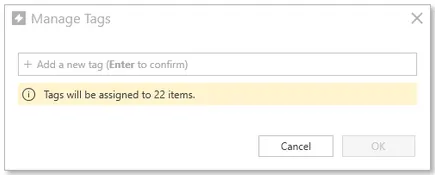
- Right click a selected item and press Manage Tags
- Your popup now shows the number of items that will have the tag(s) you enter applied
Removing tags
- Find your library item, right-click and select Manage Tags
- Press the X next to all the tags you wish to remove
- Press OK and your changes will be uploaded to the library
If you do not have any Manage Tag options when right-clicking on an item in the library you may not have the Administrator option enabled. Contact your license manager or UpSlide contact to change this.