Make sure a Power BI report is compatible with the UpSlide link with some good practices. If you are not the Power BI report builder, you may need to contact somebody else to do this for you.
The UpSlide Power BI window only shows your workspace and “shared with you” reports but not the Power BI apps.
Summary
- Avoid incorrect filters
- Be careful with filter’s interaction becoming deactivated
- Be careful with visuals and report backgrounds
- Use slicers and relative date filters when needed
Avoid incorrect filters
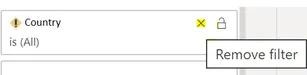
Using incorrect filters in your Power BI dashboard can make your export to PowerPoint/Word fail. An incorrect filter is one applied in a report that Power BI can no longer use or access. For example, a “country” filter where the country column has been removed from the database. The following message will alert you that an incorrect filter is set on your Power BI dashboard:

You will need to remove these incorrect filters (which will not work in your dashboard either). To remove your filters:
- Go to editing mode in Power BI web
- Open the filter panel
- Incorrect filters will show a yellow warning symbol
- Use the x to remove this filter
Make sure you check each Visual, Page, Report Level filter and Hidden filter
Be careful with filter’s interaction becoming deactivated
What are visual interactions?
You might want to use a slicer to filter your report except for a specific visual. To do so, you can deactivate the slicer interaction for that specific visual. For example, you would use this when you have a monthly report and want to deactivate the “Month” slicer for a visual comparing year-round data.
Important
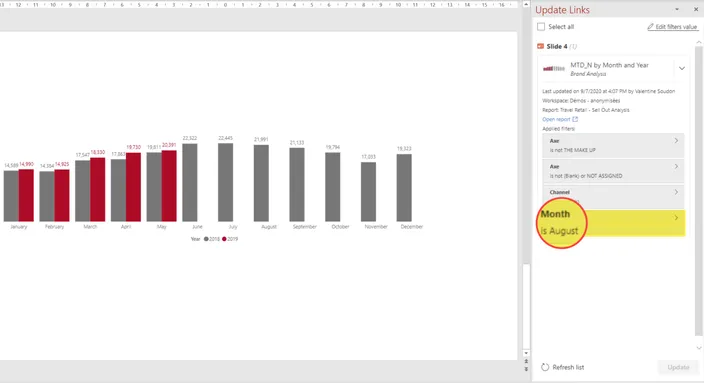
Microsoft’s API does not currently include information on filter interaction information we use for our link, so we cannot currently export them yet. If you removed interaction filters between a slicer and a visual when exporting you will find:
- the visual will not be filtered by the slicer
- the Update Link panel will show the slicer name and value as though it had been applied
Be careful with visuals and report backgrounds
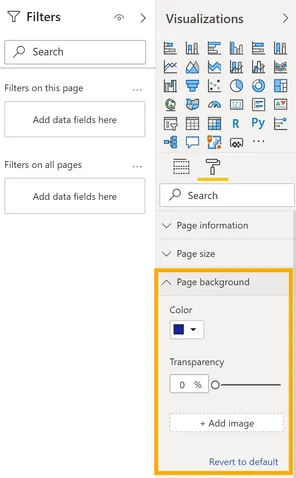
If you have a page background on the report, this will not be exported when you export visuals. Only the visual background will be. To check whether your visuals or your page have a background:
- Go to editing mode in Power BI web
- Click anywhere on the report to unselect all visuals
- Go to Visualization -> Page Background
- Check if the page has a background applied
You may want to remove the background from the page and apply it to each visual depending on the result you want in PowerPoint or Word.
Use slicers and relative date filters when needed
You may have recurring PowerPoint/Word documents to update. Using relative date filter or editable slicers will ensure easy updates.
Have a look at our dedicated article: How to use filters as slicers in Power BI