When exporting a grouped visual from Power BI using UpSlide, the resulting image displays a blank square or a cropped version of the visual. This is a known issue that will be resolved in UpSlide version 7.1.1.
Root cause
In older versions, UpSlide was unable to correctly capture grouped visuals during the export process. As a result, the exported slide shows an empty placeholder where the visual should appear.
Workaround
To export the visual using the Power BI link, it must be ungrouped and updated in the Power BI report.
- Open your report in the Power BI app.
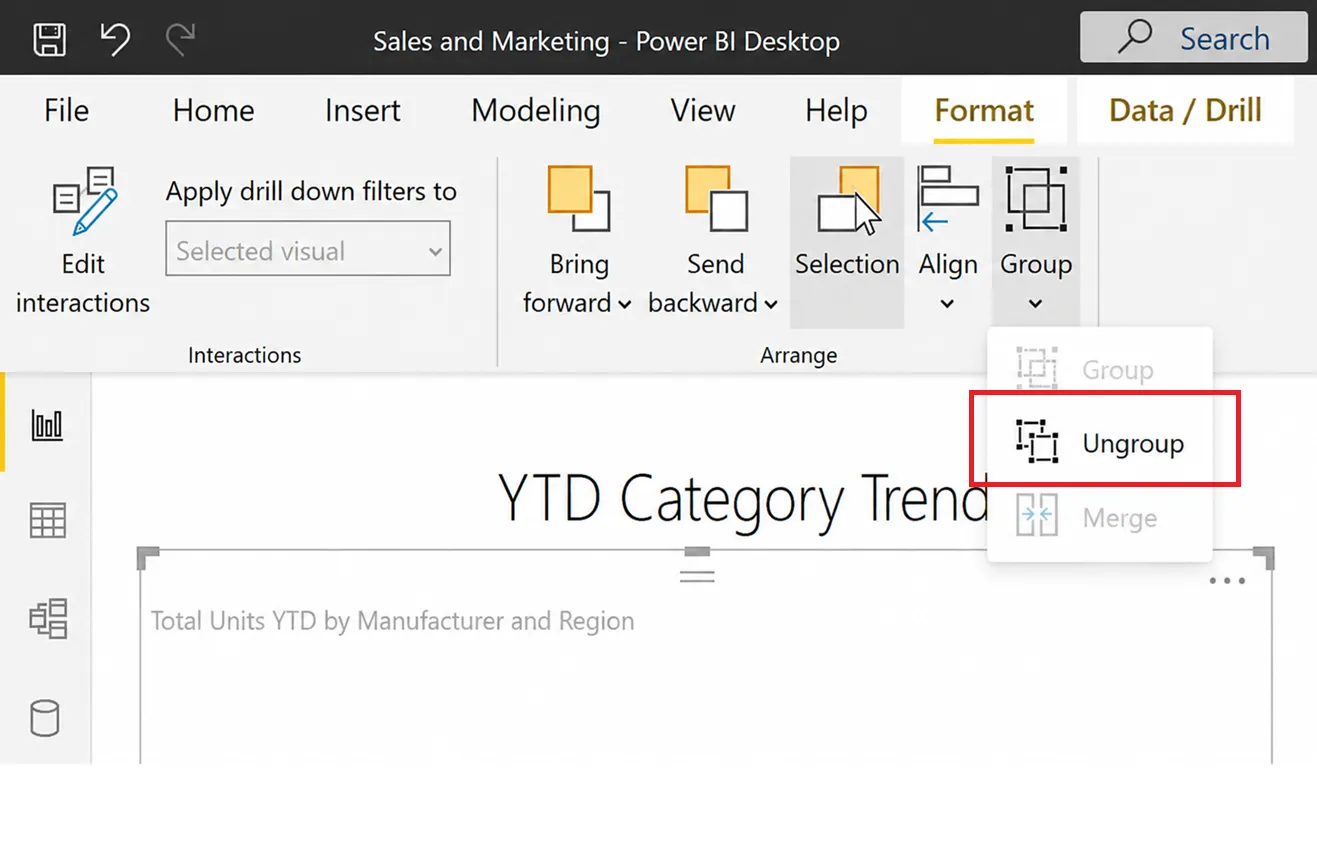
- Select your visual and go to the Format tab.
- Click Group > Ungroup. Save the change.
You can re-export the visual using UpSlide.
Solution
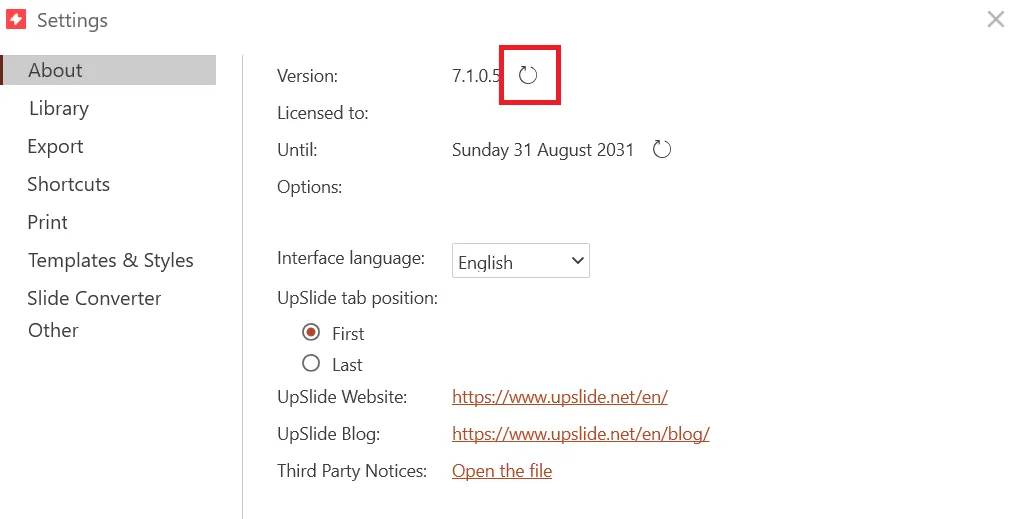
A permanent fix is included in UpSlide version 7.1.1. To force the update, go to Settings in the UpSlide ribbon, then click the arrow next to the version number in the About tab. You’ll need to restart your Office applications for the autoupdate to complete.