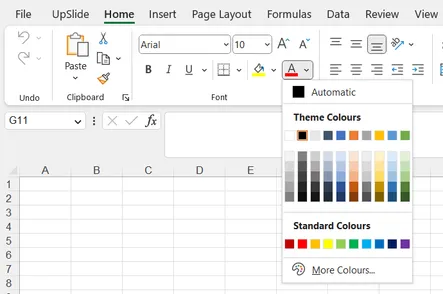
By default, Excel's colour palette only displays Microsoft's standard theme colours, which may not reflect your company's branding. This article explains how to configure your Excel theme so that your company's colours are available directly in Excel's native colour picker.
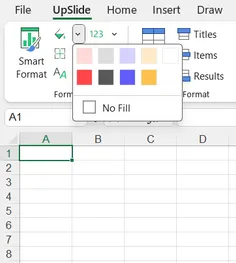
Your company’s colour palette and approved styles are already available in UpSlide’s Format section. However, if you would like to have them available on the Home tab, follow the procedure below.
Import PowerPoint’s palette into Excel
- In PPT, open your default UpSlide template using the Templates dropdown menu.
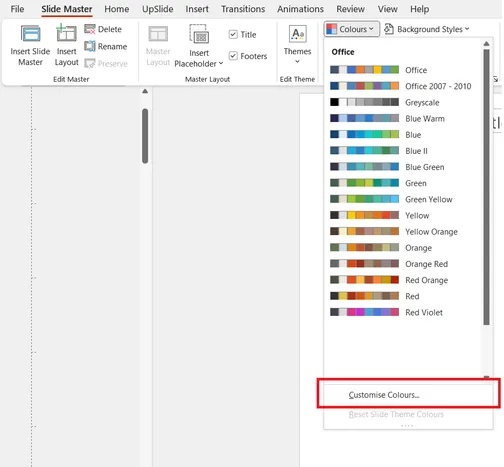
- Go to the View tab, then click Slide Master.
- In the Background section, click the colours dropdown menu and Customize Colours…
- Name your customisation and click Save. Your palette is now available in Excel.
Save your Excel file as a template
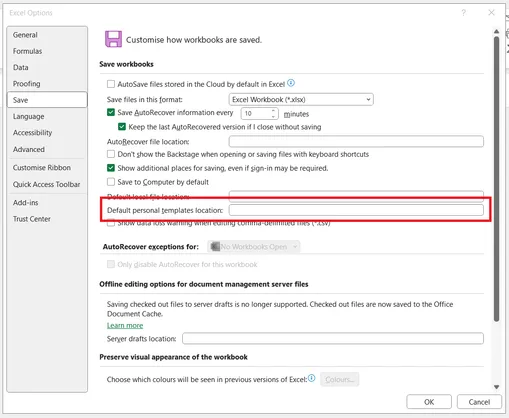
In a blank Excel file, go to File > Options > Save and set a folder path for the Default personal templates location. If this information is already recorded, take note of it for later.
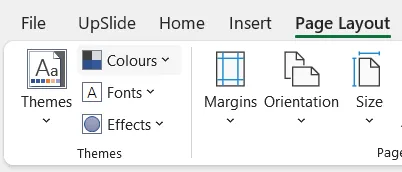
Go to Page Layout and select your custom palette in the Colours dropdown menu.
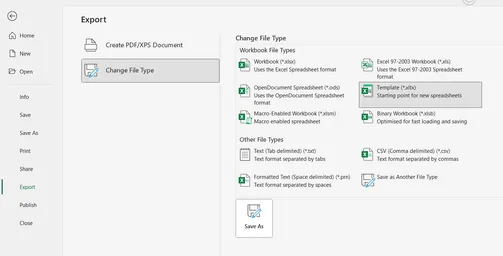
Go to File > Export and Change File Type to Template (*.xltx) to save your file as an Excel template in the folder previously set as the default location.
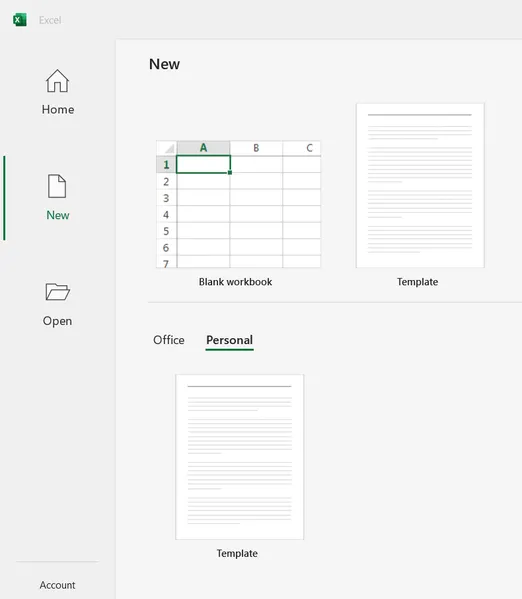
You can now create a new workbook, which comes with your custom colours directly available in the Home tab. To do so, go to Excel > New > Personal. After opening the template for the first time, it will be visible in the Home tab under New by default.