UpSlide is an Add-in to Excel, Word, and PowerPoint that helps finance professionals build on-brand documents faster. This page introduces all IT aspects of UpSlide deployment and points to all the necessary resources should you need more information.
Security
UpSlide is SOC-2 compliant. Feel free to reach out to support@upslide.com to get the report.
Please have a look at the articles below to learn more about how we ensure the security of our solution and resources:
Deployment and installation
UpSlide is an add-in to the Microsoft Office applications: Excel, PowerPoint and Word. It needs the prerequisites below and the Admin permissions on the machine to be installed:
- VSTO, Visual Studio Tools for Office, which you can install from Microsoft’s website
- .Net Framework v4.8
- Microsoft Edge for the PowerBI link feature
You can install UpSlide on any machine equipped with both:
- Windows 10 or 11 (x32 or x64)
- Microsoft Office 2016, Office 2019, Office 2021, Office 365
You can check this article for more information about prerequisites and compatibility
UpSlide can be deployed like any Windows software using a .exe file. All information regarding the deployment is available in the articles below:
- Command lines and installation details
- Deploy using SCCM
- Deploy using Intune
- Deploy on VDI environment
Architecture
UpSlide does not store any data outside your network apart from the personal user data necessary for licensing and usage statistics.
UpSlide gives direct access to a library of centrally managed assets (slides, images, charts, workbooks) stored within your network or SharePoint tenant. Each machine has a local copy of these assets for offline work.
You can find a diagram of our architecture in this article.
Communication with the UpSlide server
UpSlide needs to communicate with our servers to:
- Activate the software (upon first starting MS Office).
- Retrieve the software settings (most notably the location of the UpSlide content library within your network).
- Download software updates.
- Gather usage statistics summarised in a dashboard to see the ROI of your UpSlide investment.
This page describes in detail the nature of the exchange with our servers. In short, UpSlide sends the user’s email to our server, and the user receives either a license code, a settings file or an update package.
Personal data hosting
UpSlide does not have access to any sensitive data.
UpSlide collects personal user data such as Email and Name for Licensing purposes. We store this data on Microsoft Cloud Azure (West-Europe and France) Servers.
This page describes in detail the security of our servers.
Setting up libraries
The UpSlide content library offers easy access to up-to-date content (corporate slides, logos, bios, etc.) and graphical elements (layouts, tables, icons, etc.) directly within PowerPoint, Excel and Word.
This page describes in detail how our library works.
In short, you must set up either a SharePoint site or network storage. UpSlide will use this location to store content and settings. Some users will push new content via the UpSlide interface, and, thanks to our built-in synchronisation system, all other users will get a local copy.
Provisioning
You must register the authorised users to get an UpSlide license on our Portal. You can do this provisioning in one of 2 ways below:
- Manually via our Portal website (you can use a .csv file to bulk import).
- Automatically via Entra ID provisioning. If you have an Entra ID Tenant, you can easily set it up to grant an UpSlide license to any user in a given AD group.
Support
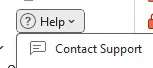
Our Support Team can be contacted by email directly from the UpSlide application. Our core Support team’s average response time is below 2 hours from 8 am to 10 pm GMT. Your dedicated account team is also available for blocking issues in other time zones (USA, Central Europe, Singapore).
We can also configure UpSlide to forward all support requests to your Support team. We provide a guide for Level-1 UpSlide support to assist them, and they can escalate complex issues to our team.