This section introduces a step-by-step guide to deploying UpSlide on the Citrix environment.
UpSlide can be installed on a Citrix environment, but because some features require that all Office applications be closed, you will have the limitations below:
- The auto-update process won’t work.
- UpSlide won’t be able to install a new Customization
To work around those limitations, we recommend forcing a single-user install of UpSlide.
Don’t hesitate to contact support@upslide.com for more information, as some of the steps below might not be necessary with this type of installation.
Registry and Personal Folder Replication

Why this is important
UpSlide is an add-in for the Microsoft Office suite. It needs to store user-specific settings like license activation status or regional settings. This information is stored in two places:
- Registry key: HKEY_CURRENT_USER\Software\Microsoft\Office\Excel\AddIns\Finance3point1.UpSlide.Excel
- Folder: %APPDATA%\UpSlide or C:\users\{username}\AppData\Roaming\UpSlide
If you use a Citrix server farm to deploy the Office suite, you must ensure that the HKEY_CURRENT_USERS hive is correctly replicated between all your Citrix servers and the AppData\Roaming folder of the user’s session.
How to do it
The solution that we recommend is to enable roaming profiles for Citrix users. If you don’t want to replicate the whole hive on your Citrix servers, you must install Citrix Profile Management and set GPOs.
You will also need to replicate the %APPDATA%\UpSlide Folder across your servers. This is handled by default with Roaming Profiles.
Enable Citrix Profile Management
- Open the Group Policy Editor and create a new GPO with the scope of your users.
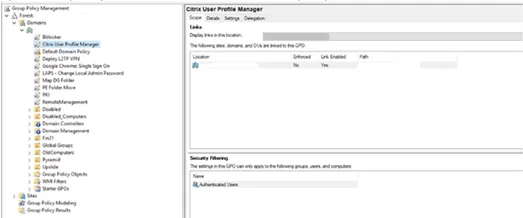
- Once created, edit your policy and go to Computer Configuration > Policies > Administrative Templates (ADMX Files) > Citrix Components > Profile Management and set the following policies:
- Enable Profile Management: Set to Active,
- Path to User Store: Set to Active and specify the path to Roaming Profile location on your network,
- Active write back Registry: Set to Active.
- Once these settings are set, Citrix will replicate the integrality of the HKEY_CURRENT_USER hive across your server farm. You can push the configuration further and specify Citrix to replicate only specific keys.
Set up Citrix to replicate specific keys during logoff
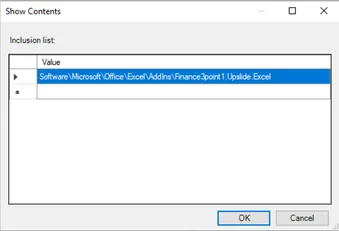
- Open your Group Policy and go to Computer Configuration > Policies > Administrative Templates (ADMX Files) > Profile Management > Registry > Inclusion List and specify these settings :
- Inclusion List: Add “Software\Microsoft\Office\Excel\AddIns\Finance3point1.UpSlide.Excel”
Deploy UpSlide only for certain users

UpSlide Registry Keys
UpSlide installer deploys registry keys for UpSlide to load at Office startup automatically. By default, these keys are found on the HKEY_LOCAL_MACHINE hive.
When using Office 64 bits on a computer running Windows 64 bits:
HKEY_LOCAL_MACHINE\Software\Microsoft\Office\Excel\Addins\Finance3point1.UpSlide.Excel :
- Friendly name (String): A set of customized tools designed by UpSlide for Office
- Description (String): UpSlide for Excel
- LoadBehavior (DWord): 3
- Manifest (String):C:\ProgramData\UpSlide\Binaries\Finance3point1.UpSlide.Excel.vsto|local
HKEY_LOCAL_MACHINE\Software\Microsoft\Office\PowerPoint\Addins\Finance3point1.UpSlide.PowerPoint :
- Friendly name (String): A set of customized tools designed by UpSlide for Office
- Description (String): UpSlide for PowerPoint
- LoadBehavior (DWord): 3
- Manifest (String): C:\ProgramData\UpSlide\Binaries\Finance3point1.UpSlide.PowerPoint.vsto|local
HKEY_LOCAL_MACHINE\Software\Microsoft\Office\Word\Addins\Finance3point1.UpSlide.Word :
- Friendly name (String): A set of customized tools designed by UpSlide for Office
- Description (String): UpSlide for Word
- LoadBehavior (DWord): 3
- Manifest (String): C:\ProgramData\UpSlide\Binaries\Finance3point1.UpSlide.Word.vsto|local
When using Office 32 bits on a computer running Windows 64 bits (or a 32 bits machine), replace Software with Software\WOW6432Node.
If you don’t want to deploy UpSlide to All Users on your Citrix environment, these keys must be moved from HKEY_LOCAL_MACHINE hive to HKEY_CURRENT_USERS.
This can be easily done using a GPO deployed only on UpSlide users.
UpSlide Users GPO Creation
This Group Policy will create the keys into the HKEY_CURRENT_USER hive (User Configuration).
Create a new GPO and link it to UpSlide Users on the Group Policy Console. Go to User Configuration > Preferences > Windows Settings > Registry
Next, add new registry elements to the HKEY_CURRENT_USER hive:
- HKEY_CURRENT_USER\Software\Microsoft\Office\Excel\Addins\Finance3point1.UpSlide.Excel :
- Friendly name (String): A set of customized tools designed by UpSlide for Office
- Description (String): UpSlide for Excel
- LoadBehavior (DWord): 3
- Manifest (String):C:\ProgramData\UpSlide\Binaries\Finance3point1.UpSlide.Excel.vsto|vstolocal
- HKEY_CURRENT_USER\Software\Microsoft\Office\PowerPoint\Addins\Finance3point1.UpSlide.PowerPoint :
- Friendly name (String): A set of customized tools designed by UpSlide for Office
- Description (String): UpSlide for PowerPoint
- LoadBehavior (DWord): 3
- Manifest (String): C:\ProgramData\UpSlide\Binaries\Finance3point1.UpSlide.PowerPoint.vsto|vstolocal
- HKEY_CURRENT_USER\Software\Microsoft\Office\Word\Addins\Finance3point1.UpSlide.Word:
- Friendly name (String): A set of customized tools designed by UpSlide for Office
- Description (String): UpSlide for Word
- LoadBehavior (DWord): 3
- Manifest (String):C:\ProgramData\UpSlide\Binaries\Finance3point1.UpSlide.Word.vsto|vstolocal
Citrix Servers GPO Creation
This group policy will disable UpSlide by default on Citrix servers. The registry keys must be edited in the HKEY_LOCAL_MACHINE hive (Computer Configuration).
Create another GPO linked to Citrix Servers, and go to Computer Configuration > Preferences > Windows Settings > Registry.
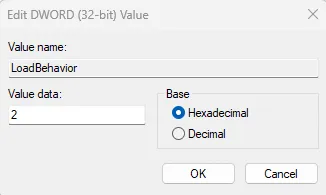
Set the GPO to edit the value of the LoadBehavior keyon these registry paths. The value should be 2 to disable UpSlide.
- HKEY_LOCAL_MACHINE\Software\Microsoft\Office\Excel\Addins\Finance3point1.UpSlide.Excel
- HKEY_LOCAL_MACHINE\Software\Microsoft\Office\PowerPoint\Addins\Finance3point1.UpSlide.PowerPoint
- HKEY_LOCAL_MACHINE\Software\Microsoft\Office\Word\Addins\Finance3point1.UpSlide.Word :
- HKEY_LOCAL_MACHINE\Software\WOW6432Node\Microsoft\Office\Excel\Addins\Finance3point1.UpSlide.Excel
- HKEY_LOCAL_MACHINE\Software\WOW6432Node\Microsoft\Office\PowerPoint\Addins\Finance3point1.UpSlide.PowerPoint
- HKEY_LOCAL_MACHINE\Software\WOW6432Node\Microsoft\Office\Word\Addins\Finance3point1.UpSlide.Word
- HKEY_LOCAL_MACHINE\Software\Microsoft\Office\ClickToRun\REGISTRY\MACHINE\Software\Microsoft\Office\Excel\Addins\Finance3point1.UpSlide.Excel
- HKEY_LOCAL_MACHINE\Software\Microsoft\Office\ClickToRun\REGISTRY\MACHINE\Software\Microsoft\Office\PowerPoint\Addins\Finance3point1.UpSlide.PowerPoint
- HKEY_LOCAL_MACHINE\Software\Microsoft\Office\ClickToRun\REGISTRY\MACHINE\Software\Microsoft\Office\Word\Addins\Finance3point1.UpSlide.Word
- HKEY_LOCAL_MACHINE\Software\Microsoft\Office\ClickToRun\REGISTRY\MACHINE\Software\Wow6432Node\Microsoft\Office\Excel\Addins\Finance3point1.UpSlide.Excel
- HKEY_LOCAL_MACHINE\Software\Microsoft\Office\ClickToRun\REGISTRY\MACHINE\Software\Wow6432Node\Microsoft\Office\PowerPoint\Addins\Finance3point1.UpSlide.PowerPoint
- HKEY_LOCAL_MACHINE\Software\Microsoft\Office\ClickToRun\REGISTRY\MACHINE\Software\Wow6432Node\Microsoft\Office\Word\Addins\Finance3point1.UpSlide.Word