The Consistency Check feature scans your PowerPoint presentations to automatically detect calculation errors, data contradictions, and inconsistencies across slides. This AI-powered tool helps you catch critical mistakes before they reach your clients, reducing manual review time and minimizing the risk of embarrassing errors in your documents.
Use Consistency Check
Please ensure you have a stable internet connection before starting a Consistency Check scan, as the feature requires an internet connection to process your presentation.
- Open the PowerPoint presentation you want to review.
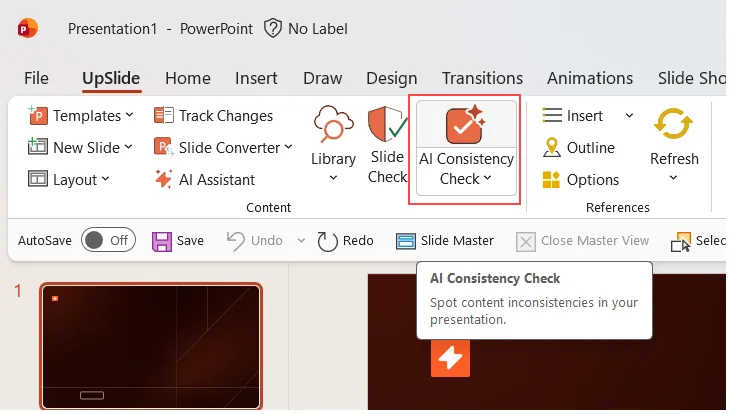
- Click on the Slide Check button in the ribbon, then select AI Consistency Check.
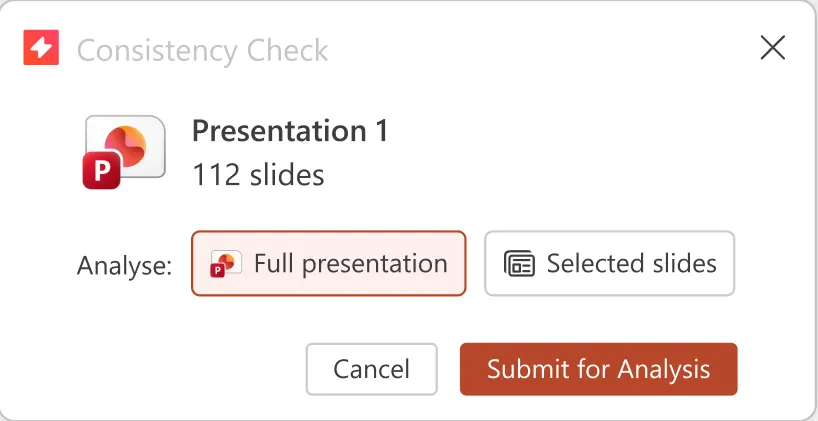
- Select the scope of the scan and click “Submit for Analysis”.
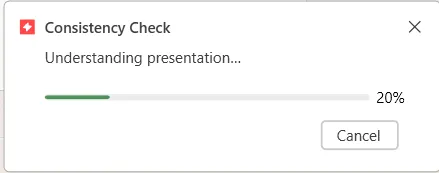
- A progress window will appear showing the scan status. You can continue working in PowerPoint while the scan runs.
- When the scan completes, UpSlide will add comments to your presentation highlighting any detected issues.
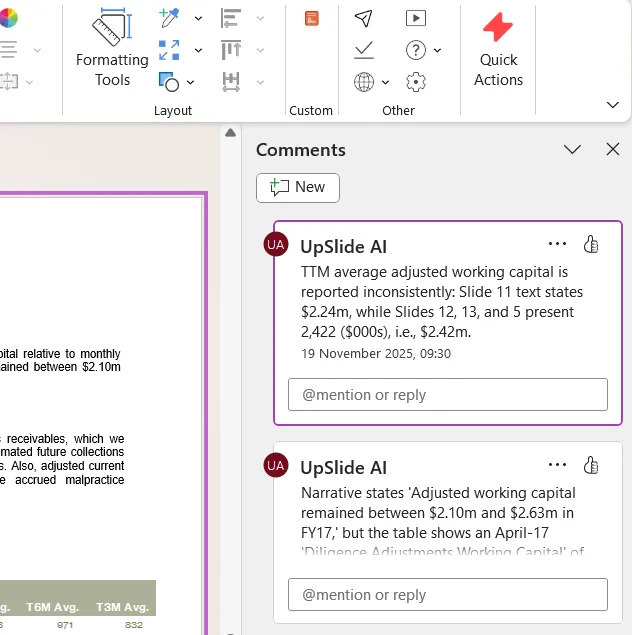
- Review each comment and address the flagged inconsistencies as needed.
For large presentations, the scan may take several minutes to complete. You’ll receive a notification when it’s done.
What Consistency Check detects
Consistency Check analyzes the information that is visible on your slides, including text, tables, and charts. It can read this information regardless of how it is displayed, including PowerPoint native elements, Excel links, pictures, and screenshots. Text and numbers do not need to be selectable in PowerPoint.
Consistency Check does not take into account:
- Table of contents slides generated by UpSlide
- The UpSlide glossary
- Any element outside the slide area
- Presentation notes
The feature automatically identifies several types of errors:
Calculation errors, including:
- Mathematical errors or totals in tables
- Percentage calculations that don’t match the underlying values
- Questionable logic in how the data was calculated
Single-slide inconsistencies, including:
- Text descriptions that contradict the data in tables or charts
- Narrative statements that don’t match the figures on the same slide
Data contradictions across slides, including:
- Figures that differ between the summary and the next detailed pages
- Numbers that don’t align across multiple sections
- Incorrect statements or conclusions based on data from other slides
The Consistency Check focuses on content and data consistency. For formatting and style checks, use the existing Slide Check feature.
What Consistency Check does not detect
Consistency Check does not detect or validate the following:
- Spelling and grammar issues
- The factual accuracy of your content, such as whether a company’s creation year is correct
- Table of contents inconsistencies, such as outdated footers or incorrect page numbering
- Formatting and style compliance issues, such as fonts or unexpected colors. Consistency Check does not assess the overall look and feel of the presentation.
- Subjective or business-level feedback, such as challenging assumptions or commenting on financial hypotheses, unless it clearly conflicts with existing elements in your presentation.
Reviewing detected issues
After the scan completes, UpSlide adds PowerPoint comments to your presentation:
- Each comment identifies a specific inconsistency or potential error
- Comments are placed directly on the relevant slide
- Review each comment to determine if it requires correction
- You can resolve or delete comments as you address each issue
Not all flagged items may require changes. Use your professional judgment to evaluate each comment, as some may relate to rounding differences or intentional variations.