UpSlide templates and Excel themes are managed by your administrator and shared across your team. If your templates are out of sync with your colleagues', you can manually install the latest updates. This article explains how to check your template status and resolve the most common installation issues.
How it works
UpSlide customization includes a set of PowerPoint templates, Excel themes, and Word templates. Your administrator can update these at any time and publish the changes as a .upslide file to a shared location for the rest of the team to install.
When your administrator publishes an update, UpSlide automatically downloads and installs it the next time you restart PowerPoint, Excel and Word simultaneously. This ensures that template changes are applied to all applications at once. In most cases, no action is required on your end.
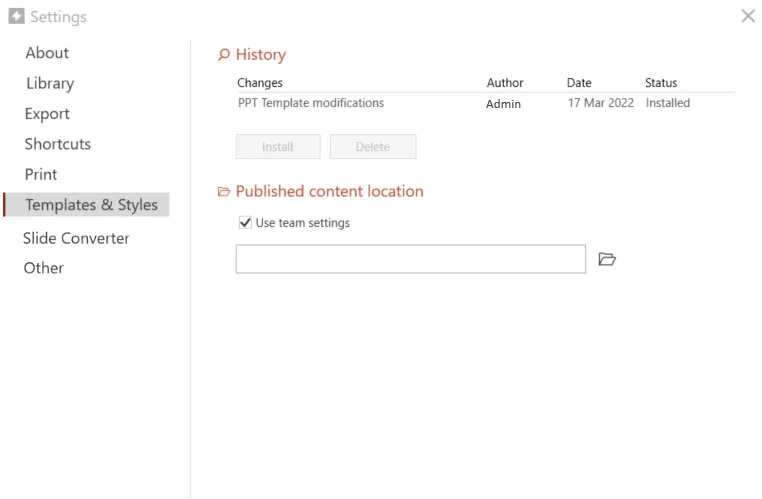
If the automatic installation does not occur, you can check the status of your templates and install updates manually by going to UpSlide Settings > Templates & Styles.
- History lists all modifications published by your administrator. If the most recent entry shows the status Installed, your templates are up to date.
- Published content location displays the shared folder where the .upslide file was dropped.
Most common issues and how to solve them
I don’t have the same templates as my colleagues
Root cause
UpSlide hasn’t automatically installed the latest modifications your administrator published. It may be because your Office applications haven’t been restarted simultaneously, or because phantom processes are running in the background, preventing your applications from fully closing.
Solution
To resolve the issue, you can follow the steps below to install the updates manually.
- Close all applications (PowerPoint, Excel and Word).
- Reopen PowerPoint and go to UpSlide Settings > Templates & Styles.
- Under History, select the most recent modification and click Install.
- Wait for a notification to appear in the bottom-right corner confirming the new templates are available.
- Close PowerPoint to complete the installation.
- Go back to Settings > Templates & Styles to confirm the modification status is Installed.
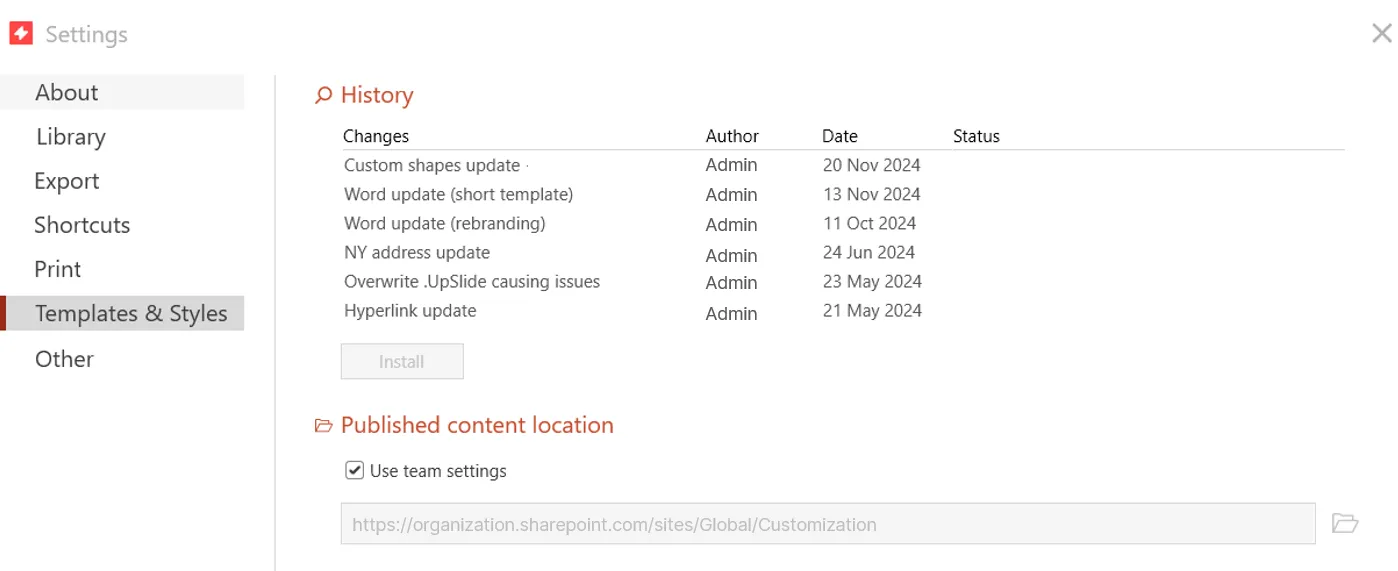
Make sure Use team settings is selected under Published content location. If it isn’t, UpSlide may not be looking for updates in the correct shared folder.
I can’t see anything under History
Root cause
UpSlide may not be pulling the correct shared folder path, or the shared folder is empty or inaccessible.
Solution
Compare the information in the Published content location with a colleague who has access to the latest templates. Your organisation may have changed the path without updating the team settings. If the shared location is different from your team settings, uncheck Use team settings to update the path.
If nothing appears after refreshing, try accessing the shared folder directly. Open the path in a web browser for a SharePoint URL or in Windows File Explorer for a folder path.
- If you don’t have access, you should ask your local IT team to give you read permissions on the folder.
- The shared folder is empty. This can happen if the .upslide has been deleted or you’re not using the correct shared folder path. You should confirm with your administrator whether to re-export the changes or obtain the correct path.
None of the above is working
Root cause
Your templates may have been distributed via a new UpSlide installer rather than through the shared folder. This means they cannot be updated through Settings > Templates & Styles.
Solution
Contact your IT team or visit your company’s software centre to install the latest available version of UpSlide. If you’re unsure which version to install, check with your administrator before proceeding.