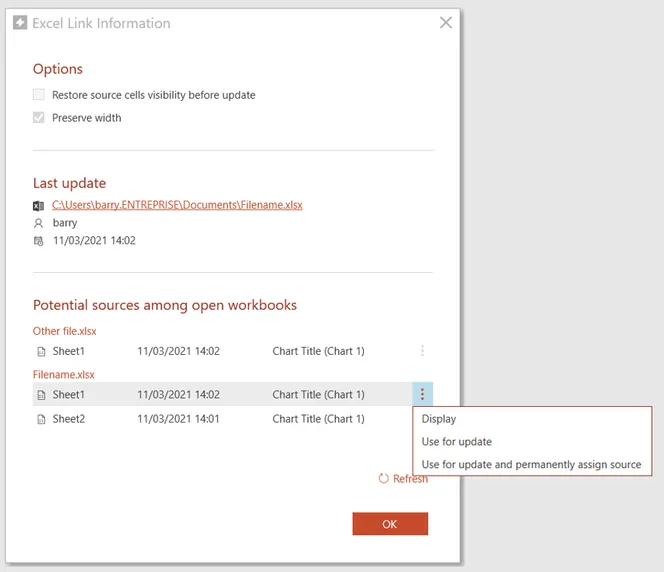
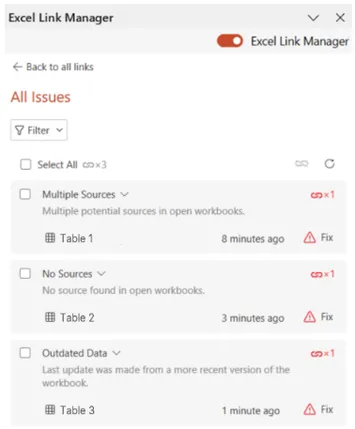
When updating Excel links in PowerPoint or Word, you may encounter warning messages in the Excel Link Manager indicating that UpSlide cannot complete the update automatically. This article explains each warning type and provides step-by-step solutions to restore your Excel links. While the examples focus on PowerPoint, the same principles apply to Word.
How the Excel link works
UpSlide creates a two-way link between Excel and PowerPoint or Word when exporting charts, tables, or text. Understanding this mechanism can help you troubleshoot update warnings and maintain reliable links.
- In Excel: UpSlide creates a hidden name range that identifies the exported element. The information includes the source’s location and an export timestamp.
- In PowerPoint and Word: you can right-click on a link and go to Link Information to see the data stored in the destination file.
When updating links, UpSlide searches for the latest source available in currently open Excel files. If a single source is found, the update is carried out. If not, a warning is displayed. This article lists the different types of warnings that can appear in the Excel Link Manager, their causes, and how to resolve them.
Warning Types
No Source
Root cause
No source happens when UpSlide can’t the link’s correspondence in the opened Excel workbooks. You can double-click the warning to open the Link Information window and open the last file used to update the link.
This issue can occur in different cases:
- The Excel file wasn’t saved after exporting to PowerPoint.
- The Excel file was restored from a version that didn’t contain the link information.
- The source was deleted from Excel.
- The option Update with the last used workbook is active (PowerPoint links only).
Solution
Before troubleshooting, ensure you have opened the correct source for your links. You can right-click on your link and select Go to source to access the latest workbook used for the update and open it.
If you’re working on a new version of the source file and you can’t update your links in PowerPoint with the new version:
- Open the Excel Link Manager.
- At the bottom of the pane, click Update options.
- If Update with the last used workbook is checked, disable it and try updating your links again.
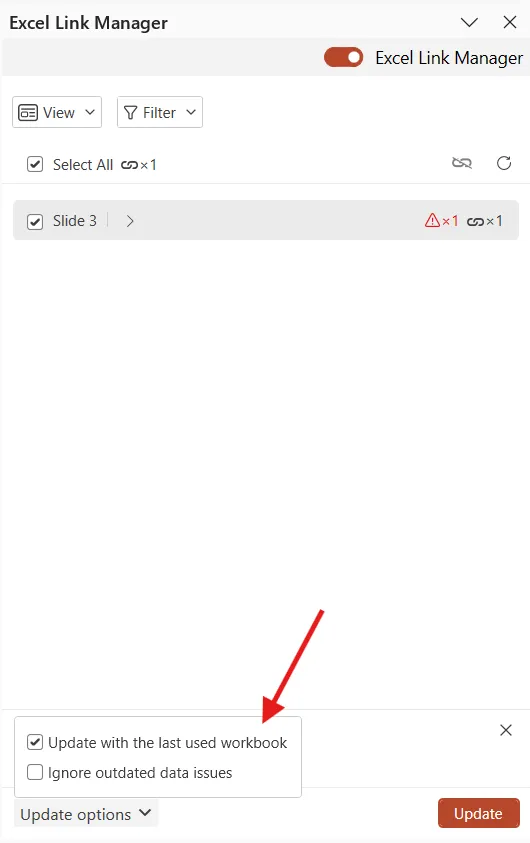
If the option is checked, UpSlide will only look for the source of the link in the workbook marked as the source in the Link Information and ignore all other versions.
If UpSlide cannot find the source or the issue persists in spite of the above suggestion, the link reference might not exist in your current file. You’ll have to reexport the information from Excel.
Recommendations
To avoid No Source errors in future:
- Always save both files after exporting: Save the Excel source file and the PowerPoint destination file after creating a link.
- Use manual save for critical links: Even with AutoSave enabled, manually save files after exporting to prevent sync delays or cloud storage conflicts.
- Avoid deleting source data: Never delete or rename sheets, ranges, or charts in Excel or you might delete the associated range where the source is stored.
- Turn off Update with the last used workbook: This option is useful when you’re working on a single Excel file but will cause warning if you regularly create versions of your work.
Outdated Data
Root cause
The Outdated Data warning appears when UpSlide detects that the data in the Excel source file is older than the data currently stored in PowerPoint. This safeguard prevents you from accidentally overwriting newer information with outdated content.
This issue typically occurs when data is being updated with an older version of the file.
Solution
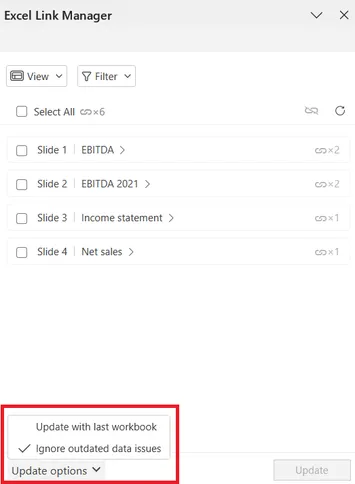
This warning can be bypassed by checking the Ignore outdated data issues option:
- Open the Excel Link Manager.
- At the bottom of the pane, click Update options.
- Check Ignore outdate data and try updating your links again.
Multiple Sources
Root cause
This warning appears when UpSlide detects two or more open Excel files that contain matching link information for the same PowerPoint element, and UpSlide cannot automatically determine which one should be used for the update.
This issue can occur in different cases:
- Multiple file versions open simultaneously: You have different versions of the same Excel file open.
- Duplicated sheets or charts: Within the same Excel workbook or across different workbooks, you’ve copied sheets or charts that contained existing UpSlide links. The duplication process copies the hidden link metadata, creating identical link identifiers in multiple locations.
Solution
By double-clicking the error, you can open the Link Information and navigate between available sources. To visualise the source location in Excel, double-click the sheet name.
Once you have determined which source is correct, select it and click ‘Use for update’ to resolve the conflict.