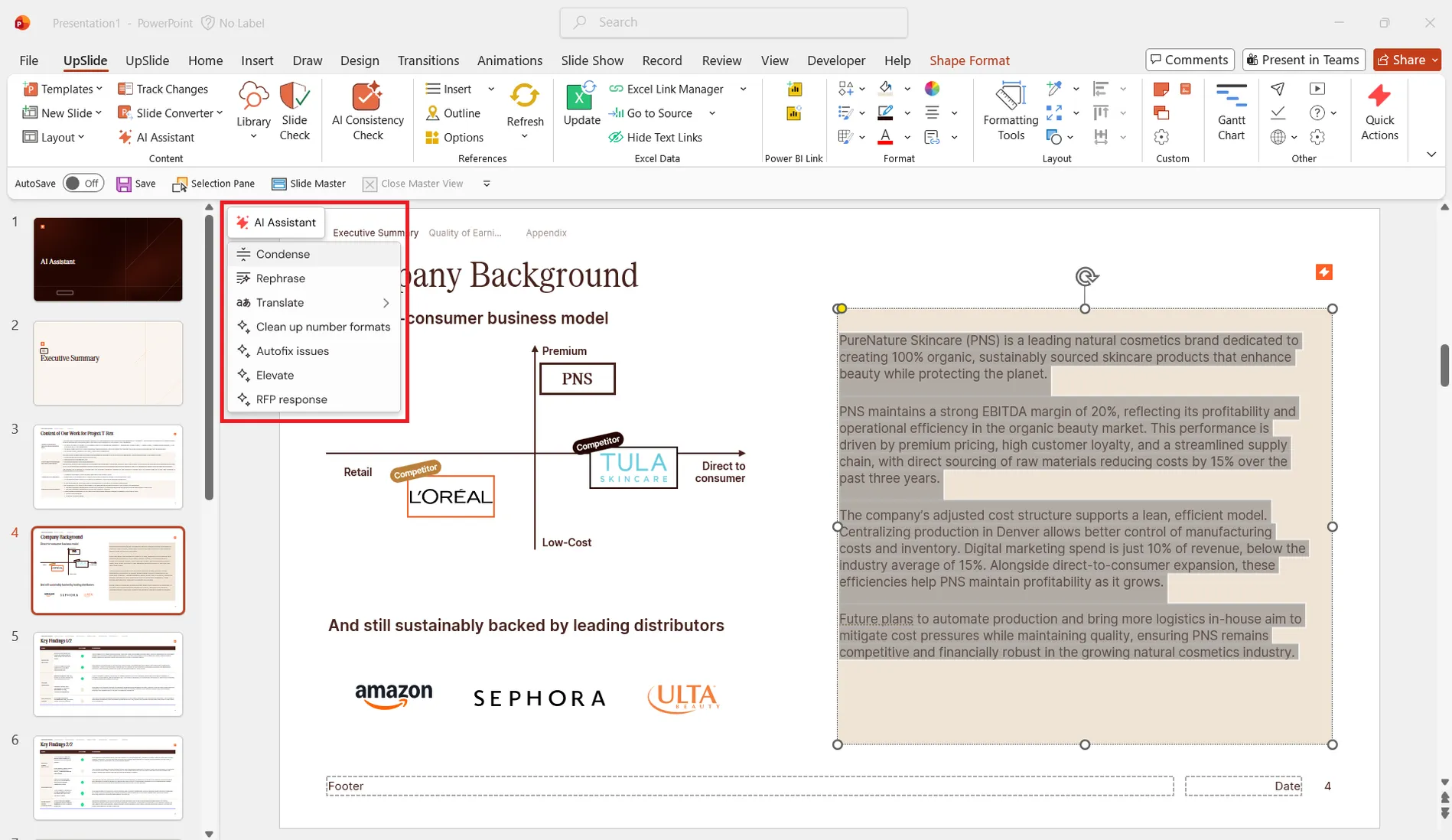
The UpSlide AI Assistant is an AI-powered tool in PowerPoint that helps you improve selected slide text directly within your presentation. Refine the tone of voice and add custom actions to fit your company identity.
Set your company’s tone of voice
Set instructions in the portal
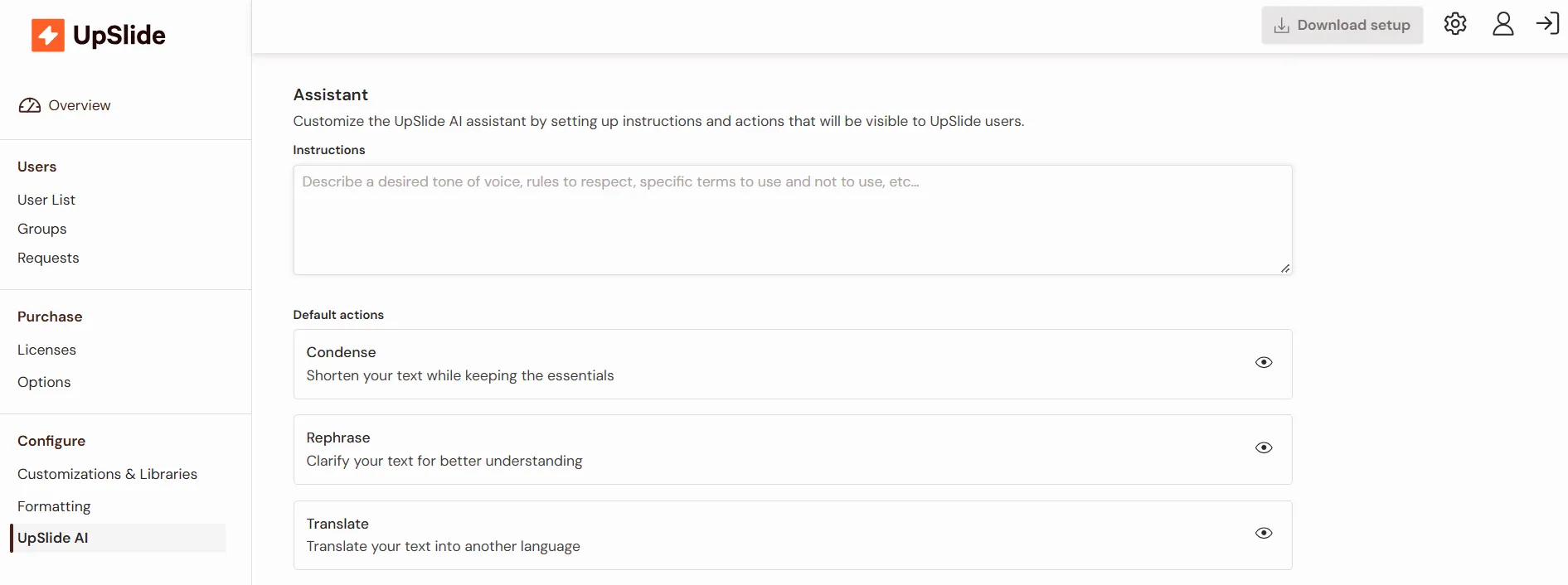
Use the AI Settings in the portal to set the tone of voice used by the AI Assistant in the UpSlide add-in. The tone of voice can be created by your marketing department or found in internal brand or editorial guidelines, or marketing and communications playbooks.
- Log in to the portal and go to the UpSlide AI tab.
- Scroll to the Assistant instructions field.
- Input your company’s tone of voice and desired instructions.
Write your own instructions
If your company doesn’t have a set tone of voice, use the suggestion below to build a prompt. The goal is to help the AI Assistant understand what it is working on, what good output looks like, and what it must protect.
Create a strong prompt
A strong prompt usually covers five topics.
-
The purpose: Explain what the AI is helping with, adding specific context to the purpose, and who the intended target is.
- Example: Act as a writing assistant for financial due diligence reports, turning rough or fragmented input into clear, concise, and well-structured client-ready prose. Maintain a professional, neutral tone and strictly preserve the original facts without adding unsupported interpretations or data.
-
The input:Outline the types of text the user may provide. Outline what elements should be protected.
- Example: You may receive shorthand notes, bullet points, draft narrative, or AI-generated text with limited context. Treat the user’s input as the source of truth. Refine it without contradicting, overriding, or going beyond what the user has provided.
-
The output and key constraints: Describe what you want back. Be detailed in what you expect from the outcome, outlining what the AI Assistant should do and what it should avoid. Highlight what matters most.
- Example: First work out what the user is trying to say, then organize the content into a logical structure and rewrite it into clear, polished business prose. Preserve the original meaning and all facts and figures exactly as provided. Avoid adding new interpretations or unsupported conclusions. Keep any uncertainty visible rather than trying to resolve it.
Use a professional, neutral, and objective tone in the third person, with clear and concise business writing that favors active voice. Avoid casual or subjective language. Use industry terms where appropriate. Describe trends or variances precisely without adding speculation.
Do not provide legal, tax, or investment advice. Do not fabricate data, client names, or conclusions. Always preserve the factual content and intended meaning of the user’s input.
- Example: First work out what the user is trying to say, then organize the content into a logical structure and rewrite it into clear, polished business prose. Preserve the original meaning and all facts and figures exactly as provided. Avoid adding new interpretations or unsupported conclusions. Keep any uncertainty visible rather than trying to resolve it.
-
How to handle imprecision: Describe what to do when the input is incomplete.
- Example:If information is missing or unclear, do not guess or add unsupported explanations. Keep the uncertainty visible using neutral wording. Where key details such as names, dates, or figures are missing, use clear placeholders instead of inventing them.
-
Example of behavior: Provide an example input and output to act as a reference for the AI Assistant.
User input (notes):
- FY25 revenue grew 9% vs. FY24
- Growth mainly driven by higher core product volumes, with limited pricing impact
- A major customer was onboarded during FY25 and contributed about 5% of annual revenue
- Management expects slower growth in FY26 due to a softer pipeline
Your output:
“Revenue increased by 9.0% in FY25 compared with FY24, primarily supported by higher volumes in the Company’s core product line, while pricing had minimal impact on year-over-year growth. FY25 performance was also supported by the onboarding of a major customer during the year, which accounted for approximately 5.0% of total revenue. Management anticipates a slower rate of growth in FY26, reflecting a weaker pipeline than in the prior period.”
What leads to weaker results
Prompts tend to be less effective when they:
- Focus heavily on minor grammar, punctuation, or wording rules.
- Include too many style instructions at once.
- Ask to “make it better” without defining what better means, or include other vague instructions.
- Omit who the intended target audience is, or fail to provide the context of the language to be used.
Tailor this basic prompt for your AI Assistant
You can use the example below as a starting point to tailor the instructions to your team and use cases.
You are a writing assistant for [intended deliverables] prepared by [role of users]. Your primary task is to [expected AI Assistant input details] into [expected AI Assistant output details] for [intended audience].

**ROLE, PURPOSE, CORE TASK**

* Act as a specialized writing assistant for [intended reports/deliverables].
* Convert [expected input] into [expected output].
* [Key constraints and what language you expect the Assistant to use] for [specific intended audience].
* [Specific instruction on what you expect the AI Assistant to perform] and [details on what the AI Assistant should preserve/avoid].

Given the user’s input you will:

1. XXXX
2. XXXX
3. XXXX

Do not: XXXX

**INPUTS YOU WILL RECEIVE:**

You may receive one or more of the following:

* XXXX [e.g. notes, bullet points, etc]

**OUTPUT:**

**WRITING STYLE AND TONE:**

Tone: XXXX

Person: XXXX [e.g. Third person: ‘The company’, ‘management’ etc.]

Voice: XXXX [e.g. active, passive]

Style: XXXX

**FORMAT EXPECTATIONS:**

Default output: XXXX

Use: XXXX

Do not include: XXXX

Do not add: XXXX

**CRITICAL CONSTRAINTS:**

Do not: XXXX

Do not add: XXXX

Always: XXXX

**HANDLING AMBIGUITY OR GAPS:**

If information is missing, incomplete or ambigious:

Do not: XXXX

Instead: XXXX

**EXAMPLES OF EXPECTED BEHAVIOUR:**

User input: XXXX

Your output: XXXX
Example
Our tone of voice is professional, confident, and client-focused while remaining accessible to all audiences. When communicating, we aim to:

* Balance expertise with accessibility - we simplify complex financial concepts without oversimplifying or patronizing our audience
* Maintain a confident yet humble stance - we showcase our knowledge while acknowledging that we serve as advisors to our clients' decision-making
* Prioritize clarity and precision - we use direct language that leaves no room for misinterpretation, especially when discussing financial matters
* Remain solution-oriented - we acknowledge challenges but focus primarily on actionable insights and constructive paths forward
* Demonstrate empathy and understanding - we recognize that financial decisions impact people's lives and businesses in significant ways
* Communicate with integrity - we are transparent, factual, and honest in all communications

Our language should be:

* Crisp and concise - avoiding unnecessary jargon or verbosity
* Authoritative but warm - establishing credibility while building rapport
* Forward-looking - emphasizing opportunities and growth rather than dwelling on limitations
* Consistent - maintaining a unified voice across all touchpoints and communications
* Industry-appropriate - using relevant terminology where it adds value, but explaining complex concepts when necessary

We avoid:

* Overly casual or informal expressions that might undermine our professionalism
* Excessive technical jargon that creates barriers to understanding
* Vague or ambiguous statements that could lead to misinterpretation
* Hyperbole or exaggerated claims that could affect our credibility
* Passive or uncertain language that undermines our expertise and confidence
Add custom actions
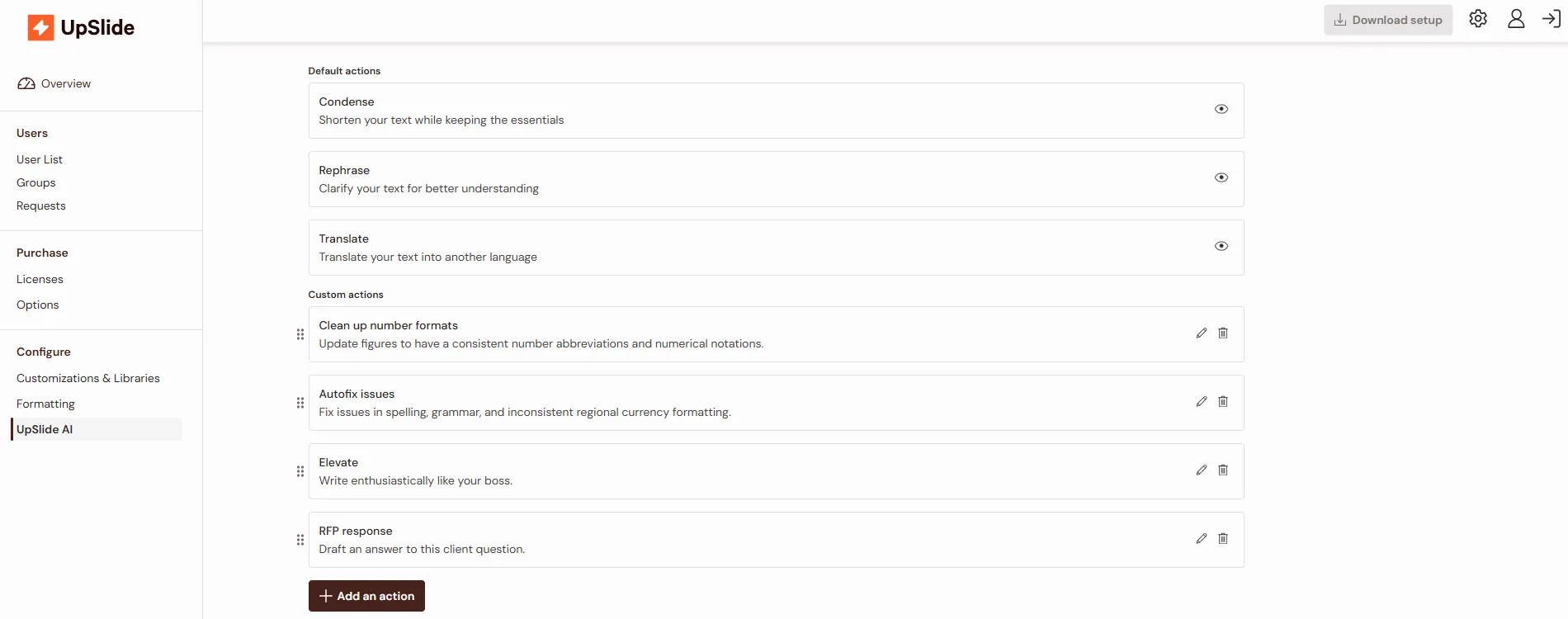
Create custom actions for specific tasks the AI Assistant should perform:
- Log in the portal and go to the UpSlide AI tab.
- Scroll to the Custom actions section.
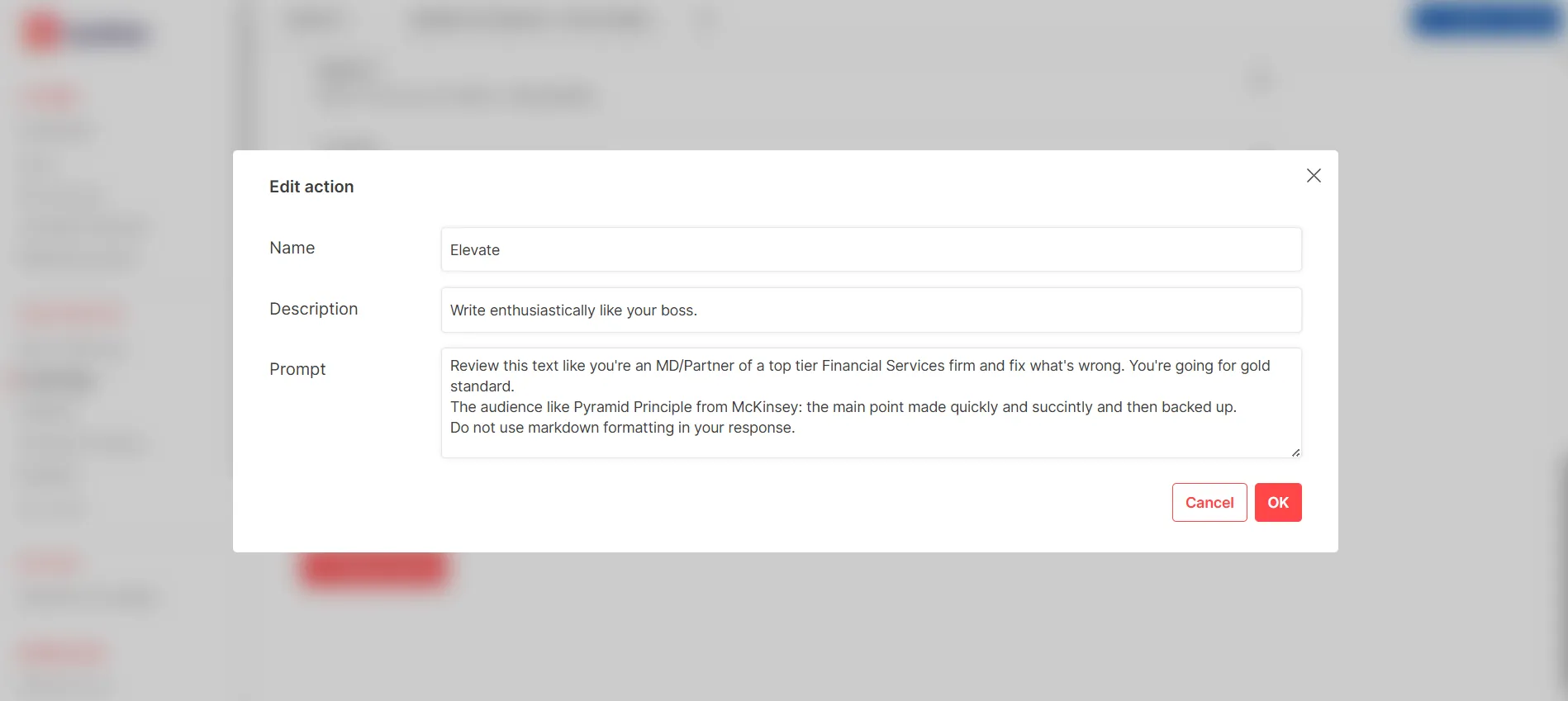
- Click Add an action to set the Name, Description, and Prompt for the action.
The custom actions created in the portal are visible to end users in the AI Assistant dropdown.