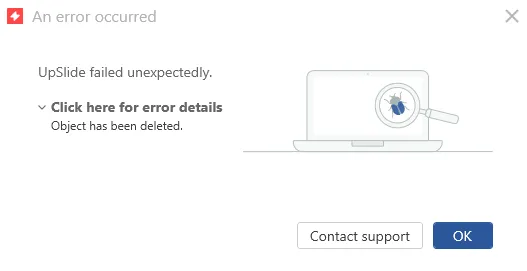
When exporting or updating a link from Excel to Word, you may encounter the error message Object has been deleted or Error! Bookmark not defined. This error can have several causes, most commonly a conflict with the S&P Capital IQ add-in in Word. This article walks you through the different causes and the corresponding fixes.
Root cause
The issue can manifest in different error messages:
- Object has been deleted.
- Error! Bookmark not defined, or Erreur ! Signet non défini if UpSlide is in French.

S&P Capital IQ conflict
The most common root cause is a conflict with the add-in S&P Capital IQ, which is incompatible with UpSlide when activated in Word. It interferes with UpSlide’s ability to create or update links between Excel and Word, triggering the error.
Incorrect default save format
If Word is not set to save files in the standard .docx format, UpSlide may fail to read or write link data correctly, which can produce the same error.
Preview or details pane open in Windows File Explorer
If the preview or details pane is open in Windows File Explorer while your Word file is active, UpSlide treats it as a second instance of the document. This conflict prevents UpSlide from updating links correctly.
Solution
Apply the fix that corresponds to your situation. If you are unsure which cause applies, start with the first solution and work your way down.
S&P Capital IQ Conflict
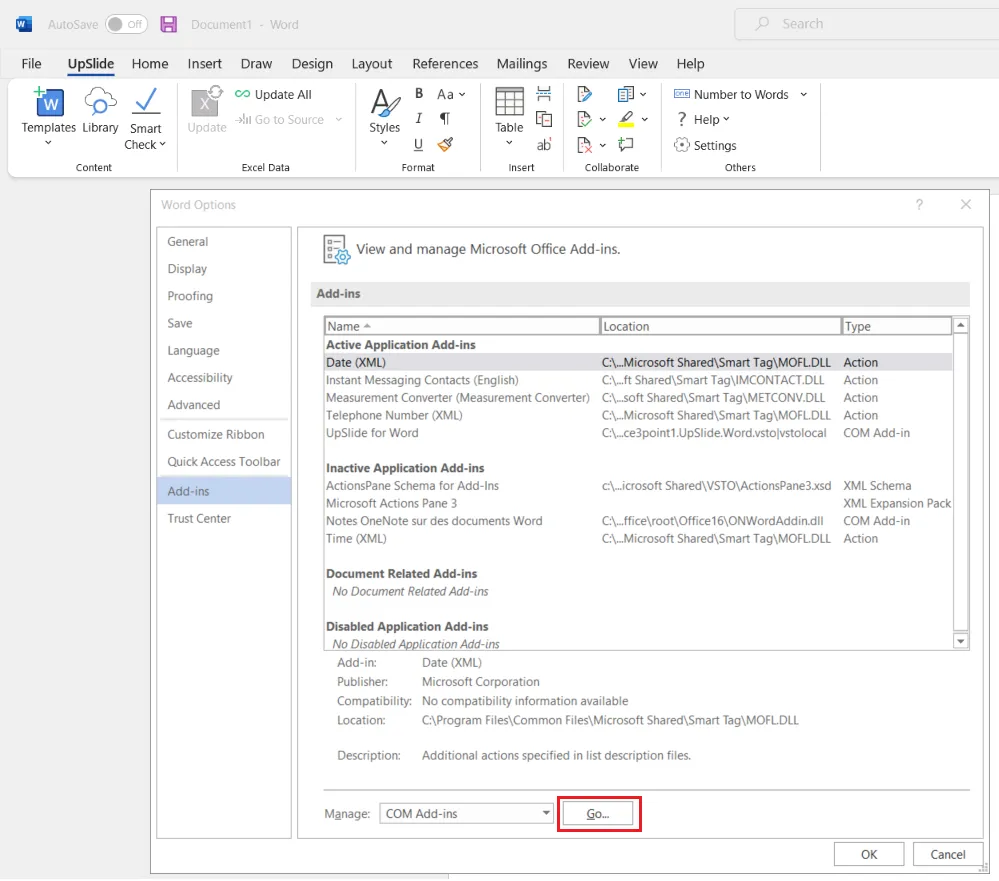
- In Word, go to File > Options > Add-ins.
- At the bottom of the window, select COM Add-ins in the Manage dropdown and click Go.
- Uncheck Capital IQ from the list and click OK.
You should be able to update your links again.
Incorrect default save format.
If Capital IQ is not installed on your computer:
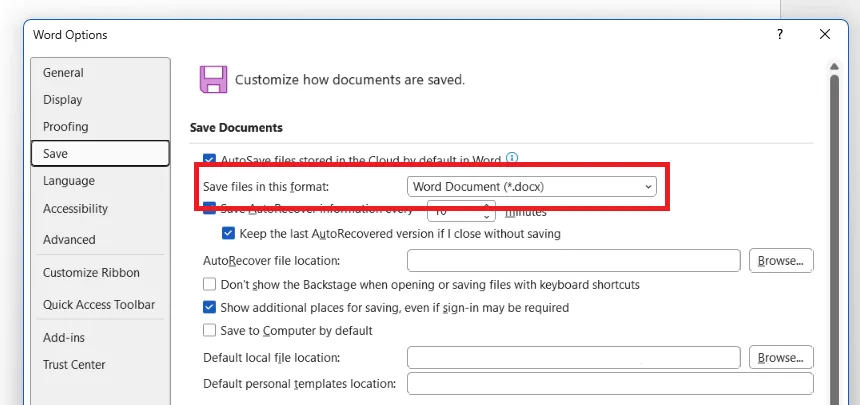
- In Word, go to File > Options > Save.
- Under Save documents, change Save files in this format to Word Document (*.docx) and click OK.
Preview or details pane open in Windows File Explorer
On Windows 10, you can toggle the preview pane by clicking it in the top-left corner.

On Windows 11, you can toggle the preview pane by clicking it in the top-right corner.
