If your UpSlide export in Word or PowerPoint appears blank, cropped, or surrounded by a white border, this is caused by a known Windows scaling bug related to monitor configuration. This article provides you with more information on the root cause and how to update your Windows settings to fix it.
Root cause
This issue is triggered by a Windows scaling issue that affects how Excel capture and exports content as an image. It occurs when these three conditions are met:
- You are using two or more screens.
- One of these screens has a significantly higher resolution with a different scaling setting.
- Your monitor configuration changes during an active Windows session, for example, docking or undocking your laptop, or unplugging an external monitor.
When this happens, Windows loses track of the correct scaling reference, causing Excel’s image export feature to produce unexpected results. Since UpSlide relies on this native Excel feature to export Links, your exports can appear:
- Cropped in the bottom-right corner or surrounded by a white border.
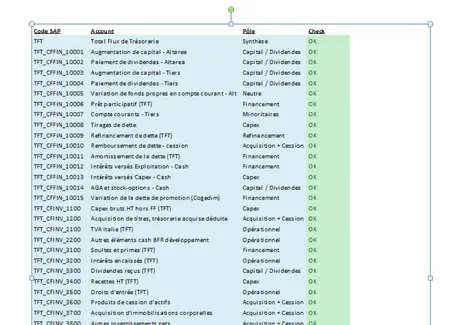
- Completely blank.
Solution
Temporary workaround
You can sign out of your Windows session and sign back in. This resets the scaling and restores normal export behaviour. Your links won’t be cropped when you update them, but the issue may recur if you unplug your laptop from the main display.
Permanent fix
To permanently fix this issue:
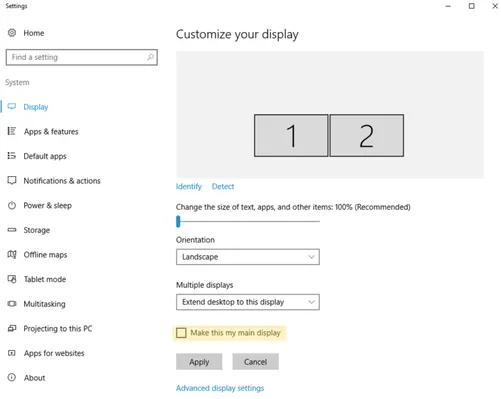
- Go to the Windows Settings > System > Display.
- Select your computer among the available displays, and check Make this my main display.
- Restart your Office applications to apply the new configuration.