UpSlide AI Assistant in PowerPoint helps users automate writing tasks such as condensing, simplifying, or translating text directly within their slides.
Using the AI Assistant
- Select a shape or text inside a shape in your PowerPoint slide.
- Press Ctrl + Shift + Space to open the AI Assistant.
- Choose the action you want to perform:
- Condense – Summarizes the text.
- Rephrase – Clarify your text for better understanding.
- Translate – Currently supports translation from any language into French, English, or German (more languages will be supported in the future).
- Review the result and choose one of the following options:
- Copy – Copies the generated text.
- Replace Selection – Replaces the original text with the new version.
- Try Again – Generates a new result if you’re not satisfied
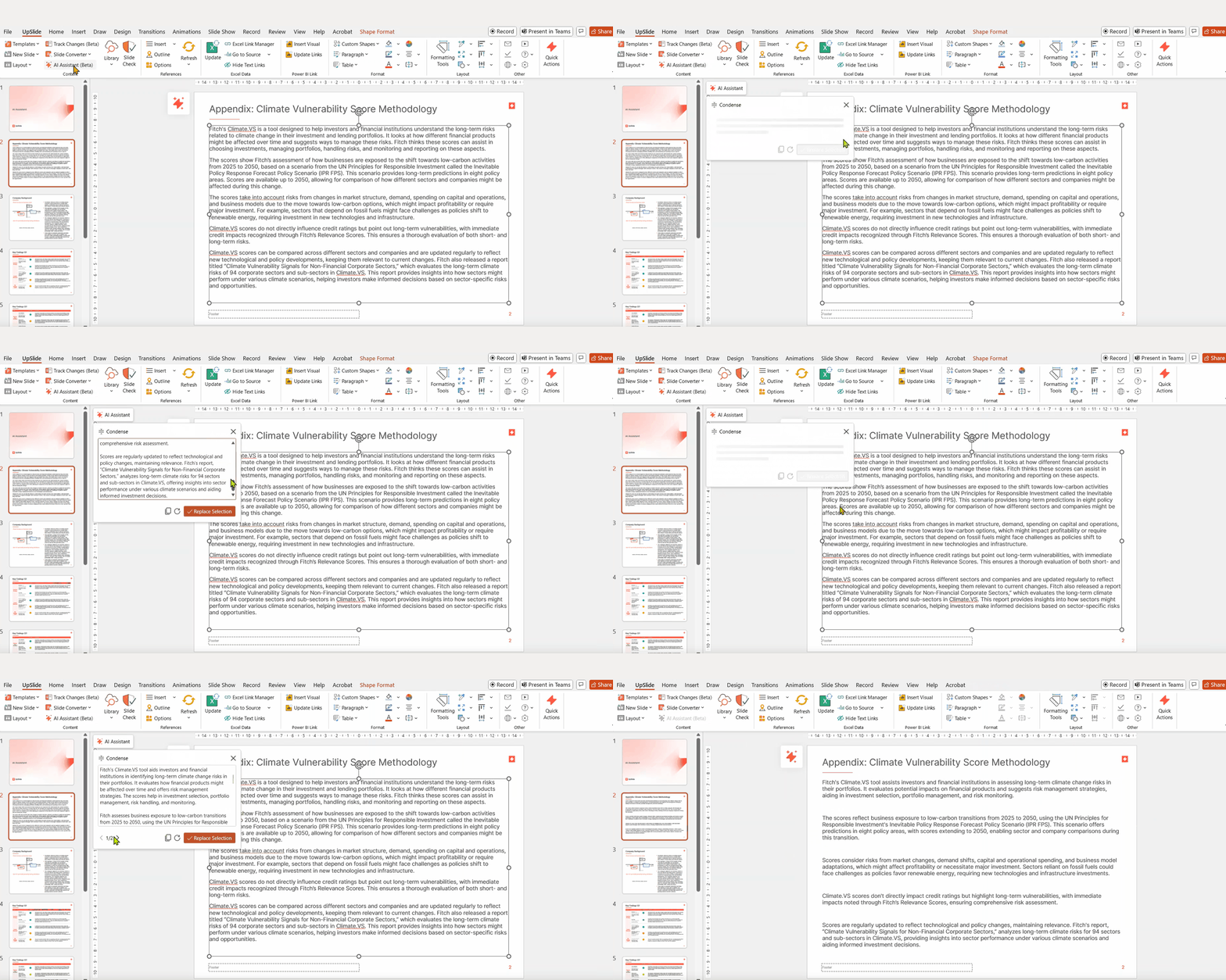
Condense
Use this action to removes redundancy and reducing the text to a minimum while preserving the key ideas.
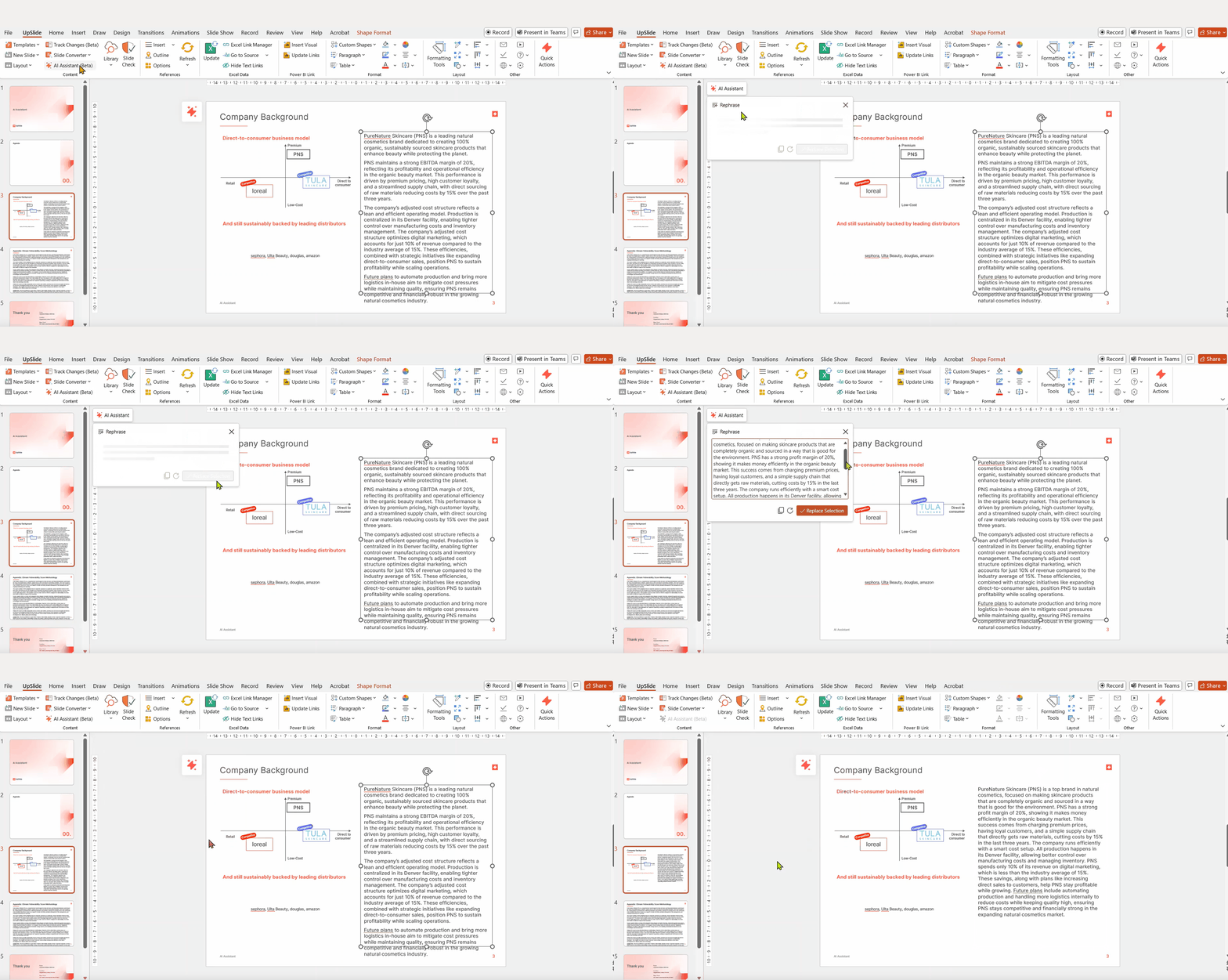
Rephrase
Use this action to rewrite a text for clarity with the same level of speech.
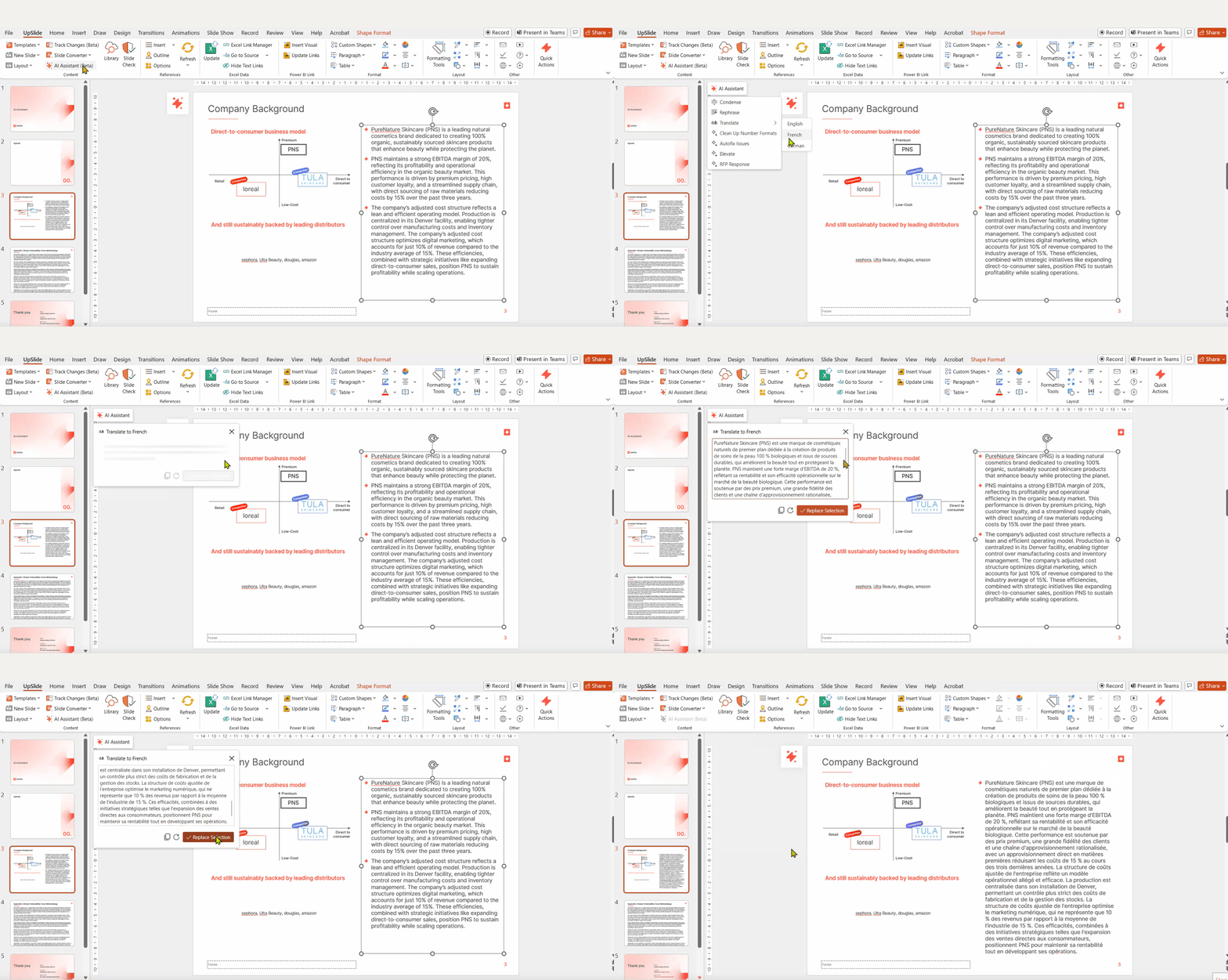
Translate
Use this action to translate the selected text to English, French or German.
Adding custom prompts
Your portal access managers can use the portal to add custom actions to your AI Assistant, for example, to allow users to rewrite text to match your company’s tone of voice, or to ‘Elevate’ text.
To add custom prompts for your team, please consult this article.
Enabling UpSlide AI Features
Please reach out to your UpSlide contact to learn more about enabling UpSlide AI features.