
By using UpSlide's Favorite feature, each user can store, find and access their most frequently used and favorite Library items.
How to favorite Library content
There are two ways to favorite content in the Library:
- Click on the item you want to favorite in the Library.
- In the preview window, click the star icon in the bottom left corner.

- On the item you want to favorite, click the three dots on the bottom left-corner or right-click the item directly.
- Click Add to Favorite.

Access your Favorite content
Once you’ve marked an item as a favorite, it will appear in the Favorites tab of the Library.
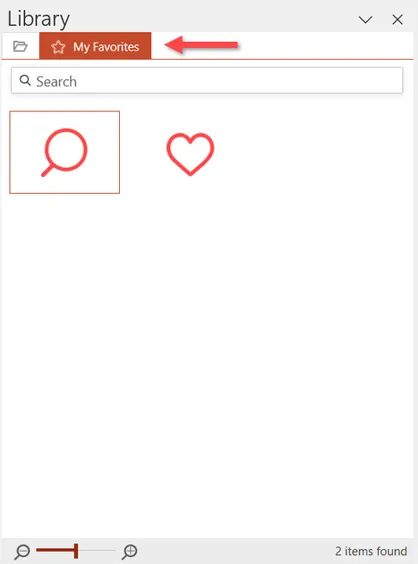
Remove favorited content
To remove any favorited content:
- Navigate to the Favorites tab in the Library pane.
- Select the item a reselect the start icon in the bottom left corner.
- The item has now been unfavorited.