Single Sign-On allows you to determine who has access to the UpSlide portal through your existing identity provider.
Benefits
- Your UpSlide portal managers can access the portal using your organization’s identity provider system.
- Your organization has centralized control over who has access to the portal.
Pre-requisites
- An identity provider system that is compatible with Open Id Connect.
- A portal manager access to the portal. If you do not have one yet, email support@upslide.com to get one.
Please note that we are not compatible with SAML identity providers. Open ID Connect is a requirement.
Configuration with Microsoft Entra ID
In Microsoft Entra ID
- Create a new App Registration.
- Select Accounts in this organizational directory only (Single tenant).
- Set the Redirect URI to Web: https://portal.upslide.net/
- Click Register
- In the new registration, create a secret in Certificates & secrets
- select Expires in 730 days (24 months) and click add
- Copy the Secret’s value. You’ll need it to configure the Portal.
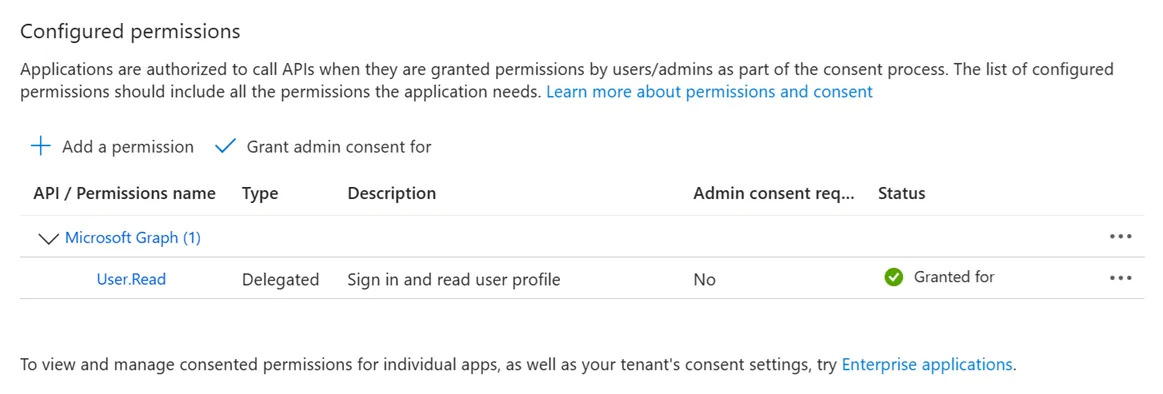
- Go to API permissions and confirm User.Read is set
- Check Grant admin consent for your organisation.
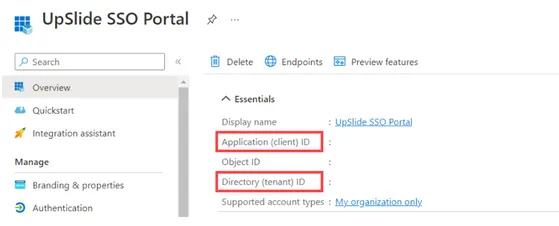
- Use the Overview tab to see the Application (client) ID and the Directory (tenant) ID
In the Portal
- Log in to the UpSlide Portal, and go to Portal Parameters (in the top-right corner):
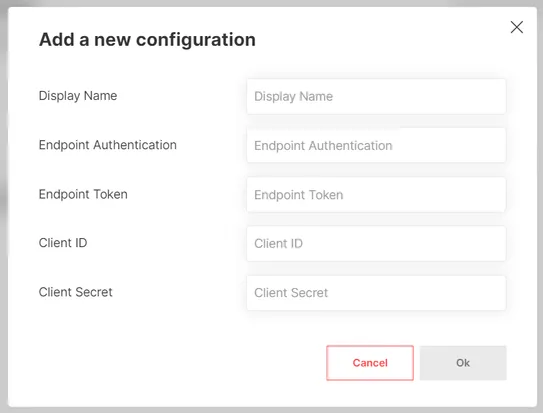
- Click Add a new configuration at the bottom of the page:
- Input the required information in the different fields:
- Display name: the name of your choosing
- Endpoint Authentication: https://login.microsoftonline.com/[Directory/Tenant_ID]/oauth2/v2.0/authorize
- Endpoint token: https://login.microsoftonline.com/[Directory/Tenant_ID]/oauth2/v2.0/token
- Client ID: Application (client) ID
- Client Secret: the Value of the Secret
Assign a configuration to a license manager
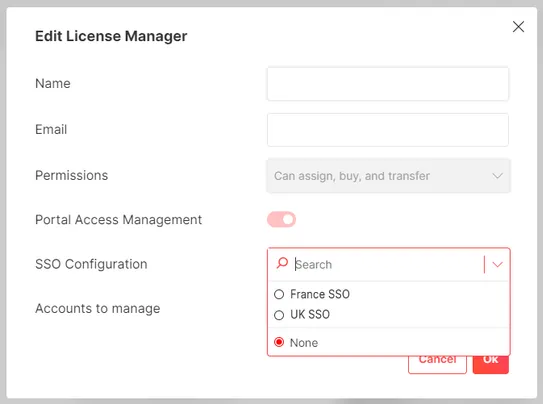
You can choose which SSO configuration you want for each license manager. To assign a configuration, you can follow these steps:
- In the Portal, go to Portal Parameters (in the top-right corner)
- Choose an administrator and click on the pencil to edit their access or create a new one.
- You can select the configuration in SSO Configuration. If no configuration is selected, users will have to use a password to log in.
- Click OK.
After you apply the setting, the license managers only need to input their email on the log-in page and click on the Log in button. They will be redirected to your identity provider login page to access the Portal.
Using a different identity provider than Microsoft Entra ID?
As long as your identity provider is compatible with Open Id Connect, the steps above will still apply. You will need to find the equivalent in your own platform:
- New app registration and secret
- Application (client) ID and Directory (tenant) ID.
- Granting consent as admin.
Example:
For AD FS configuration, we recommend you follow the steps of this Microsoft documentation.