On this page we explain how the UpSlide Link allows you to have Excel and PPT/Word files which you can copy and paste to be used in subsequent versions, reporting periods or for standardized reports you create for different clients. You can combine this behavior with the UpSlide Library to further accelerate the speed in which documents using Linked data can be produced.
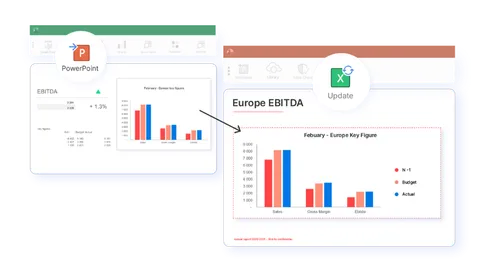
Examples of using this feature
Fundamentally: when there is a standardized output document which you repeat variations of. This is often:
- Client reports that have some elements made of standard inputs and outputs
- Financial performance reports and forecasts
Creating pre-Linked library files
As administrator you do not need to create the links. The team who are ultimately using the files can create the links and then send you the pre-Linked Excel and PPT/Word. You would then complete just step three:
- Create your Excel and PPT/Word files.
- Create all the links necessary between the documents and save the Excel and PPT/Word files.
- As administrator: Publish your linked Excel workbook to your Library. Also publish your PowerPoint slides. You can publish them individually or as a deck in the PowerPoint library.
Need a refresher on how to publish content to your library? You can learn how to add content in this article.
How your team use the files with pre-linked elements
- Retrieve the Excel workbook by opening it from the Excel Library.
- Update your data in Excel and save the Excel file as usual.
- Insert the pre-linked PowerPoint slides from the PowerPoint Library.
- Click on the Update or Update All in PowerPoint to update all linked elements. The tables and charts will update using the workbook you have opened and edited as a source.
Close any old or other versions of the pre-Linked workbook to avoid conflicts when updating the links