When a library is stored in SharePoint UpSlide needs user consent in order to access it. This page shows how to grant delegated permissions so it works only with a signed-in user present. This means all your data ownership and existing control mechanisms persist within your organization.
You are granting delegated permissions to UpSlide within your environment. When you grant consent on behalf of the users, the users do not obtain any additional read/write permissions than they already have. Their existing permissions are simply passed onto the UpSlide application installed on their machine to operate within your environment.
Grant consent
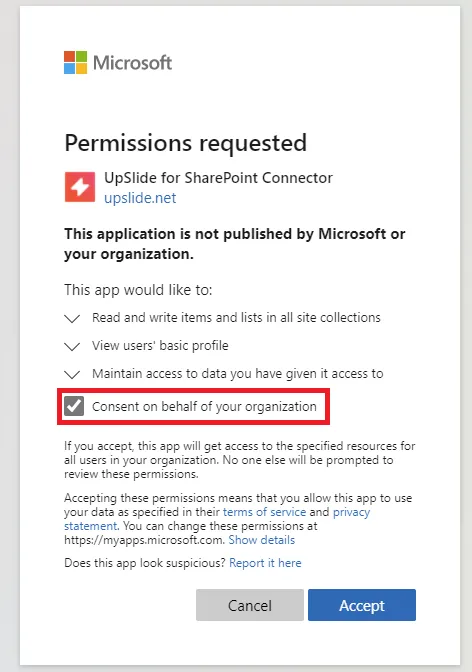
As an organisation admin, you can grant consent to SharePoint for all users with the below steps:
- Go to the Microsoft consent page
- Log in with your credentials as a Tenant Administrator
- Check the Consent on behalf of your organization box
- Click Accept
Revoke consent
As an organisation admin, you can revoke the consent for an app following the below steps:
- Go to Azure Portal.
- Go to Microsoft Entra ID.
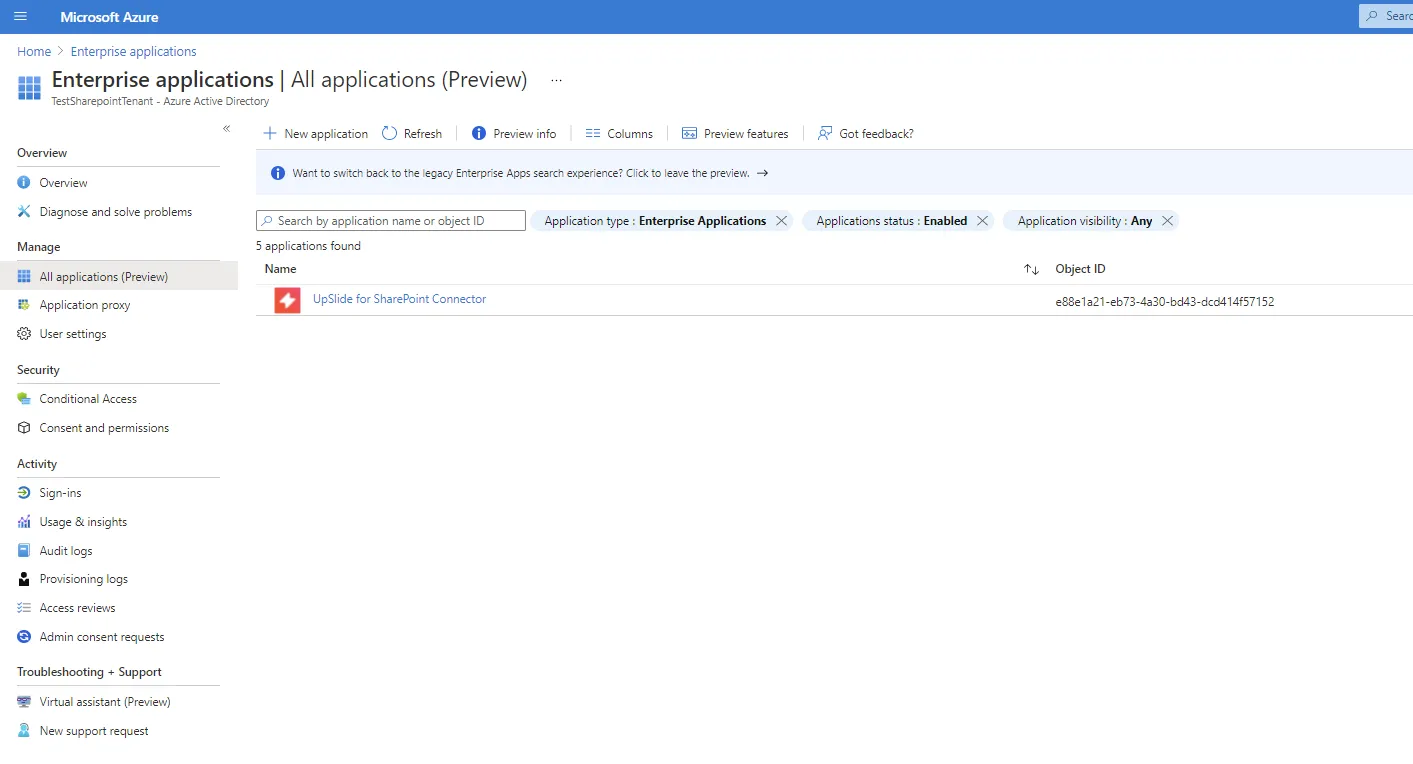
- Under Manage, select Enterprise applications.
- Select the application for which you want to revoke consent.
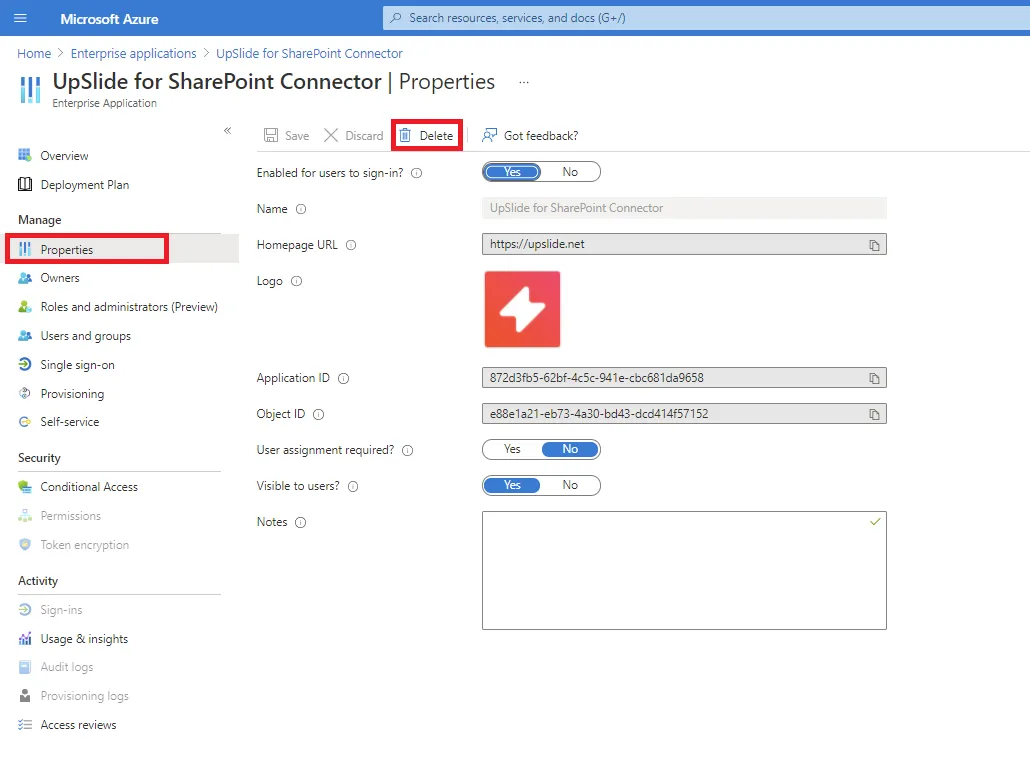
- Go to the Properties of the app.
- Delete the application.
-