If you want to set up a library for your team, you need to decide where the library content should be stored.
First read the overview page which explains the various paths required.
Library setup
Choose library locations
UpSlide will look for content in a set of folders called library locations. Please find below the compatible library locations:
- SharePoint Online
- Single library location: all shared content is stored in a single server, accessible by all users. Specific permissions can be granted to sub-folders (see below).
- Example: \\Server1\UpSlide\Library
- Multiple locations: using several locations can make sense when, for example, content can only be accessed by users of a specific site.
- Example: \\GlobalServer\UpSlide\Shared Library, \\UKServer\UpSlide\UK Library
- One Drive and Box.com: UpSlide should function with both file synchronization systems. Just use the local sync folder as the library location.
- Example: C:\Users\%username%\OneDrive\Library
- Egnyte: using the mapped network drive path as the library location
- Example: Z:\UpSlide\Library
- Azure Blob Storage
We do not recommend storing the Library content on a NAS Synology as it might cause synchronization issues.
Set up permissions
UpSlide will use the read permissions of the current user to filter accessible content and will use the write permissions to validate the right to publish. Your IT can set up specific rules to grant access to only a sub-part of a library location.
Examples:
- \\Serveur1\UpSlide\Library\Shared with read permissions for everyone.
- \\Serveur1\UpSlide\Library\Legal with read permissions only for the legal team
UpSlide teams do not need access to your library. Your storage remains fully segregated. We need to know the paths to instruct your users’ machines where to look internally for the templates and content.
Set up library locations
Library locations can be set up different ways.
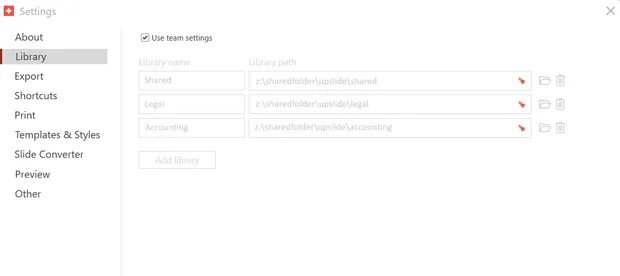
- Manually by each user, by going into UpSlide > Settings > Library (cf. picture below).
- Retrieved from UpSlide server if Use team settings is ticked in UpSlide > Settings > Library.
- During initial packaging (either by UpSlide or by your team) in the ApplicationSettings.bin file deployed along with UpSlide.
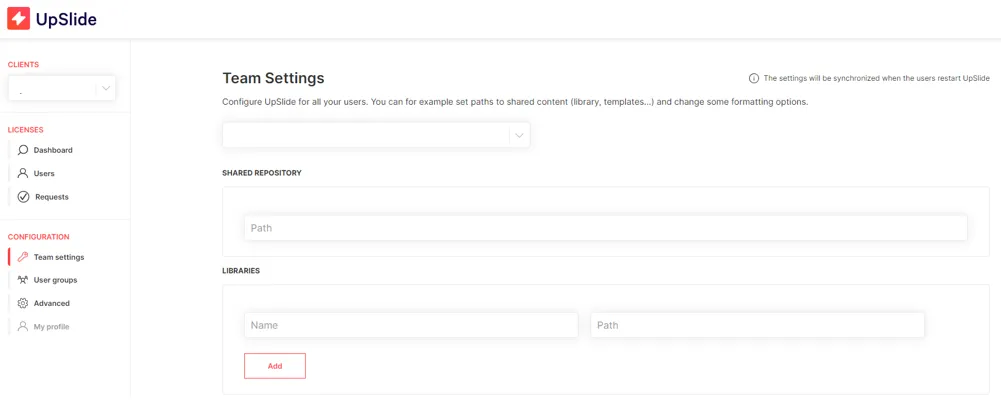
- Via the Account Portal in Configuration > Team settings (cf. picture below). They will be retrieved by users with Use team settings ticked in UpSlide > Settings > Library.
- Not set up at all, in which case a default library with default content is created in the folder %AppData%\UpSlide\Content. The default content is retrieved from the installation folder, by default in %ProgramData%\UpSlide\Config\Content\Default Library.