The UpSlide Outlook signature allows you to have a branding-compliant signature with your up-to-date info at all times.
Below is the list of prerequisites for the Outlook Signature
- You have an UpSlide license.
- The UpSlide Outlook add-in has been deployed by your IT manager.
- At least one signature has been set by your UpSlide administrator.
How to use the add-in
Activate the UpSlide Signature
The Outlook Signature Manager is automatically activated. Your brand-compliant signature, which your administrator set, is inserted on each email you compose.
You can open the UpSlide add-in to manage your signature options by clicking New Email and Manage Signatures in the Message tab.
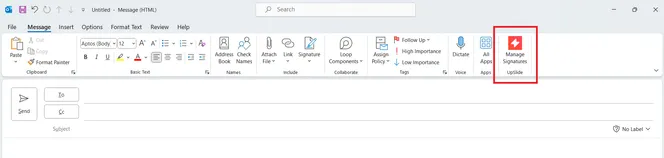
Manage which campaign appears on my Outlook signature
If your company has numerous email signature campaigns available, you can manage which signature will be displayed depending on the email type. You can manage the following signatures:
- New messages
- Replies and Forwards
- Meeting invitations
Your choice will be saved the next time you send an email.
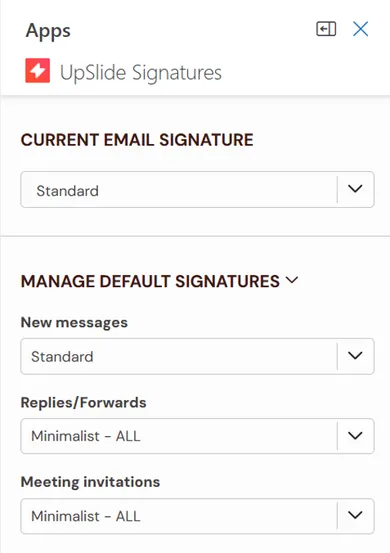
Meeting invitation signatures are not currently compatible with New Outlook and Outlook Online.
Edit or remove the UpSlide signature
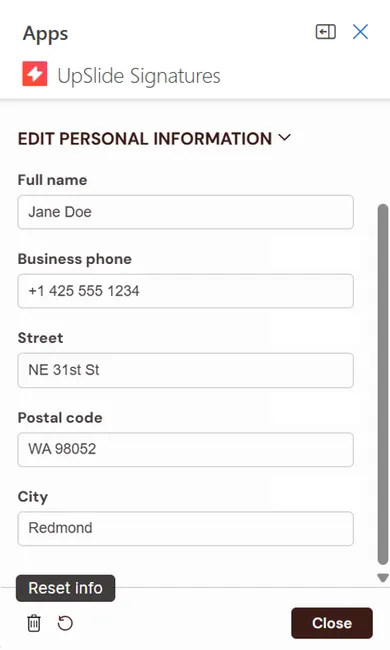
Clicking Edit personal information allows you to see the fields used in the current signature, filled by default. You may:
- Refresh the information from your company directory by clicking Reset info.
- Override the information manually, provided its edition is authorized in the portal. Your modification will reflect in your next emails.
- Uninstall your signature by clicking Disable signature trash icon.
Outlook Signatures for mobile (Android or iOS)
To enable your company signature on the Outlook application:
- Activate the signature on the desktop version of Outlook.
- The displayed signature will match the signature saved on your desktop add-in.
- You will need to use the desktop version to make amendments to your displayed signature.