Administrators are able to edit the Template Selector or Proposal Wizard to select new content that has been added into the Library and update the dropdowns within the Proposal Wizard.
If after reading this article you are still unsure how to proceed or would like to change something else in your Proposal Wizard, don’t hesitate to reach out to your UpSlide contact or send an email to support@upslide.com.
When creating a new presentation using a Proposal Wizard template, a pop-up appears for the user to set several predetermined fields. These fields are controlled by a JSON file which pulls content from the Library based on the options selected. The fields can refer to the business sector, the subsidiary, or the language the user chooses.
The example used in this article is based on a template that allows a user to choose between the Automotive and Pharmaceutical industries to impact the market commentary section of the Proposal. We want to add a new sector for users to choose - Real Estate.
The article follows the structure below:
- Find and understand the structure of the JSON file
- Add the Real Estate option to the sector field in the Wizard pop-up
- Find the unique ID for the new Real Estate market commentary slides
- Write the logic so this deck is selected when a user chooses Real Estate for their sector
Accessing the JSON file
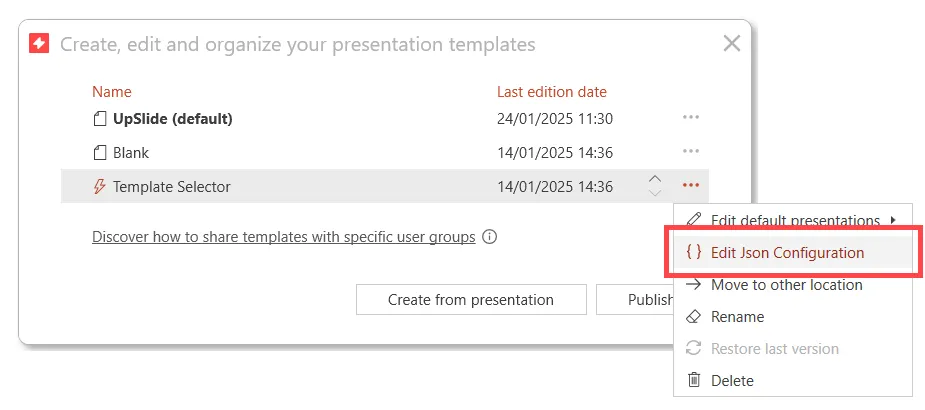
In the UpSlide tab, click the Templates dropdown menu, then Manage Templates. Navigate to your Proposal Wizard, select the three dots and click Edit JSON Configuration.
This will open up the JSON file in your default text editor.
Structure of the JSON file
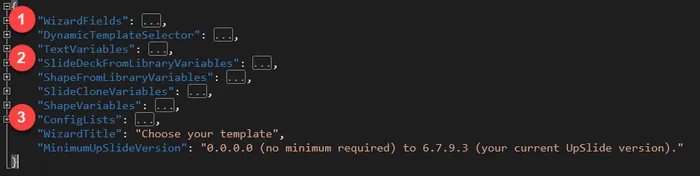
Once the JSON file opens there are three main areas we need to focus on when trying to add a new slide to the Proposal Wizard:
- WizardFields - This determines the options that appear when you select the Proposal Wizard as a user.

- SlideDeckFromLibraryVariables - This determines which slides are pulled in when certain options are selected.
- ConfigLists - This determines what options appear in the Proposal Wizard dropdowns (e.g. Automotive and Pharmaceutical in the Sector List)
Adding a new option to the dropdown
- Go to the WizardFields section of the JSON file and find the field for Sector.
- At the bottom of this section, you will see the name of the list that the values for the field come from (Sector List in this instance).
- Go to the ConfigList area of the JSON file and find the Sector List area. Here, you will see all of the current options for the field.
- Add a comma at the end of the last option, copy the previous section of code and paste it underneath.
- Add in your new option. In our example, we replace Pharmaceuticals by Real Estate.
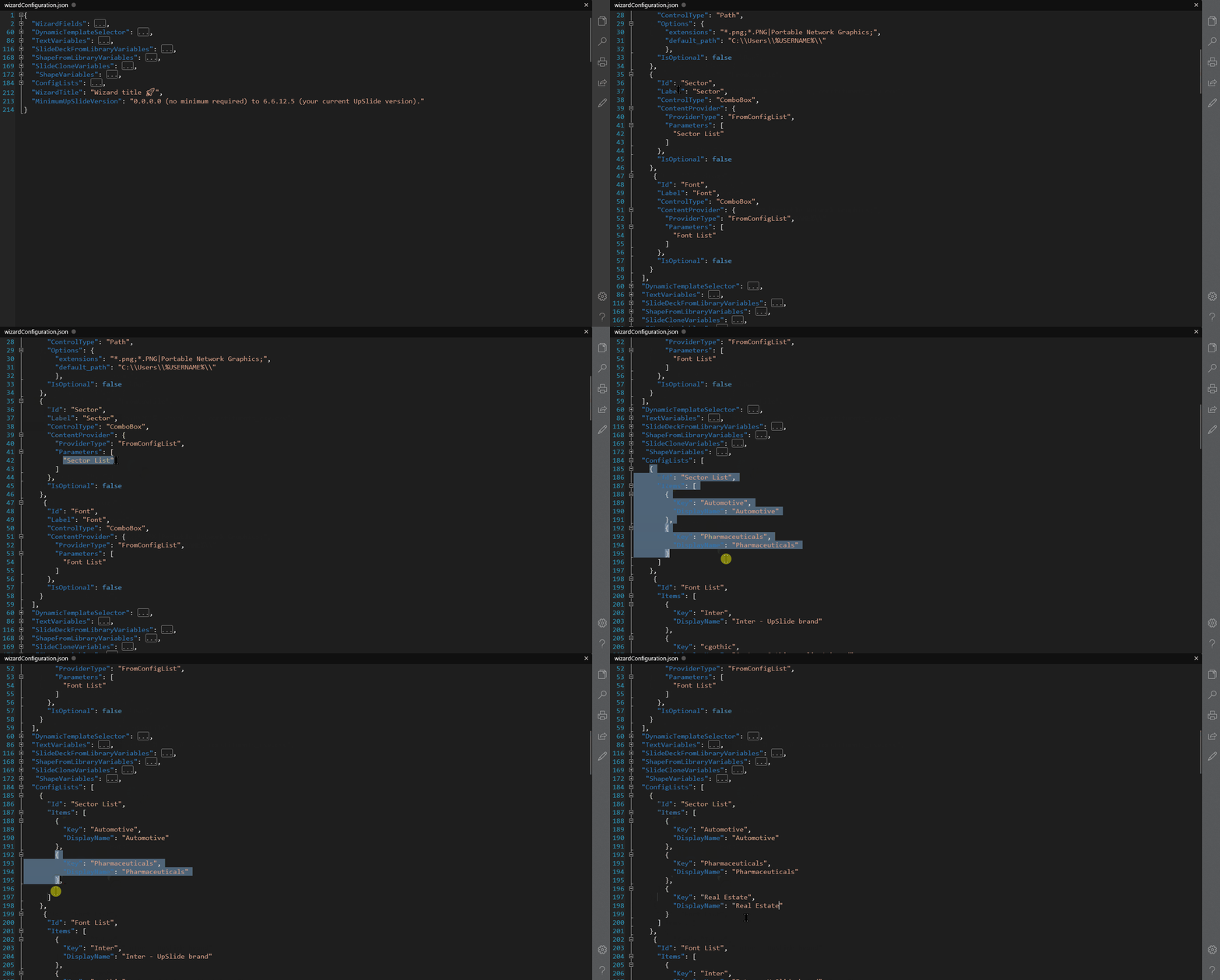
At this point, we recommend saving your JSON file and going to the Templates dropdown to make sure the new option is available in your Proposal Wizard.
Finding the UpSlide Slide Library Item ID
Every slide in the UpSlide Library has a unique ID associated with it used to tell the Proposal Wizard which slide to pull in when certain options are selected. To find the ID of the slide to include in the Proposal Wizard:
- Insert the slide from the UpSlide Library.
- Select it in your presentation and press Ctrl + Shift + X
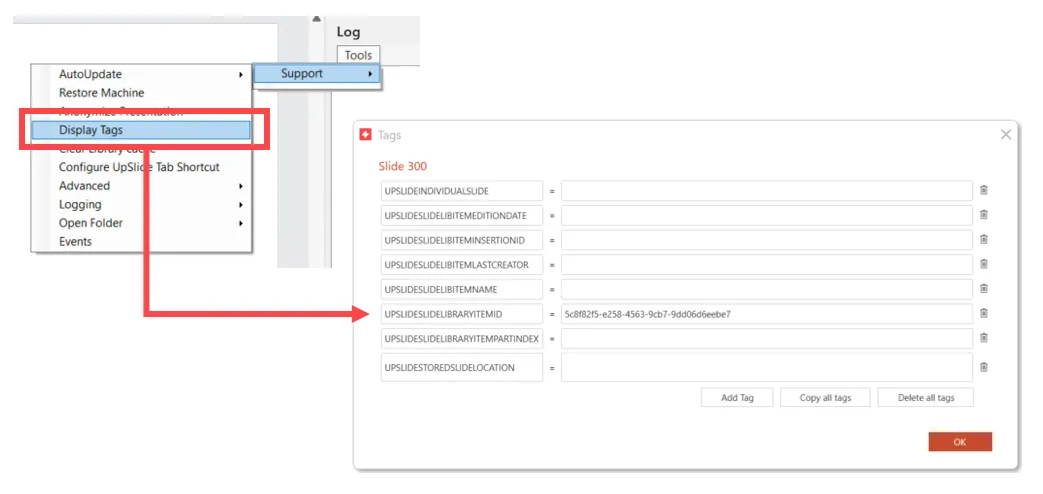
- The log pane will appear on the right of your screen, go to Advanced and select Display Tags
- In the pop-up copy the UPSLIDESLIDELIBRARYITEMID into a document as we’ll need this later
Writing the new logic for the slide
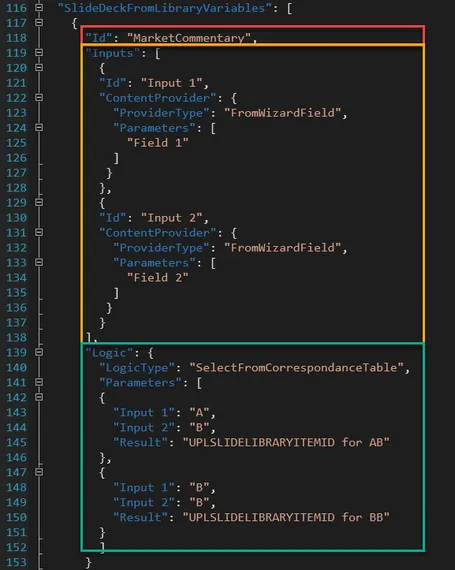
Now, we need to write the logic in the SlideDeckFromLibraryVariables section of the JSON file. This is number 2, as indicated in the Structure of the JSON file section of this article. There will already be a general structure for the logic of this particular slide type (e.g. for the Market Overview slides), you should only need to add a new option.
General structure of the Slide Deck From Library section
This area is composed of three main sections:
- Id (red box) refers to the general slide type e.g. Market Commentary, Timeline, About us, etc.
- Inputs (yellow box) refers to the Wizard fields you want to use to decide which slide to pull in.
- Logic (green box) puts together the fields and the slides.
Adding a new option to the Logic
For these changes you should only be editing the Logic section of the SlideDeckFromLibraryVariables. To add our new line of for the Real Estate Market Commentary slide we need to:
- Copy a line of existing code within the Logic section
- Add a line beneath this area of code by pressing Enter and paste the code
- Change the Inputs to be the new parameters (e.g. Sector: Real Estate)
- Paste the UPSLIDESLIDELIBRARYITEMID for the Real Estate slide that we found in the previous section of this article into the Result
You can now save the JSON file and test to ensure when you select Real Estate in the Proposal Wizard, the correct slide is pulled into the Market Overview.
An asterisk (*) is used to mean any value in the JSON file. Therefore if you are adding a new line of code which defines an option, e.g. Real Estate, make sure this line of code is above the generic (asterisk) line otherwise it won’t be selected.
Exporting your Proposal Wizard changes to your users
The changes are now active on your machine only. Test the changes you have made before sharing the update with your team. Follow the instructions on this page to export the .UpSlide file so everyone has the updated templates.